Browse help
What is it for?
Categories sort your products and services on one side and your expenses on the other: they group your products when you add a line to a document and break down your costs in the expense report. Units (hour, day, piece, kilogram…) are the ones you choose on a product or a document line.
Example. Mehdi sells electrical equipment in Fez and also does installations. He creates the categories « Matériaux & fournitures » (Materials & supplies) and « Prestations de services » (Services), and adds the unit « m » to invoice cable by the metre.
1. Manage your categories
- Open Paramètres → Catégories (Settings → Categories).
- Choose the Produits & Services (Products & Services) or Dépenses (Expenses) tab: each tab has its own list.
- Click Nouvelle catégorie (New category), enter the Nom * (Name), choose a Couleur (Colour) and, if you wish, a Description (optionnel).
- Click Enregistrer (Save).
Each row of the list shows the colour, the name, the description and the number of linked items (« 3 éléments », 3 items). The pencil lets you rename it or change the colour.
Add the default categories
The Ajouter les catégories par défaut (Add default categories) button creates a standard list in one go, without touching your existing categories: for example « Prestations de services », « Produits », « Consulting », « Location » (Rental) for products; « Loyer & charges » (Rent & charges), « Télécommunications », « Frais bancaires » (Bank fees), « Impôts & taxes » (Taxes) for expenses. The message tells you how many were added, or « Toutes les catégories par défaut sont déjà présentes. » (All default categories are already present.)
Next to the default categories, a « Compte suggéré : … » (Suggested account) badge proposes a number from the Moroccan chart of accounts. As the screen says, « Billora n'est pas un logiciel de comptabilité. Les comptes suggérés (icône calculatrice) sont indicatifs — plan comptable marocain simplifié, à confirmer avec votre expert-comptable. » (Billora is not accounting software. Suggested accounts are indicative — simplified Moroccan chart of accounts, to be confirmed with your accountant.) Nothing is saved: you can ignore it.
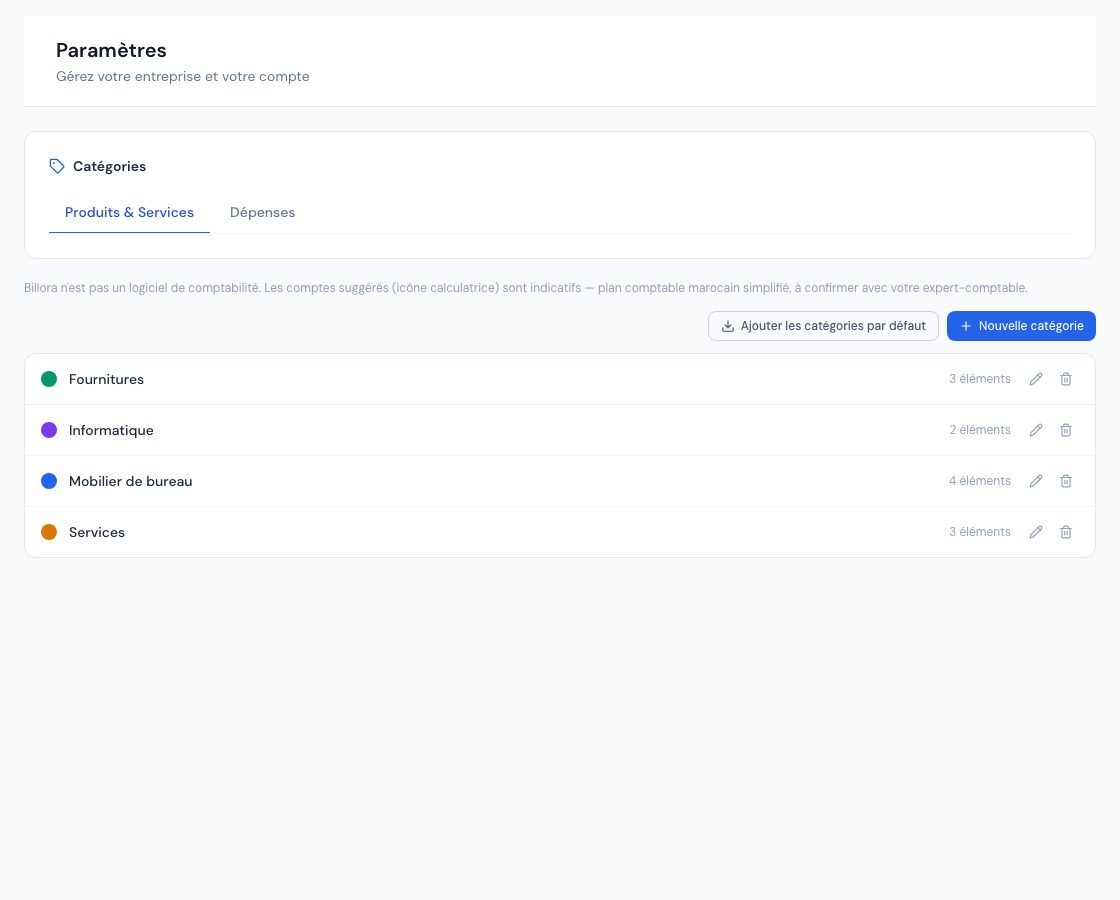 The « Catégories » (Categories) page with the product and expense categories.
2. Delete a category
Click the bin. A category can only be deleted if nothing uses it any more, and the window tells you so before any confirmation:
- Category still in use: the window is titled « Suppression impossible » (Deletion not possible) and says, for example, « Cette catégorie est utilisée par 3 produits (archivés compris) et ne peut pas être supprimée. Réassignez-les d'abord à une autre catégorie. » (This category is used by 3 products (archived included) and cannot be deleted. Reassign them to another category first.), or « … utilisée par 2 dépenses … » (… used by 2 expenses …) for an expense category. The only button is Compris (Understood): nothing is deleted.
- Unused category: the « Supprimer cette catégorie ? » (Delete this category?) window states « Aucun élément n'utilise « … ». Elle sera supprimée définitivement. » (No item uses « … ». It will be permanently deleted.). Confirm with Supprimer (Delete).
Archived products count too: first change the category of the products concerned from their record (archived ones included), then delete. For an expense category already in use, change the category of the expenses concerned, or keep it and rename it. The same window appears when you manage categories from the expenses page.
3. Manage units of measure
- Open Paramètres → Unités (Settings → Units). The « Unités de mesure » (Units of measure) card lists the units « disponibles dans vos documents et produits » (available in your documents and products).
- Click Ajouter (Add). In « Ajouter une unité » (Add a unit), enter:
- the Code (for example
h,kg,m2): « Identifiant unique utilisé dans les produits et lignes de document » (Unique identifier used in products and document lines); - the Libellé (Label, for example « Heure », « Kilogramme », « Mètre carré »).
- the Code (for example
- Click Ajouter (Add). The message « Unité créée » (Unit created) confirms it.
The Unités par défaut (Default units) button adds the standard list: Heure (h, hour), Jour (j, day), Pièce (pce, piece), Forfait (flat rate), Mois (month), Kilomètre (km), Kilogramme (kg), Mètre (m), Mètre carré (m2) and Litre (lt). Units already present are not duplicated.
A unit's code can no longer be changed after it is created: only the label can change. Deleting a unit removes it from the list, but « Les produits et documents utilisant cette unité conserveront la valeur actuelle. » (Products and documents using this unit will keep the current value.)
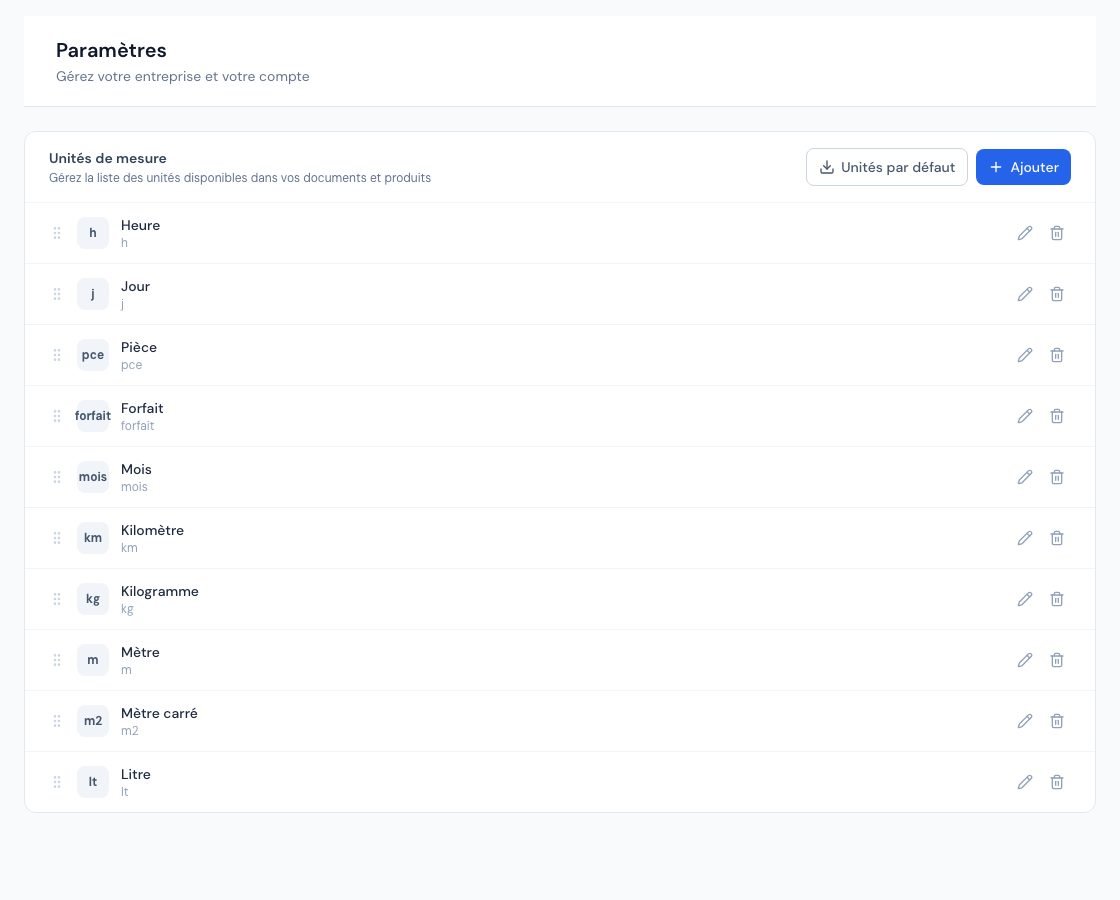 The units of measure page (« Unités »).
4. Who can change categories and units?
In Settings, the owner and administrators change categories and units. Collaborators and viewers see these pages read-only (the unit buttons are not shown to them). The external accountant has no access to settings.
Frequently asked questions
Is a product category also used for expenses?
No. The two lists are separate: the « Produits & Services » tab on one side, the « Dépenses » (Expenses) tab on the other.
Why can't I delete a category?
It is still in use: the « Suppression impossible » window tells you by how many products (archived included) or expenses. Reassign them to another category first, then delete it.
How do I fix a mistyped unit code?
The code cannot be edited. Create a new unit with the right code, use it, then delete the old one: existing documents keep their value.
Is the suggested account sent to my accountant?
No. It is an on-screen indication; nothing is saved. Have your accounting entries validated by your accountant.
Next steps
Related articles
Was this article helpful?
Invoice compliantly, effortlessly
DGI-compliant invoices, quotes, credit notes, VAT and supplier tracking in a single tool.
Try it free