Browse help
Every week, you probably repeat the same search: "unpaid invoices from Atlas Distribution", or "fuel expenses for the quarter". Instead of re-entering the same filters each time, you save them in a view and get them back in one click. You also choose the columns that are useful to you, and the indicators at the top of the page are recalculated according to your filters.
On 11 lists: Invoices, Quotes, Expenses, Clients, Payments received, Payments made, Credit notes, Purchase orders, Suppliers, Products and Cheques. It works the same way everywhere.
1. The two buttons above the list
To the right of the search bar, there are two buttons: « Vues » (Views) and « Colonnes » (Columns). Just above the table, the indicator cards (for example Total, Total incl. VAT, Collected, Unpaid, Overdue for invoices).
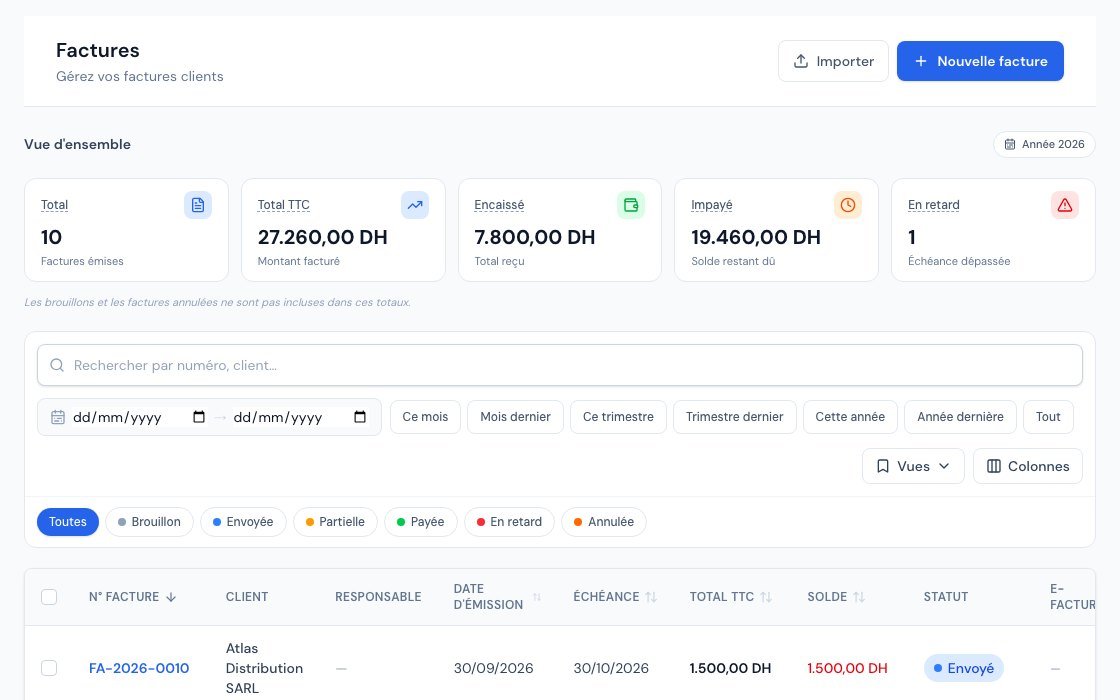 The invoice list with the indicators, the Views button and the Columns button.
2. Choose your columns
- Click « Colonnes » (Columns).
A menu opens with all possible columns, arranged in groups (Client, Document, Dates, Amounts, Follow-up, History…), and the counter "8 colonnes affichées" (8 columns displayed). - Tick the columns to display, untick the others.
The table changes immediately. The menu stays open so you can tick several. - To put everything back as it was, click « Colonnes par défaut » (Default columns).
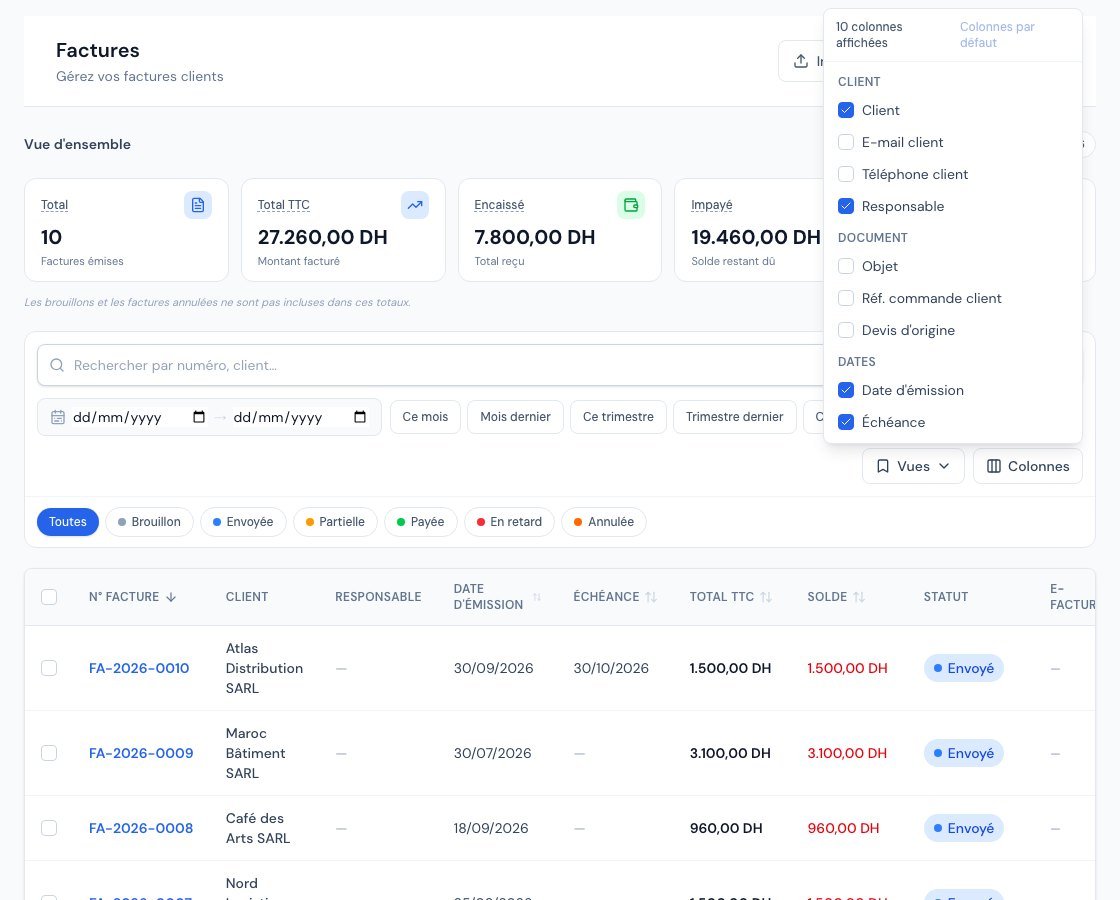 The Columns menu with the columns sorted into groups.
- Some columns can never be hidden: the number (or name) column and the actions column. They are not in the menu.
- Your choice is remembered for you, on your account: you find it again next time, on another computer too. Your colleagues keep their own columns.
- You will find columns that the list does not display by default: for example, on invoices, "Envoyée le" (Sent on), "Consultée par le client le" (Viewed by the client on), "Payée le" (Paid on), "Total HT" (Total excl. VAT), "Encaissé" (Collected) or "Relances envoyées" (Reminders sent).
- On a phone, the list turns into cards: the header stays fixed (number, client, actions), then your chosen columns are shown in the order of the menu.
3. Save a view
A view remembers three things: your filters (search, status, client, dates…), the sort order and the displayed columns.
- Set up your list the way you want it: type "Atlas" in the search, choose a status, sort, choose your columns.
- Click « Vues » (Views), then « Enregistrer la vue… » (Save the view…).
- Give it a short name, for example Factures Atlas (80 characters maximum).
- Click « Enregistrer » (Save).
The « Vues » button takes the name of your view: you know which one is active.
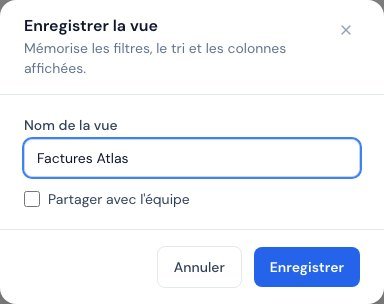 The Save the view window with the name and the Share with the team checkbox.
The window also offers the « Partager avec l'équipe » (Share with the team) checkbox (reserved for roles that can edit data). A shared view appears for your colleagues, under Partagées par l'équipe (Shared by the team). They can apply it, but cannot edit or delete it: only the person who created it can.
4. Find and manage your views
The « Vues » menu lists your views. One click on any of them applies its filters, sort order and columns all at once.
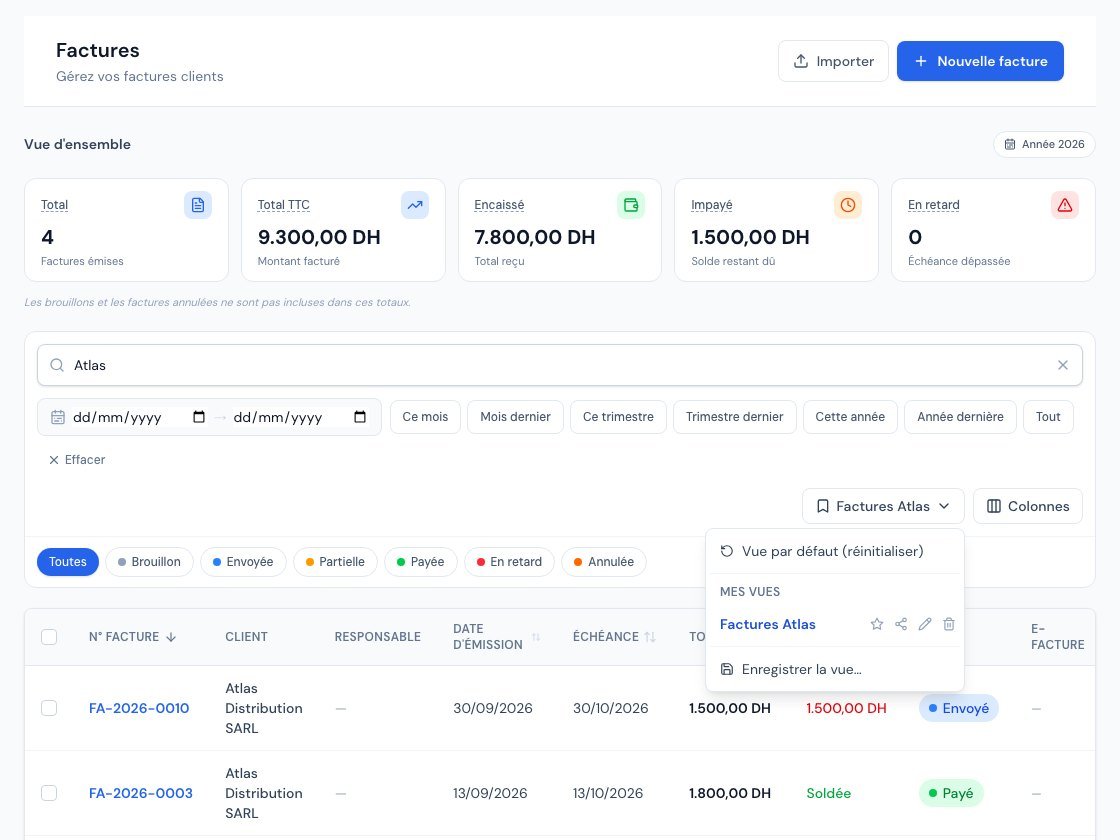 The Views menu with a saved view.
- Vue par défaut (réinitialiser) (Default view, reset): back to the "neutral" list, with no filter.
- Mes vues (My views) and Partagées par l'équipe (Shared by the team): on each row, a star lets you set it as default. On your own views, other icons let you share it or stop sharing it, rename it and delete it.
- (modifiée) (modified): if you change a filter after applying a view, this word appears next to its name. The menu then offers « Mettre à jour la vue … » (Update the view …) to save your changes in it, or « Enregistrer la vue… » to create a new one.
A view marked "default" applies by itself when you open the list. But if you arrive with filters in the address (for example by clicking an indicator on the dashboard), those filters take precedence: your default view does not override them. You can save up to 30 views per list.
5. Indicators that follow your filters
The cards at the top of the page are recalculated with the same filters as the table: period, search, status, client. With the search "Atlas", the cards only count Atlas's invoices. What you read at the top therefore always matches what you see below.
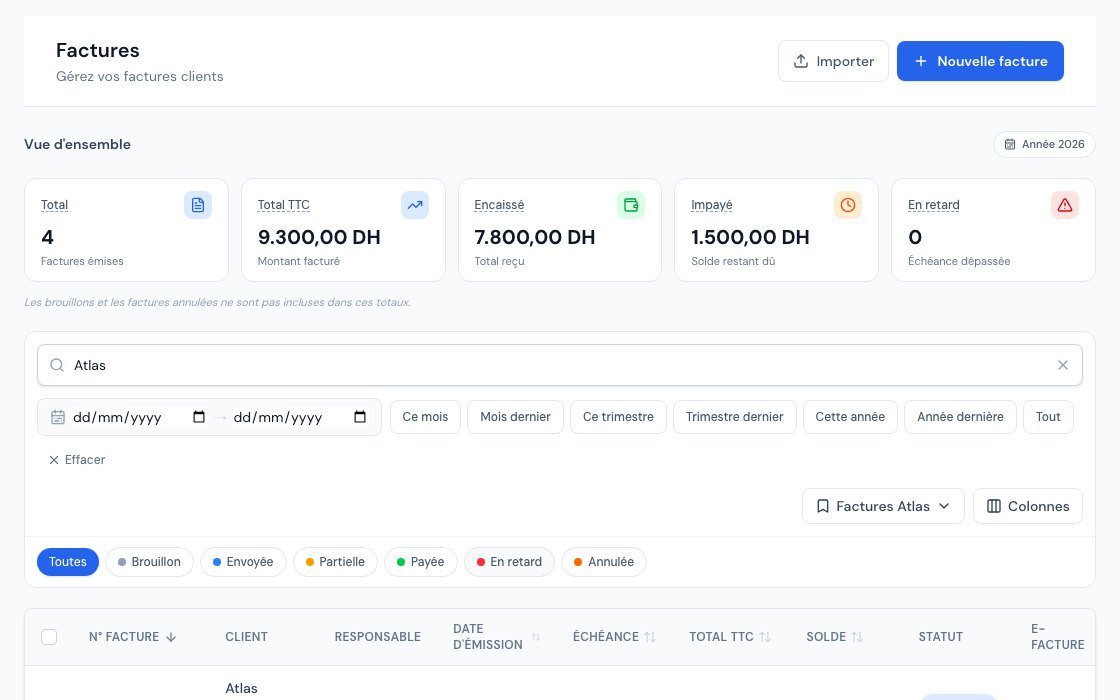 The list indicators recalculated for the searched client.
It is intentional: you can, for example, filter on a client and read in a second how much they still owe you. With no date chosen, an invoice list covers the current year (cards and table together). Hover over a card to read its explanation: it states what is counted, for example that drafts and cancelled invoices are excluded.
Frequently asked questions
Are my views visible to my colleagues?
No, unless you tick "Partager avec l'équipe". By default, a view is personal.
If I edit a view shared by a colleague, do I change it for everyone?
You cannot edit it: only its author can. You can apply it and set it as your default view.
Does a view save the dates I chose?
Yes, the start and end dates are kept as they are (for example 01/01 to 31/03). They therefore do not slide on their own to the next quarter: remember to update the view.
I deleted a view: are my invoices lost?
No. A view is only a display setting. The confirmation message reminds you: "Vos données ne sont pas modifiées." (Your data is not changed.)
A column I am looking for is not in the menu.
Some columns are only offered if they make sense for you: for example, the "e-Facture" column only appears if e-invoicing is enabled.
Next steps
Related articles
Was this article helpful?
Invoice compliantly, effortlessly
DGI-compliant invoices, quotes, credit notes, VAT and supplier tracking in a single tool.
Try it free