Browse help
Documents that reflect your brand
Your invoices, quotes, credit notes, purchase orders and delivery notes are generated as A4 PDFs. Billora lets you choose their template, place your logo, set the colours, the language and the font, and see the result live.
Example. Omar runs a travel agency in Tangier. He wants clean invoices, with his logo at the top left and his brand's blue colour. He opens the templates page, uploads his logo, chooses his colours, looks at the preview on the right, then saves.
Where are templates set?
Open Paramètres → Modèle de facture (Settings → Invoice template). The page has four tabs: Modèles (Templates), Identité visuelle (Visual identity), Papier à en-tête (Letterhead) and Options du document (Document options). An « Enregistrer » (Save) button at the bottom of the page saves the settings of all tabs together (message « Paramètres sauvegardés. » (Settings saved.)).
The live preview appears on the right on a large screen; on a smaller screen, use the « Afficher l'aperçu en direct » (Show live preview) button.
« Modèles » tab
- Invoice template: four templates are offered, Classique (Classic) (table, totals and footer), Moderne (Modern) (coloured banner, airy typography), Minimaliste (Minimalist) (very clean) and Compact (condensed, fits on one page). The Classique template is always available; the others depend on your subscription, with the plan shown on the page if needed.
- Other documents: by default, quotes, purchase orders, delivery notes and credit notes use the invoice template. Choosing a different template per document type also depends on your subscription.
- On a medium or small screen, each template offers an « Aperçu » (Preview) link that opens a sample PDF, generated with fictitious data (your details and your logo are included). On a large screen, the live preview on the right plays this role.
« Identité visuelle » tab
The « Logo et nom sur les documents » (Logo and name on documents) card includes:
- « Téléverser mon logo » (Upload my logo) (then « Remplacer le logo » (Replace the logo) or « Retirer » (Remove)). PNG and JPEG formats are accepted; a PNG with a transparent background gives a cleaner result. Your logo's proportions are always preserved.
- « Afficher mon logo sur les documents » (Show my logo on documents): uncheck it to not print the logo (the company name is still printed).
- The Taille du logo (Logo size) and the Position du logo (Logo position), with a preview at A4 page scale.
- The Taille du nom de l'entreprise (Company name size), the Position du nom (Name position) and the Position du titre, du numéro et des dates (Title, number and dates position).
The « Couleurs des documents » (Document colours) card offers a Principale (Primary) colour (titles, table headers, Total incl. VAT banner) and a Secondaire (Secondary) colour (banner of the Modern template). They depend on your subscription: if they are not included, the card is greyed out and indicates the plan that offers them.
Number and date style
In the header of your PDFs, the document number and the date lines (date, due date, terms, customer reference) can be enlarged, coloured or set in bold: useful if you want the invoice number to stand out at a glance.
- Open Paramètres → Modèle de facture, « Identité visuelle » tab.
- Find the « Numéro, dates et conditions » (Number, dates and terms) card.
- Set the Taille (Size) (Petit (Small), Moyen (Medium), Grand (Large) or Très grand (Extra large)), the Couleur (Colour) (Automatique (Automatic), Principale, Secondaire, Texte foncé (Dark text) or Personnalisée (Custom)), the Graisse des lignes (Line weight) (Normal or Gras (Bold)) and the Police (Font) (« Comme le document » (Same as the document) by default).
A small live preview shows the result, and the PDF preview on the right updates. - Click Enregistrer at the bottom of the page.
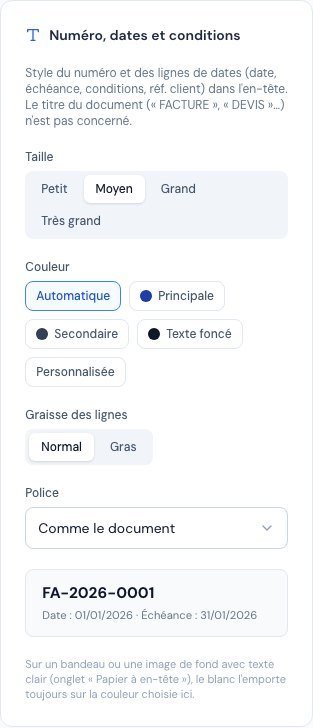 The Number, dates and terms card in the invoice template settings.
- The document title (« FACTURE », « DEVIS »…) is not affected: only the number and the date lines change.
- This setting applies to all your PDF documents (invoices, quotes, credit notes, purchase orders, delivery notes, proforma invoices, receipts). If there is Arabic in the document, the font adapts on its own.
- On a banner or a background image with light text (« Papier à en-tête » tab), white wins out to stay legible.
- The Personnalisée colour depends on your subscription: if it is not included, the choice is greyed out with the plan that offers it. A colour that is hard to read on a white background triggers a contrast warning.
« Papier à en-tête » tab
This tab lets you add a banner at the top or bottom of the page, a background image and margins. It depends on your subscription (a padlock is shown if it is not included). It is explained in detail, with examples, in Header, footer and letterhead.
« Options du document » tab
- Language and font: the default language of your PDFs (Français, Anglais (English), Arabe (Arabic) or Bilingue (Français / Arabe) (Bilingual)) and the font. For Arabic, choose a compatible font: Billora warns you otherwise.
- Signature and stamp position: the corner of the page (top left, top right, bottom left, bottom right) where your signature and your stamp appear. This option depends on your subscription.
These settings are default values: on a specific invoice, the « Présentation du PDF » (PDF layout) card of the form lets you choose another language or another font for that document only.
Texts, footer, stamp and signature
These elements are set in Paramètres → Informations (Settings → Information) (see Set up your company):
- « Valeurs par défaut des documents » (Document defaults): three tabs (Factures, Devis, Bons de commande) for the texts « Conditions de facturation » (Billing terms), « Conditions des devis » (Quote terms) and « Conditions du bon de commande » (Purchase order terms), pre-filled in each new document and editable document by document.
- « Aperçu du pied de page » (Footer preview): an automatic footer is built from your legal and banking information. The « Modifier » (Edit) button lets you customise it (bold, italic, lists) and « Réinitialiser » (Reset) goes back to the automatic one. Editing depends on your subscription.
- « Conditions générales de vente (CGV) » (General terms of sale): a small-print text, repeated at the bottom of your PDF documents.
- « Options d'affichage sur les documents » (Display options on documents): the company stamp, the signature and the « Payé » (Paid) stamp on settled invoices, each depending on your subscription.
When an option is not included in your subscription, the page does not break anything: the option is greyed out with the plan from which it is available, and the document is generated with the default value.
Frequently asked questions
My logo is too big or too small on the PDF.
Adjust the « Taille du logo » in the « Identité visuelle » tab and look at the A4-scale preview.
My stamp or signature does not appear.
Check in Paramètres → Informations that the option is ticked, that the image is uploaded and that the option is included in your subscription.
Can I have a different template for quotes?
Yes, in the « Modèles » tab, « Autres documents » section, if your subscription includes it.
Can I change the language of a single invoice?
Yes: in the invoice form, « Présentation du PDF » card, choose the language and font for that document.
Next steps
Related articles
Was this article helpful?
Invoice compliantly, effortlessly
DGI-compliant invoices, quotes, credit notes, VAT and supplier tracking in a single tool.
Try it free