Browse help
What is it for?
The tax compliance certificate (attestation de régularité fiscale) is an official document issued by the DGI (Moroccan tax administration). It certifies that your company is up to date with its tax obligations (IS/IR, VAT, returns); it is required in particular for public contracts, and many clients ask for it before paying. The Paramètres → Attestation fiscale (Settings → Tax certificate) page keeps it at hand so you can send it in two clicks.
Example. Imane runs a cleaning company in Kenitra. A public-sector client asks for her certificate with every invoice. She uploads it once into Billora, notes its validity date, then ticks « Joindre l'attestation de régularité fiscale (DGI) » (Attach the tax compliance certificate) each time she sends an invoice.
This page is about your company's certificate. To track the expiry of a supplier's certificate, see Track your suppliers' tax compliance certificate.
1. Get the certificate from the DGI
The blue box on the page recalls the procedure:
- Create a professional space on the tax.gov.ma portal if you do not have one (have your IFU, single tax identifier, ready).
- In the « Attestations » section, use the Simpl-Attestations online service. According to the DGI, the certificate is issued as a PDF if you are up to date with your returns and payments.
- Download the official PDF, then upload it into Billora.
Billora does not issue the certificate and does not check its content: only the DGI is authoritative.
2. Upload your certificate
- Open Paramètres → Attestation fiscale (Settings → Tax certificate).
- Click the Importer votre attestation DGI (Upload your DGI certificate) area and choose the file: « PDF ou photo · 10 Mo max » (PDF or photo · 10 MB max).
- The green « Attestation importée » (Certificate uploaded) box appears, with the upload date (« Importée le … »).
The file takes up room in your storage space. If it does not fit in the remaining space, the upload is refused and nothing is saved (see Understanding plans and limits).
3. Enter the end-of-validity date
- In the green box, enter the Date de fin de validité (End-of-validity date) read on the certificate.
- Click Enregistrer la date (Save the date). (The Effacer (Clear) button empties the field; then save to remove the date.)
A badge then shows the status: green « Valide jusqu'au … » (Valid until), orange « Expire dans N j (…) » (Expires in N days) 30 days or less before the deadline, red « Expirée le … » (Expired on). This badge is shown on this page; check it before answering calls for tender.
When you replace the file with a more recent certificate, the old validity date stays in place: enter the new date and click « Enregistrer la date » (Save the date).
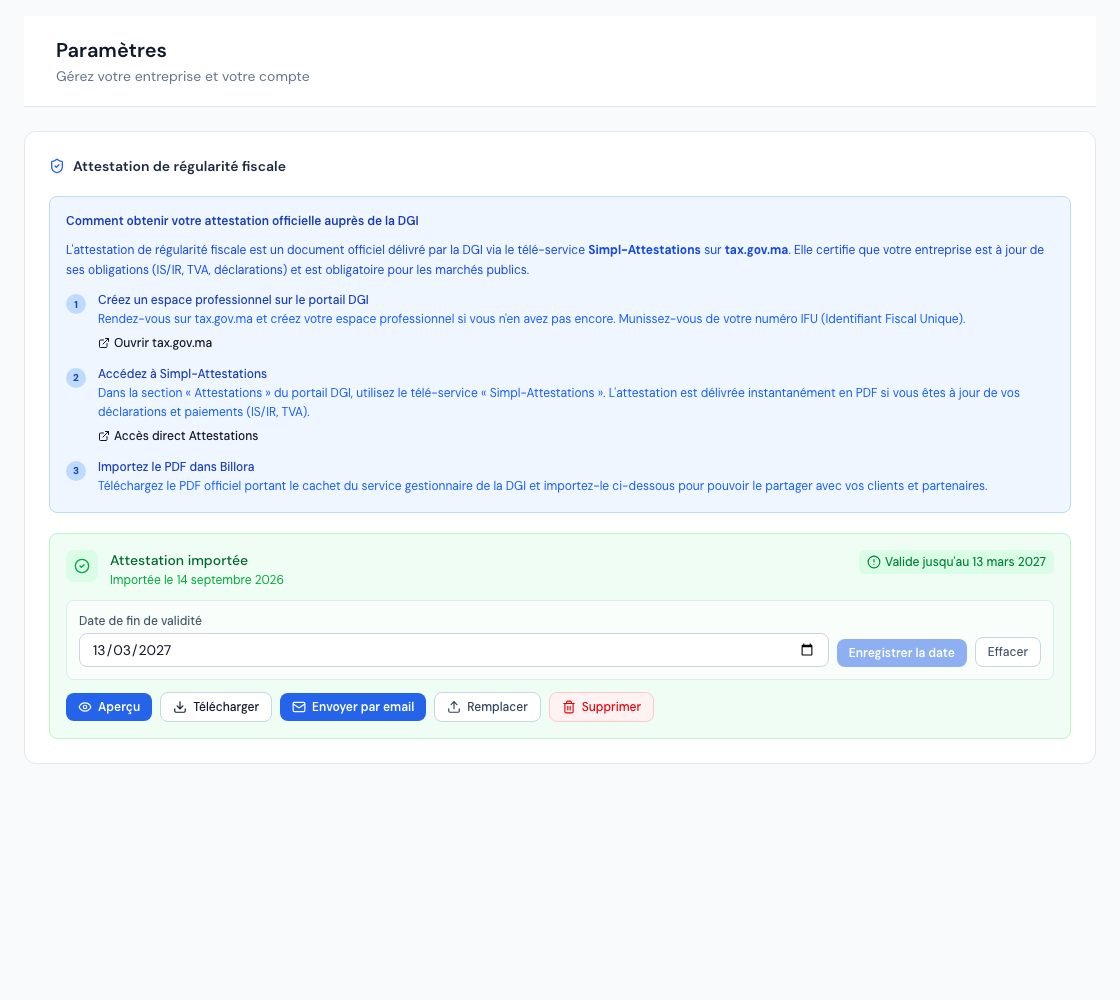 The « Attestation de régularité fiscale » (Tax compliance certificate) page with the imported certificate and its validity date.
4. Send the certificate to a client
From this page: click Envoyer par email (Send by email). In « Envoyer l'attestation de régularité fiscale » (Send the tax compliance certificate), enter the Email du destinataire * (Recipient email), a Message personnalisé (optionnel) (Custom message, optional), then Envoyer (Send). The client receives an email « Attestation de régularité fiscale — [your company name] » with the file attached. Without a custom message, a default text presents the document.
Elsewhere in Billora, the same window opens from:
- the actions menu of an invoice in the list (« Attestation de régularité fiscale »);
- a client's or supplier's record, and a purchase order page (« Attestation » button).
Attached to an invoice: in the window for sending an invoice by email, tick Joindre l'attestation de régularité fiscale (DGI) (Attach the tax compliance certificate). This box only appears if a certificate has been uploaded (see Send an invoice by email).
5. View, replace or delete
- Aperçu (Preview): shows the document in Billora. Télécharger (Download): gets the file.
- Remplacer (Replace): uploads a new file in place of the old one.
- Supprimer (Delete): after confirmation (« Le fichier sera définitivement retiré. Vous pourrez en importer un nouveau. », The file will be permanently removed. You can upload a new one.), the certificate and its validity date are removed.
Each upload, deletion, date change and send is recorded in the activity log.
6. Who can do what?
- Owner, administrators and collaborators: upload, replace, delete, set the date and send.
- Viewers: view (Aperçu) and download only.
- External accountant: no access to this page.
Frequently asked questions
Does Billora check that my certificate is valid?
No. Billora keeps the file and the date you enter. Only the DGI issues the certificate and is authoritative.
Can I upload a photo instead of the PDF?
Yes, a photo is accepted (10 MB maximum). Prefer the official PDF when you have it: it is easier to read for your clients.
Will I be warned when my certificate expires?
The badge on the page turns orange 30 days before the end-of-validity date, then red once expired. Check the page regularly.
I do not see the « Joindre l'attestation » box when sending an invoice.
No certificate has been uploaded: the window then offers a link to Paramètres → Attestation fiscale (Settings → Tax certificate). Upload it, then reopen the send window. In the mobile app, the message says « Aucune attestation de régularité fiscale n'est enregistrée. Importez le PDF officiel DGI depuis Plus → Paramètres → Attestation fiscale. » (No tax compliance certificate is saved. Upload the official DGI PDF from More → Settings → Tax certificate.)
Next steps
Related articles
Was this article helpful?
Invoice compliantly, effortlessly
DGI-compliant invoices, quotes, credit notes, VAT and supplier tracking in a single tool.
Try it free