Browse help
What is a delivery note for?
The delivery note (BL, « bon de livraison ») travels with the goods: it lists the items and quantities handed over to the client, without any price. The client signs it on receipt. In Billora, every delivery note is attached to an invoice.
Example. Hamza sells electrical equipment in Tangier. He invoices 40 rolls of cable to a building site in Tetouan, but only delivers 30 this week. From the invoice, he creates the delivery note, lowers the quantity to 30 and hands the PDF to the driver.
Delivery notes depend on your subscription. If they are not included, the Bons de livraison (Delivery notes) page shows « Fonctionnalité verrouillée » (Locked feature) and « Les bons de livraison sont disponibles à partir du plan … » (Delivery notes are available from the … plan) with the Voir les plans (See plans) button; on the page of an invoice without a delivery note, the Bon de livraison card says « Les bons de livraison ne sont pas inclus dans votre plan. » (Delivery notes are not included in your plan.). In test mode, everything is open.
If you had created delivery notes and your subscription no longer includes them, they remain viewable: from the invoice, click the note's number or Voir le détail (See details) to open its page and download its PDF. However, you can no longer create, edit, issue, cancel or delete a delivery note: the page shows « Modification des bons de livraison disponible à partir du plan … » (Editing delivery notes available from the … plan). Billora applies the same rule in the mobile app and also checks it on the server.
1. Create the delivery note of an invoice
A delivery note is created only from an invoice page: the Bons de livraison page is for finding them, not creating them.
- Open the invoice (menu Factures (Invoices), then click the invoice).
- Scroll down to the Bon de livraison (Delivery note) card, which says « Aucun bon de livraison pour cette facture. » (No delivery note for this invoice.).
- Click Créer un bon de livraison (Create a delivery note). The Créer un bon de livraison window opens.
- Check the Date d'émission (Issue date, today by default) and add Notes if needed (« Notes ou instructions de livraison… », delivery notes or instructions).
- In Lignes de livraison (Delivery lines), the invoice lines are already copied: product code, name and description, quantity, unit. Adjust the quantities actually delivered, remove the lines not delivered or add a line (item, comment, section, separator). The invoice subtotals are not copied, since a delivery note has no prices.
- Click Créer (Create). The note immediately gets its number and the Émis (Issued) status.
If a note already exists, Billora refuses to create a second one: « Un bon de livraison existe déjà pour cette facture » (A delivery note already exists for this invoice). Edit the existing note instead. The button does not appear on a cancelled invoice or one cancelled by a credit note either (« Impossible de créer un bon de livraison pour une facture annulée », cannot create a delivery note for a cancelled invoice).
Possible messages when saving: « Toutes les lignes doivent avoir un nom ou une description. » (All lines must have a name or a description.) and « Au moins une ligne de livraison est requise. » (At least one delivery line is required.).
2. Find your delivery notes
The Bons de livraison menu lists all your delivery notes.
- The counters at the top: Total, Émis (Issued), Brouillons (Drafts), Annulés (Cancelled).
- The search « N° BL, N° facture, client… » (note no., invoice no., client…) and the status filter (« Tous les statuts » (All statuses), « Émis », « Brouillon », « Annulé »).
- The columns: Numéro (Number), Date, Facture (Invoice, clickable), Client, Lignes (Lines), Statut (Status).
- The actions of each row: Voir le PDF (View PDF), Consulter (Open), Voir la facture (View invoice). The Actualiser (Refresh) button reloads the list.
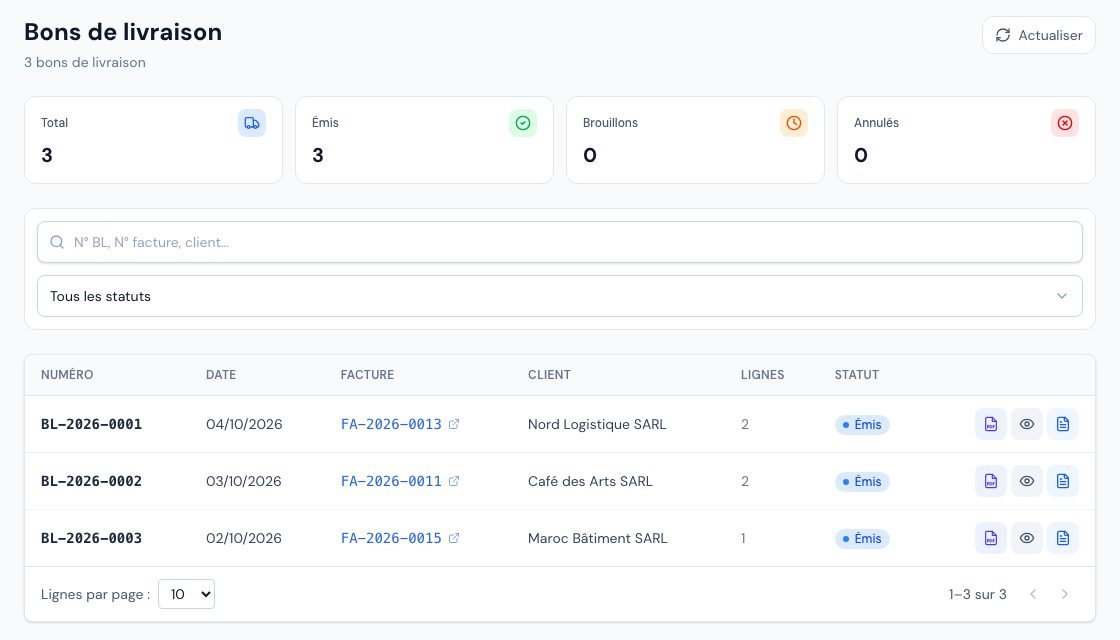 The list of delivery notes (« Bons de livraison »).
3. What does the delivery note page contain?
Click a row in the list (or the note number in the invoice, then Voir le détail (View details)). The page shows:
- Facture liée (Linked invoice): its number, the client and the invoice amount incl. VAT;
- Paiements de la facture (Invoice payments), when there are any: the amount paid, the balance due and each payment (clickable);
- Articles livrés (Items delivered): code, description, quantity, unit, with the number of items and the total quantity;
- any Notes;
- the Actions rapides (Quick actions) card: PDF, Émettre (Issue, drafts only), Facture (Invoice), Modifier (Edit), Annuler (Cancel, issued notes only) and Supprimer (Delete).
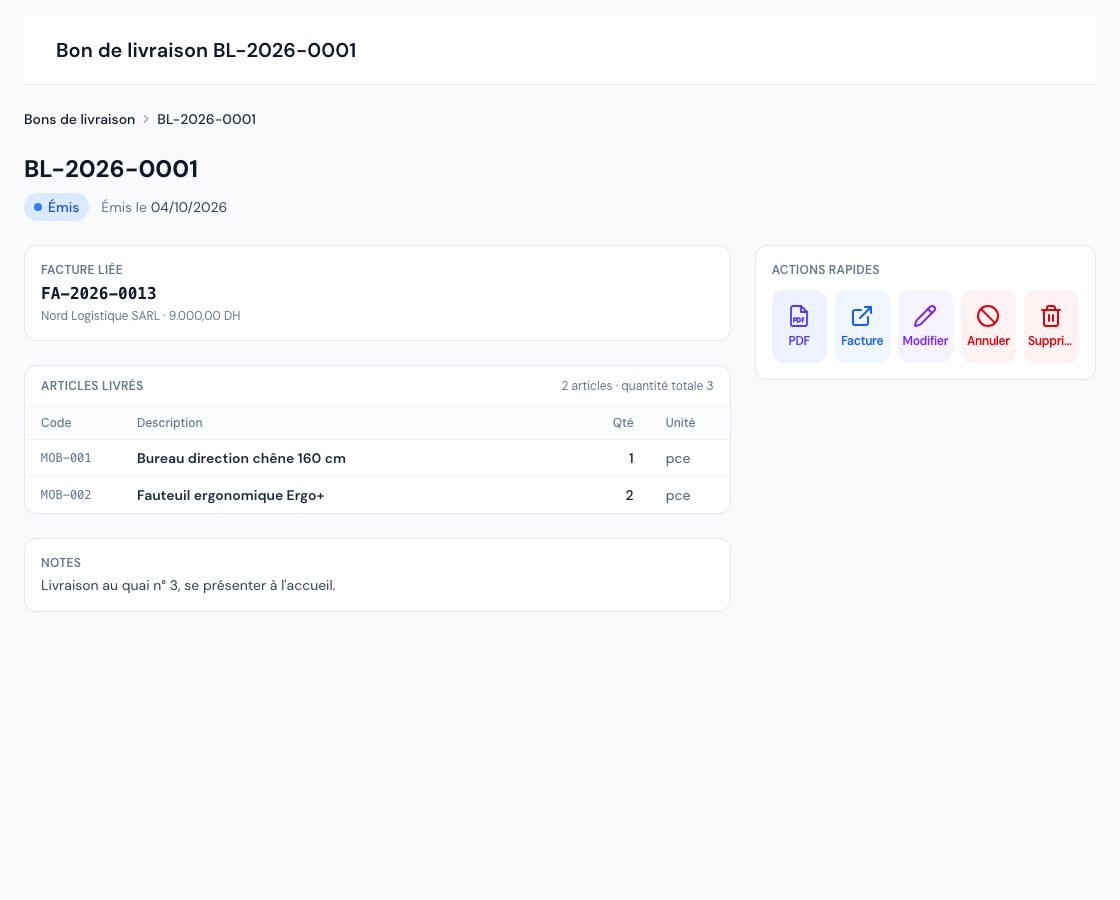 An issued delivery note's page with its delivered items and its quick actions.
4. Issue, edit, cancel or delete a note
| Status | What you can do |
|---|---|
| Brouillon (Draft) | Edit, then Émettre (« Passer le BL … du statut « brouillon » à « émis » ? », move note … from draft to issued?). On the invoice page, the link is called Marquer émis (Mark as issued). |
| Émis (Issued) | Edit (date, notes, lines), cancel or delete. |
| Annulé (Cancelled) | View and download the PDF. No more changes: « Impossible de modifier un bon de livraison annulé » (A cancelled delivery note cannot be edited). |
- Modifier opens the Modifier le bon de livraison (Edit the delivery note) window; save with Modifier.
- Annuler asks for confirmation: « Annuler le BL … ? Cette action est irréversible. » (Cancel note …? This action is irreversible.).
- Supprimer erases the note permanently (« Supprimer définitivement le BL … ? », permanently delete note …?). The invoice can then receive a new delivery note.
A cancelled note cannot go back to « Émis », and a deleted note cannot be recovered. If in doubt, edit the note instead.
5. The delivery note PDF
- The PDF button (delivery note page, invoice card or Voir le PDF in the list) opens the preview, which you can download or print.
- The PDF shows your details, the client's (with their ICE if filled in), the date, the linked invoice, then the code, description, quantity and unit columns, and your notes. No price or total appears.
- Your stamp and signature are added according to your document settings. The layout template is chosen in Paramètres → Modèle de facture (Settings → Invoice template), line Bons de livraison (see Customize your documents).
- Billora does not send the delivery note by email: download the PDF and give it to the driver or the client.
6. Does the delivery note change the stock?
No. The delivery note is an accompanying document: creating, editing, cancelling or deleting it never touches the stock. In Billora, it is sending the invoice that takes tracked products out of stock (see Stock movements).
7. How is the delivery note numbered?
The number is assigned on creation, with the BL prefix by default. You can change this prefix and the format in Paramètres → Numérotation (Settings → Numbering), line Bons de livraison (see Document numbering). Delivery note numbering is independent from invoice numbering.
8. Who can create or edit a delivery note?
- Owner, administrator and collaborator: create, edit, issue, cancel and delete.
- Viewer: view and download the PDF, without any editing action.
- External accountant: the Bons de livraison entry does not appear in their menu.
Frequently asked questions
Can I create a delivery note from a quote?
No, only from an invoice. First convert the quote into an invoice (see Convert a quote into an invoice), then create the note from the invoice.
I deliver in two goes: can I make two notes for the same invoice?
No, an invoice has only one delivery note. Enter the quantities delivered, then edit the note at the next delivery.
Why don't the prices appear?
That is intended: a delivery note only lists items and quantities. The amounts stay on the invoice.
The « Créer un bon de livraison » button does not appear. Why?
Either the invoice is cancelled (or cancelled by a credit note), or your role is read-only, or the feature is not included in your subscription (the card then says so). Delivery notes already created remain viewable, with their PDF.
Next steps
Related articles
Was this article helpful?
Invoice compliantly, effortlessly
DGI-compliant invoices, quotes, credit notes, VAT and supplier tracking in a single tool.
Try it free