Browse help
What is it for?
When you send an invoice, a quote or a reminder from Billora, your client receives an email. The Paramètres → Email (Settings → Email) page decides under which name it arrives, where replies go and through which server it is sent.
Example. Nadia runs a travel agency in Marrakech. She sets « Atlas Voyages » as the sender name and her contact address as the reply address: her clients see the agency's name and, when they reply, the answer lands in her usual inbox.
1. Set the sender name and reply address
The Paramètres d'envoi (Sending settings) card concerns « les emails envoyés à vos clients (factures, devis, relances) » (emails sent to your clients — invoices, quotes, reminders).
- Nom d'expéditeur (Sender name): the name shown as « De : … » (From) to your client (for example your company name).
- Email de réponse (Reply-To): « Si votre client répond, sa réponse sera envoyée à cet email. » (If your client replies, the reply will be sent to this email.) If empty, replies go to your company email address (Settings → Information).
- Click Enregistrer (Save) at the bottom of the page. The message « Configuration email mise à jour. » (Email configuration updated) confirms it.
2. Choose the sending server
The Serveur d'envoi (SMTP) (Sending server) card offers two modes:
- Billora Mail (« Inclus » badge, Included): « Utilise le serveur SMTP configuré par l'administrateur Billora. Aucune configuration requise de votre part. » (Uses the SMTP server configured by the Billora administrator. No configuration needed on your side.) This is the default mode.
- SMTP personnalisé (Custom SMTP): « Utilisez votre propre serveur SMTP (Gmail, Mailgun, OVH…). » (Use your own SMTP server.) Your emails then leave from your own address.
Custom SMTP depends on your subscription. If it is not included, the card is greyed out with the mention « À partir du plan … » (From the … plan) and your emails leave through Billora Mail, even if you had configured your own server before. That configuration is not erased: it stays saved, is simply no longer used, and resumes automatically if your subscription includes custom SMTP again. Billora also checks this right on the server, at each sending. In test mode, everything is open.
Configure your custom SMTP
- Click the SMTP personnalisé (Custom SMTP) card.
- Fill in Hôte SMTP (SMTP host), Port (587 by default), Utilisateur SMTP (SMTP user), Mot de passe SMTP (SMTP password) and Adresse From (From address: « L'adresse email utilisée comme expéditeur dans les en-têtes », the email address used as sender in the headers). Your email provider gives you this information.
- Click Enregistrer (Save).
Once saved, the password field stays empty when the page opens: « Déjà enregistré — laissez vide pour le conserver, ou tapez un nouveau mot de passe pour le remplacer. » (Already saved — leave empty to keep it, or type a new password to replace it.)
If one of the fields (host, port, user, password, From address) is missing, Billora does not use your server: the email leaves through Billora Mail. Send a test after every change.
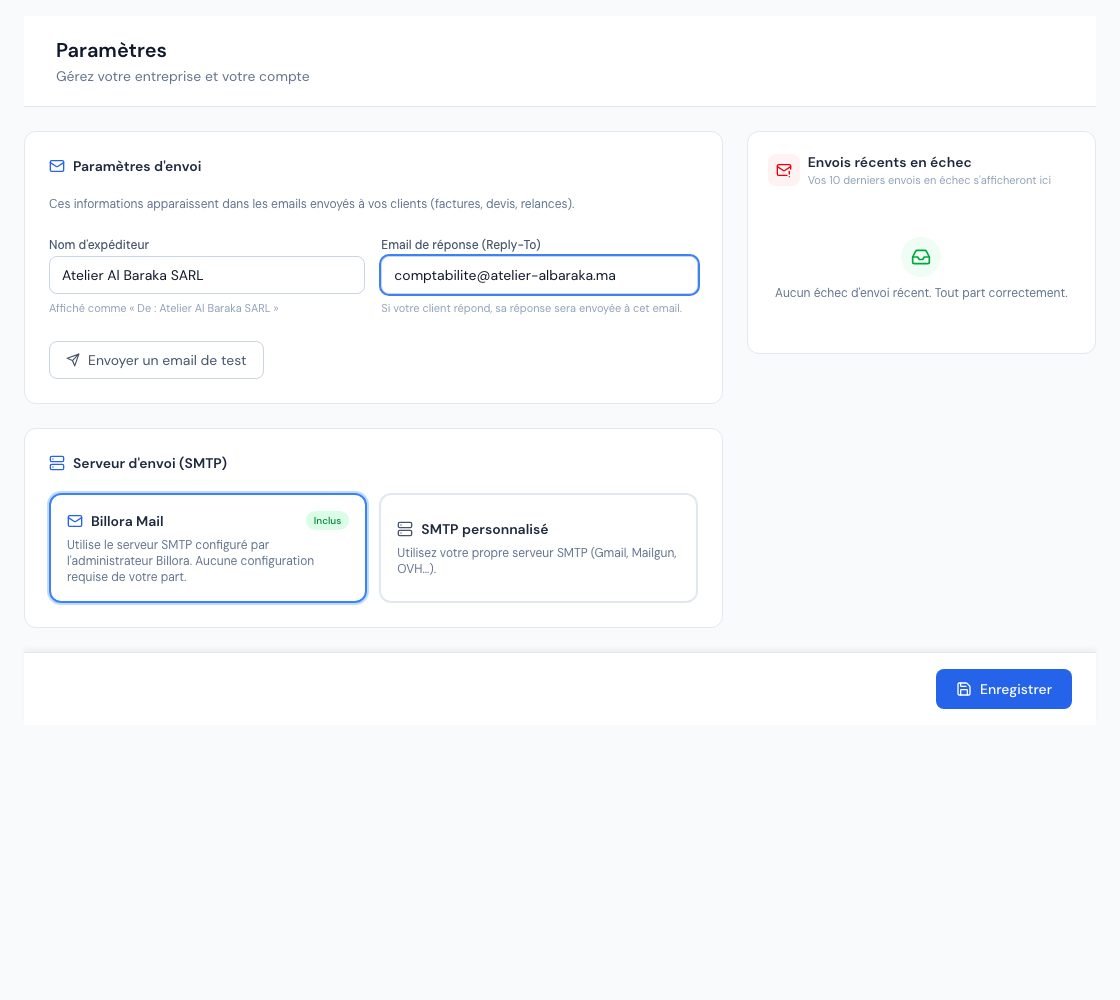 The email sending page with the sender and the choice of sending server.
3. Send a test email
- Save your settings first: the test uses the saved configuration.
- Click Envoyer un email de test (Send a test email) in the « Paramètres d'envoi » card.
- The « Test SMTP — Billora » email goes to your Email de réponse (reply email) — failing that, to the Adresse From. So fill in one of the two before testing.
- On success: « Email de test envoyé avec succès. Vérifiez votre boîte de réception. » (Test email sent successfully. Check your inbox.) On failure, Billora translates the error, for example « Identifiants SMTP invalides — vérifiez l'utilisateur et le mot de passe dans les paramètres. » (Invalid SMTP credentials — check the user and password in the settings.)
4. Follow failed sends
The Envois récents en échec (Recent failed sends) column lists your latest undelivered or rejected emails, 10 at most: the document concerned, the subject, the recipient and the reason, translated into French (address refused, mailbox full, server unreachable…). Its subtitle is about failures, not all your sends: for example « Vos 3 envois en échec (non remis ou rejetés) » (Your 3 failed sends, undelivered or rejected), or « Vos 10 derniers envois en échec (non remis ou rejetés) » (Your last 10 failed sends) when the list is full. If all is well: « Aucun échec d'envoi récent. Tout part correctement. » (No recent send failure. Everything is going out correctly.)
- For an invoice, a quote, a credit note or a purchase order, the Renvoyer (Resend) button regenerates the PDF and sends the email again (« Renvoyé avec succès. », Resent successfully).
- When several recipients of the same send failed, each address is listed with its reason.
- A send failure also triggers an « Échec d'envoi d'un e-mail » (Email send failure) notification that brings you back to this page.
5. Who can change these settings?
The owner and administrators change the configuration and send the test email. Collaborators and viewers see the page read-only. The external accountant has no access to settings.
Frequently asked questions
Does my client see « Billora » as the sender?
They see the Nom d'expéditeur (Sender name) you entered. With Billora Mail, the technical sending address is Billora's, and replies go to your reply address.
Where do I change the text of the emails?
In Paramètres → Modèles d'e-mails (Settings → Email templates) (see Email templates). The Email page only sets the sender and the server.
The test email does not arrive.
Check the reply address (it is the one that receives the test), your spam folder, then the « Envois récents en échec » (Recent failed sends) column.
I changed my password at my email provider.
Enter the new one in Mot de passe SMTP (SMTP password), save, then send a test email.
Next steps
Related articles
Was this article helpful?
Invoice compliantly, effortlessly
DGI-compliant invoices, quotes, credit notes, VAT and supplier tracking in a single tool.
Try it free