Browse help
What is the Reconciliation report for?
Reconciling means checking that each movement on your bank statement matches a payment recorded in Billora, and vice versa. For a given period, this report lists all your receipts (payments received) on the left and all your disbursements (payments made) on the right, with the totals and the net.
Example. Youssef runs a hardware store in Agadir. At the start of each month, he opens the report on the past month, prints the PDF and ticks off his statement line by line. He spots a 4,200 DH client transfer that he had forgotten to record.
Menu Rapports (Reports), Trésorerie (Cash) section, « Rapprochement » (Reconciliation) card (the page is titled « Rapprochement bancaire », Bank reconciliation). Depending on your subscription, this report may not be included: the page then shows « Disponible à partir du plan … » (Available from the … plan). In test mode, it is accessible. The same comparison, without the export buttons, also exists in the Paiements (Payments) menu, « Rapprochement » tab, with the same subscription condition: if the feature is not included, the tab shows a padlock and the message « Cette fonctionnalité est disponible à partir du plan … » (This feature is available from the … plan). In the mobile app, the tab is then not shown.
1. Choosing the period
- Open the report. It loads on the current month, from the 1st of the month to today.
- Change the « Du » (From) and « Au » (To) dates so they match your bank statement.
The report reloads by itself after each date change: the columns and totals are updated.
The « Ce mois » (This month) button resets the dates to the current month and reloads the report. The « Actualiser » (Refresh) button reloads the same period, for example after recording a payment in another tab.
2. Reading the two columns
Each payment is a card, sorted by date, which shows:
- the direction (« Reçu », Received, or « Effectué », Made) and the payment method (transfer, cheque, cash, card, other);
- the amount;
- the document paid, clickable to open it: the invoice number, the expense, or « Remb. avoir … » (Credit note refund) for a credit note refund. A grouped payment shows the first document followed by the number of others (for example « FA-2026-0012 +2 »); hover over it for the full list;
- the client or supplier and the payment date.
A purple card marked « ↔ Lié » (Linked) connects a credit note refund (on the right) with the payment of the original invoice (on the left), when both fall in the period.
At the bottom, the summary shows « Total encaissé » (Total received), « Total décaissé » (Total paid out) and « Net » (received minus paid out, in red if negative). If a column is empty, it says « Aucun paiement sur cette période » (No payment in this period).
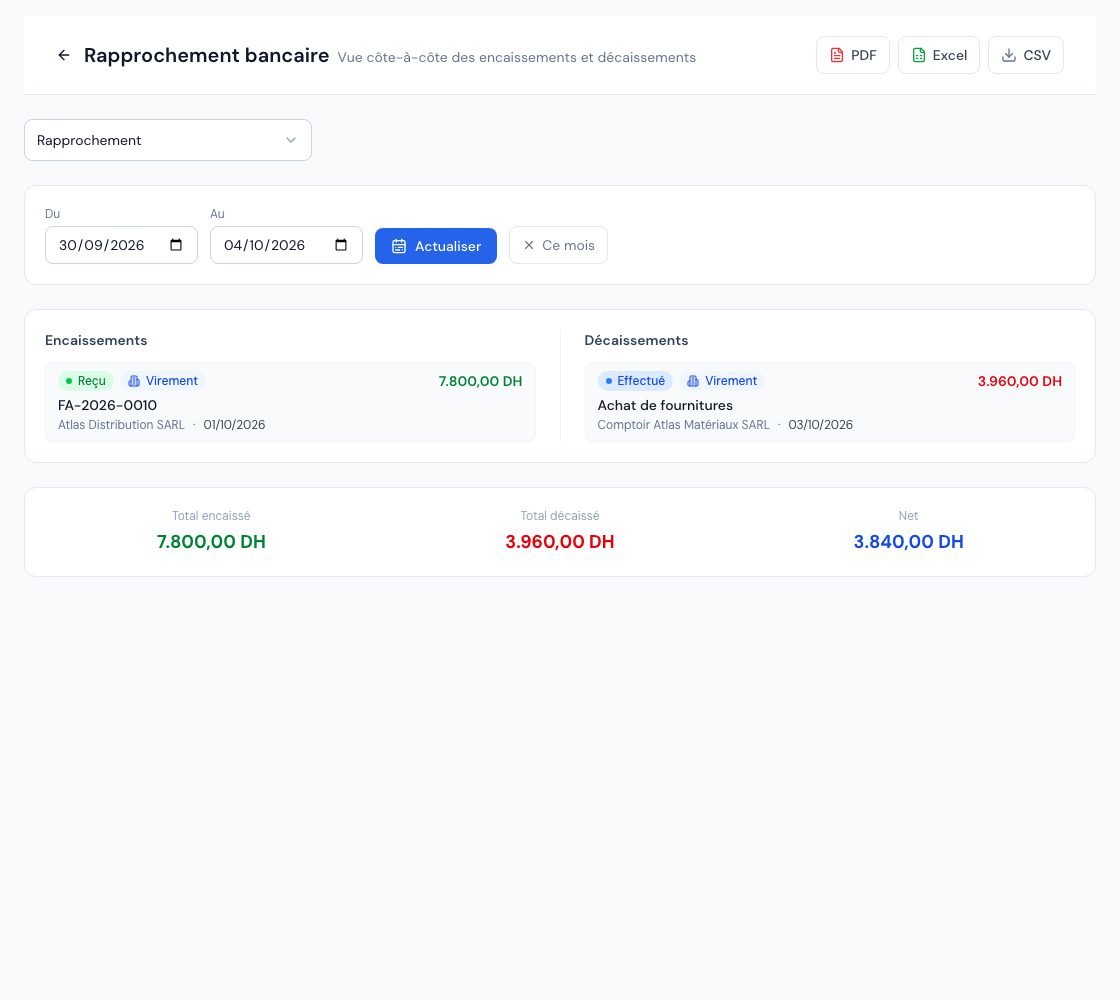 The « Rapprochement » (Reconciliation) report with receipts and disbursements side by side.
3. Which payments appear?
- Payments whose payment date falls in the period.
- Cancelled payments do not appear.
- A cheque payment only appears once the cheque has reached the stage set in your cheque register (deposited or cashed, depending on your setting). A cheque that has simply been received is therefore not yet in the reconciliation. See Tracking your cheques.
- Credit note refunds appear in the disbursements.
- A movement on the statement, missing from the report: the payment has not been recorded, or its date differs, or its cheque has not reached the right stage yet.
- A payment in the report, missing from the statement: check its date and method (a cash payment does not go through the bank).
The report changes nothing: to correct, open the payment from the Paiements (Payments) menu (see Recording a payment).
4. Exporting the period
- « PDF »: opens a preview, with « Imprimer » (Print) and « Télécharger » (Download) — handy for ticking off on paper.
- « Excel »: an « Encaissements » (Receipts) tab (Date, Client, Réf. facture, Mode, Référence, Montant), a « Décaissements » (Disbursements) tab (Date, Fournisseur, Dépense, Mode, Référence, Montant), a « Résumé » (Summary) tab with the totals, and a « Société » (Company) tab.
- « CSV »: one row per payment (Type, Date, Contrepartie, Référence, Mode, Montant) then the totals.
PDF and Excel exports depend on your subscription: if they are not included, the button is greyed out with the tooltip « Disponible à partir du plan … » (Available from the … plan). The CSV is always available. Exports cover the period displayed.
Frequently asked questions
What is the difference with the payment export?
Reconciliation covers a chosen period and presents both directions side by side with a net. The payment export in Paramètres → Import / Export (Settings → Import / Export) provides the full history in one file (see Exporting the payment history).
Why does a payment received by cheque yesterday not appear?
Its cheque has not yet reached the « deposited » or « cashed » stage set in your register. It will appear as soon as it does.
Does the report take unpaid invoices into account?
No. It only shows payments, that is, money that has moved. For sums still due, see the aged balance.
Next steps
Related articles
Was this article helpful?
Invoice compliantly, effortlessly
DGI-compliant invoices, quotes, credit notes, VAT and supplier tracking in a single tool.
Try it free