Browse help
What is it for?
Your clients need your bank details to pay you by transfer. The Paramètres → Comptes bancaires (Settings → Bank accounts) page lists your accounts; the one marked Défaut (Default) is the one whose details are printed on your documents.
Example. Salma runs an architecture firm in Tangier. She has a current account and a foreign-currency account. She marks the current account as the default: her invoices show that RIB, and the second account stays available for when she needs it.
1. Add a bank account
- Open Paramètres → Comptes bancaires (Settings → Bank accounts) and click Ajouter (Add).
- In the « Nouveau compte bancaire » (New bank account) window, fill in:
- Libellé * (Label, required), for example « Compte courant » (Current account);
- Banque (Bank), RIB, IBAN and SWIFT / BIC (optional). While you type the bank, Billora suggests banks in Morocco; you can also write another bank.
- Tick Compte par défaut (Default account) if this is the account to print on your documents.
- Click Enregistrer (Save). The account appears in the list, with its bank and RIB.
2. Choose the account shown on documents
Only one account can be the default. To change it, click the star (Définir par défaut, Set as default) to the right of the account you want: it gets the Défaut (Default) badge and the previous one loses it.
On your PDFs, the bank details block uses the default account: its label, the bank, the RIB and the IBAN when they are filled in. This information also goes into the automatic footer (see Customise your documents).
A new account is not automatically the default account. If no account is marked « Défaut », check your PDFs: the expected RIB may not appear. You can also choose the default account from the « Compte bancaire sur les documents » (Bank account on documents) card in Paramètres → Informations (Settings → Information).
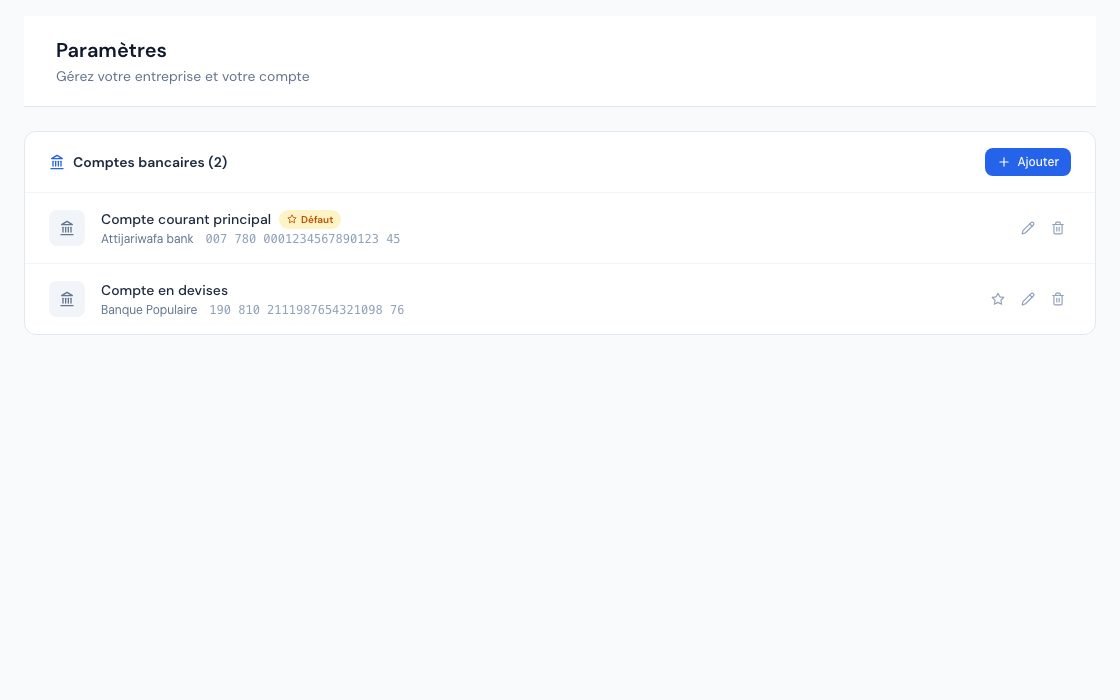 The « Comptes bancaires » (Bank accounts) page with two accounts, including the default account.
3. Edit or deactivate an account
- Edit: click the pencil, correct the fields in « Modifier le compte » (Edit account), then Enregistrer (Save).
- Deactivate: click the bin (Désactiver le compte, deactivate the account). The « Désactiver ce compte ? » (Deactivate this account?) window explains what will happen; confirm with Désactiver (Deactivate). The account is not erased: it disappears from the list and can no longer be chosen (cheques, cheque deposits), but the cheques and deposits already linked to it keep it. A deactivated account cannot be reactivated: to get it back, create it again.
Your documents' PDFs are produced at each download with the default account. If you deactivate the account marked « Défaut », its details no longer appear on any PDF, including those of documents already issued. To avoid this gap, first choose another default account (the Définir par défaut star, set as default), then deactivate the old one. Deactivating an account that is not the default one changes nothing on your PDFs.
4. Number of accounts and subscription
The number of bank accounts may be limited depending on your subscription (« Comptes bancaires » limit, counted per account). When it is reached, adding is refused with the message « Limite atteinte : vous avez X compte(s) bancaire(s) sur Y autorisé(s). » (Limit reached: you have X bank account(s) out of Y allowed). A deactivated account frees its slot. See Understanding plans and limits. In test mode, no limit applies.
5. Who can manage bank accounts?
The owner and administrators add, edit and deactivate accounts. Collaborators and viewers see the page read-only. The external accountant has no access to settings, bank details included.
Frequently asked questions
The RIB does not appear on my invoices — why?
Check that an account has the « Défaut » (Default) badge and that its RIB field is filled in. The PDF always uses the default account: if it has been deactivated, no RIB appears, even on old invoices, until another account is marked as default.
Can I reactivate a deactivated account?
No. Create it again with Ajouter (Add), then mark it as default if needed.
Can I show two accounts on the same invoice?
No. Documents show a single account: the one marked as default.
Does the SWIFT code appear on the invoice?
The PDF bank block shows the label, the bank, the RIB and the IBAN. The SWIFT / BIC stays stored in the account record.
Where else is a bank account used besides PDFs?
Your accounts are also offered for your cheque deposits at the bank (see Make a cheque deposit at the bank).
Next steps
Related articles
Was this article helpful?
Invoice compliantly, effortlessly
DGI-compliant invoices, quotes, credit notes, VAT and supplier tracking in a single tool.
Try it free