Browse help
What is the Suppliers report for?
This report analyses your expenses from the suppliers' side: who your main suppliers are, how much you bought from them, what you have already paid them and what is left to pay. It helps you negotiate, spot a dependence on a single supplier and plan your payments.
Example. Nadia runs a restaurant in Fez. The quarterly report shows her that her meat wholesaler alone accounts for 40% of her purchases excl. VAT and that she still owes him 12,000 DH. She uses it to negotiate a payment term.
Menu Rapports (Reports), Dépenses & achats (Expenses & purchases) section, « Fournisseurs » (Suppliers) card. Depending on your subscription, this report may not be included: the page then shows « Disponible à partir du plan … » (Available from the … plan). In test mode, it is accessible. The external accountant has no access to this report: they are redirected to their accountant space.
1. Choosing the period
- Open the report. By default, it covers « Ce mois » (This month).
- Choose another period (« Mois dernier », « Ce trimestre », « Trimestre dernier », « Cette année », « Année dernière »: last month, this quarter, last quarter, this year, last year) or enter two dates then click « OK ».
The subtitle recalls the period and its exact dates.
The report is based on the expense date. Drafts and cancelled expenses are excluded. Purchase orders are not counted until they have led to an expense.
2. The four cards
| Card | What it shows |
|---|---|
| Total HT (Total excl. VAT) | The total excluding VAT of your expenses for the period. |
| Total TTC (Total incl. VAT) | The same total, including all taxes. |
| Dépenses (Expenses) | The number of expenses, and below it the number of different suppliers involved. |
| Moyenne (Average) | The average amount excl. VAT of one expense (« Par dépense », per expense). |
The « Évolution des achats » (Purchases trend) chart shows, over the period, the total excl. VAT (blue bars), the total incl. VAT (light blue bars) and the number of expenses (orange curve « Nb dépenses », number of expenses, in the legend as in the tooltip). The breakdown is by day up to 31 days, by week up to 90 days, by month beyond.
3. The « Top fournisseurs » table
It lists the 15 suppliers (« Top fournisseurs », top suppliers) that weigh the most, from the largest to the smallest total excl. VAT:
- Fournisseur (Supplier): the name; « — » groups the expenses entered without a supplier.
- Dépenses (Expenses): the number of expenses.
- Total HT: the amount of purchases excluding VAT.
- Payé (Paid): what you have already paid them.
- Solde (Balance): what you still have to pay them.
You pay your suppliers including VAT: the « Payé » and « Solde » columns are therefore expressed including VAT, whereas « Total HT » excludes VAT. For a fully paid supplier, « Payé » is therefore higher than « Total HT ».
Next to it, the « Par catégorie » (By category) block splits expenses by category (with the number of expenses and the total excl. VAT). Expenses without a category are grouped under « Sans catégorie » (No category).
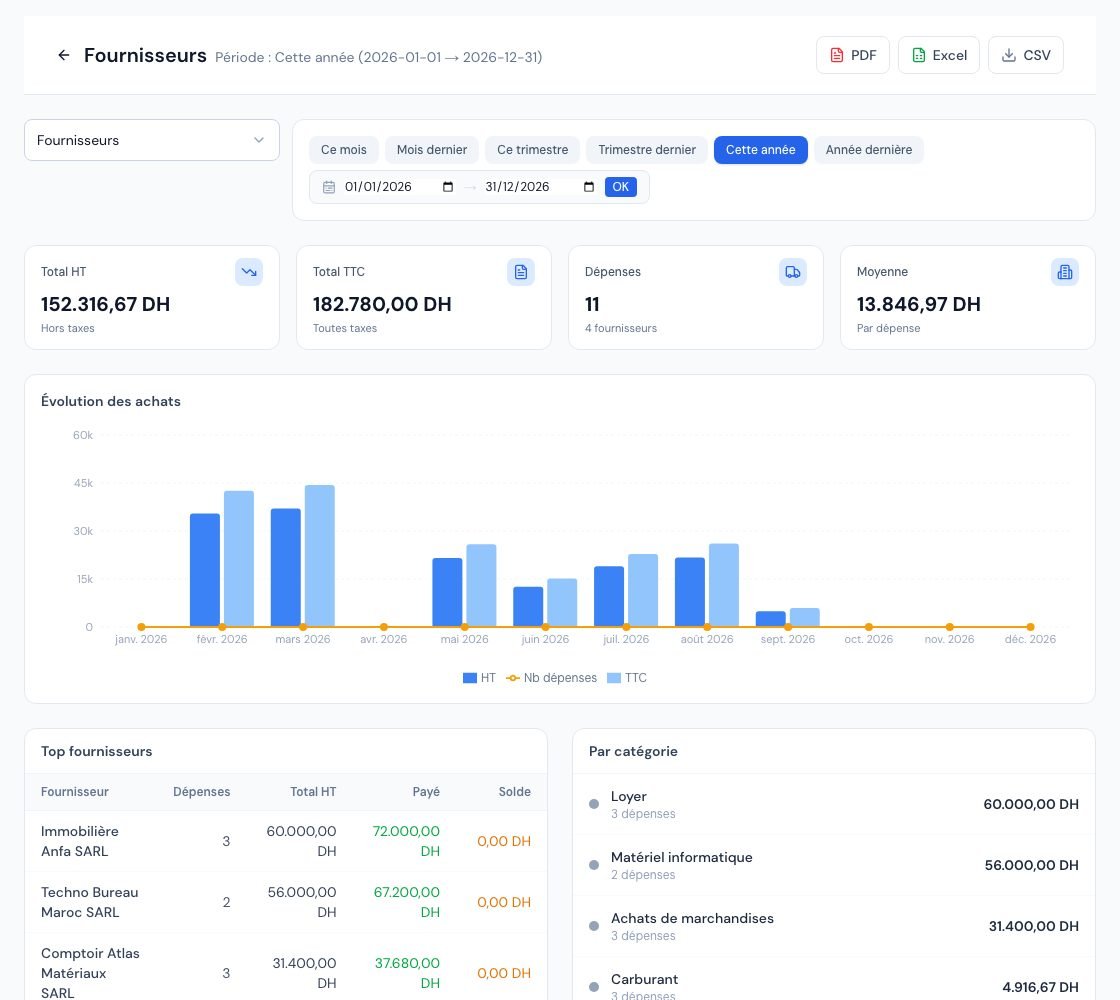 The « Fournisseurs » (Suppliers) report with the four cards and the « Top fournisseurs » table.
4. The 12-month monthly table
At the bottom of the page, the « Tableau mensuel (12 mois) » (Monthly table, 12 months) shows the last 12 months, from the most recent to the oldest, with for each one: Dépenses (number), Total HT, Total TTC, Payé and Solde.
This table always covers the last 12 months, whatever the period chosen at the top of the page. It shows the seasonality of your purchases at a glance.
5. Exporting the report
- « PDF »: opens a preview, with « Imprimer » (Print) and « Télécharger » (Download).
- « Excel »: « Résumé » (Summary), « Par fournisseur » (By supplier: Fournisseur, Dépenses, HT, TTC, Payé, Solde), « Mensuel » (Monthly) and « Société » (Company) tabs.
- « CSV »: the supplier table (Fournisseur, Dépenses, HT, TTC, Payé, Solde).
PDF and Excel exports depend on your subscription: if they are not included, the button is greyed out with the tooltip « Disponible à partir du plan … » (Available from the … plan). The CSV is always available.
Frequently asked questions
A supplier does not appear in the table. Why?
Either they have no expense in the period (excluding drafts and cancelled expenses), or they are not among the 15 largest. Widen the period or check their supplier record.
What does the « — » row in the suppliers mean?
It groups the expenses recorded without a supplier. For a reliable analysis, link a supplier to each expense (see Record an expense).
How do I pay the balance owed to a supplier?
The report only displays amounts. To pay, see Recording a supplier payment.
Next steps
Related articles
Was this article helpful?
Invoice compliantly, effortlessly
DGI-compliant invoices, quotes, credit notes, VAT and supplier tracking in a single tool.
Try it free