Browse help
What are recurring invoices for?
A recurring invoice is a template that Billora automatically turns into an invoice at regular intervals: subscription, rent, maintenance, monthly package… You no longer have to redo the same invoice every month.
Example. Salma runs a web agency in Fez. She invoices a hotel in Meknes for the maintenance of its website, 1,500 DH excl. VAT every month. She creates a monthly recurrence: on the 1st of each month, the invoice is created and sent to the hotel without her thinking about it.
Menu Récurrentes (Recurring), under Factures (Invoices). The page is titled Factures récurrentes (Recurring invoices) (« Automatisez la facturation répétitive », automate repetitive invoicing).
1. Create a recurrence
- Click Nouvelle récurrence (New recurrence) (or Créer une récurrence if the list is empty). The Nouvelle facture récurrente (New recurring invoice) page opens.
- Client: type their name in « Rechercher un client… » (Search for a client…) and pick them. Their usual payment terms are copied automatically.
- Planification (Scheduling):
- Fréquence (Frequency): Quotidienne (Daily), Hebdomadaire (Weekly), Mensuelle (Monthly), Trimestrielle (Quarterly) or Annuelle (Yearly);
- Intervalle (Interval): from 1 to 12, followed by the unit (« mois », months; « semaines », weeks…). The resulting rhythm is spelled out below: « Mensuelle » and « 1 » give « Tous les mois » (every month), « Mensuelle » and « 2 » give « Tous les 2 mois » (every 2 months), « Hebdomadaire » and « 1 » give « Toutes les semaines » (every week);
- Prochaine date (Next date): the date of the first invoice (in one month by default);
- Date de fin (optionnel) (End date, optional) and Nb max d'occurrences (Max number of occurrences; empty = « Illimité », unlimited);
- Délai paiement (jours) (Payment terms, days): 30 by default, used to calculate the due date of each invoice.
- Détails de la facture (Invoice details): Objet (optionnel) (Subject, optional), the Envoyer automatiquement par email (Send automatically by email) checkbox (see section 3) and Notes (optionnel). If the selected client has no email address, the box is greyed out and the screen says: « Ce client n'a pas d'adresse e-mail : renseignez-la dans sa fiche pour activer l'envoi automatique. » (This client has no email address: enter it in their record to enable automatic sending.)
- Lignes de facturation (Billing lines): add your items as on a normal invoice, with a line discount if needed (Ajouter une remise, add a discount) or a discount on the total (Ajouter une remise globale, add a global discount). The totals are shown at the bottom.
- Click Créer la récurrence (Create the recurrence).
Possible messages: « Veuillez sélectionner un client » (Please select a client) and « Ajoutez au moins une ligne » (Add at least one line).
Lines and prices are saved in the recurrence when you create it. If you later change the price of a product in your catalogue, the recurrence keeps the old price: edit it to apply the new one.
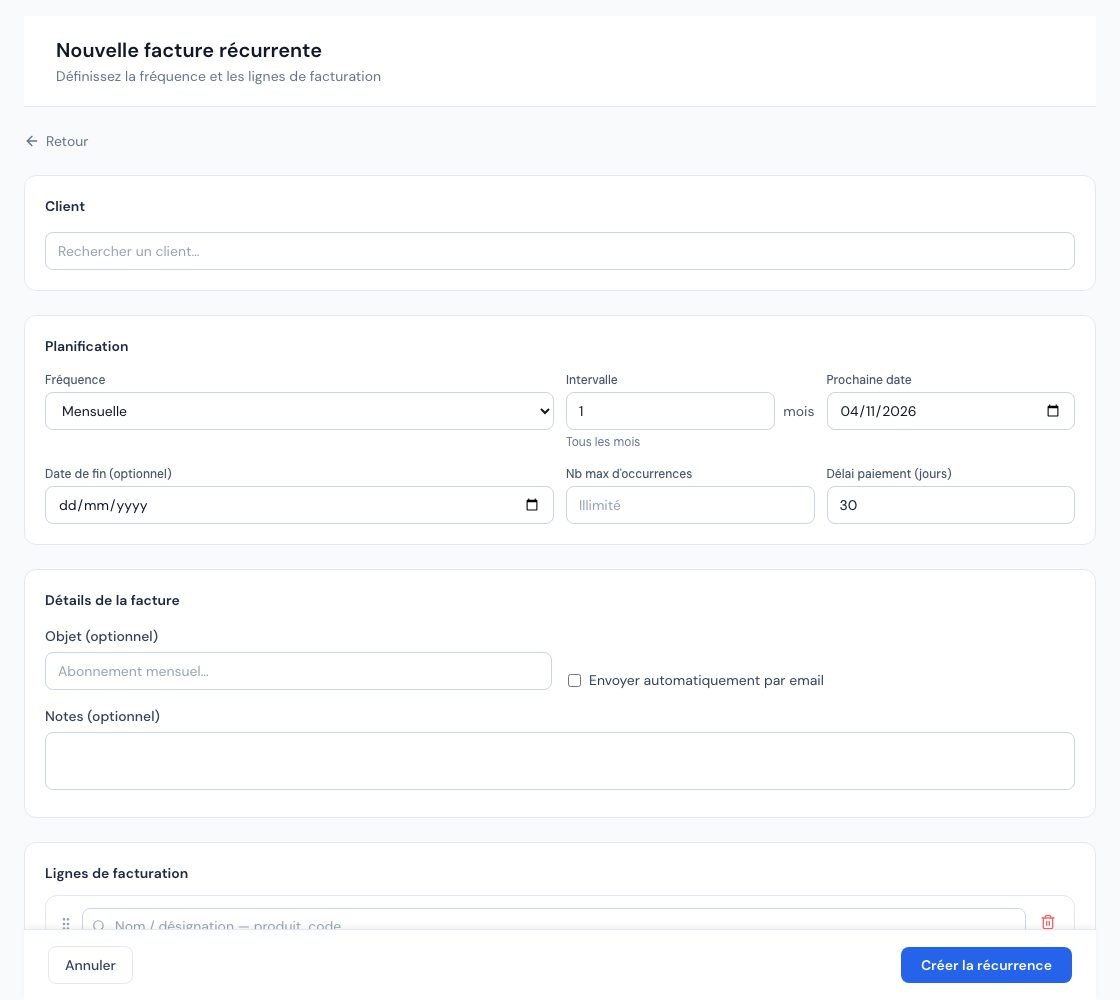 The « Nouvelle facture récurrente » (New recurring invoice) form with the frequency and the next date.
2. When and how is the invoice created?
Once a day, Billora goes through the active recurrences whose Prochaine date has been reached. For each one:
- an invoice is created for the client, dated the day it is created, with a due date equal to that date plus the payment terms;
- the Prochaine date moves forward by one period (a week, a month…) and the Générées (Generated) counter goes up by 1;
- if the maximum number of occurrences is reached, or if the next date is after the end date, the recurrence becomes Terminé (Ended).
The invoices created are ordinary invoices: you find them in the Factures menu, with their usual payments, reminders and credit notes.
Depending on your subscription, the number of invoices per month may be limited, and recurring invoices count towards that limit. If it is reached at the time of the daily run, the invoice is not created, the Prochaine date does not move forward and Billora tries again at the next run (so as soon as the limit allows, for example at the start of the following month). The owner receives the « Facture récurrente non générée » (Recurring invoice not generated) notification, once per recurrence and per month; you can track your usage in Understand plans and limits. In test mode, no limit applies. The subscription invoices Billora sends you do not depend on this limit.
3. Draft to validate or automatic sending?
It all depends on the Envoyer automatiquement par email checkbox.
| Box unticked (default) | Box ticked (« Email auto ») | |
|---|---|---|
| Invoice status | Draft | Sent, once the email has gone out |
| Number | None: assigned when you finalize the invoice | Assigned when the invoice is created |
| Email to the client | None | Sent with the PDF attached (subject « Facture … — your company ») and the link to your client portal |
| Stock | Unchanged until you send the invoice | Tracked products leave the stock once the email has gone out, as with a manual sending |
With the box unticked, open the draft in Factures, check it, then send it (see Send a document by email).
- Client without an email address (address removed from their record after the recurrence was created): the invoice is created as a Draft, without a number, and is not sent. The account owner receives a « Facture récurrente non envoyée » (Recurring invoice not sent) notification. Enter the client's address, then send the invoice manually.
- Sending failure (mail server unreachable, address refused…): the invoice keeps its number but stays as a Draft, not sent, and the stock does not move. The failure appears in your notifications and in the failed sends of Paramètres → Email (Settings → Email). Open the invoice and send it again.
A draft that already has a number cannot be deleted (numbering must stay continuous): instead of the « Supprimer » (Delete) button, the invoice offers « Annuler » (Cancel).
If electronic invoicing is active on your account and the client is a business, the invoice is first submitted to the DGI. Once validated, it is sent to the client. If rejected or in error, it stays as Brouillon (Draft), is not sent, and the account owner receives an email « Facture récurrente … — validation DGI échouée » (Recurring invoice … — DGI validation failed) to fix it and submit it manually (see Activate electronic invoicing).
4. Track your recurrences
The page shows one card per recurrence, and tabs to filter: Toutes (All), Active, En pause (Paused), Terminée (Ended). Each card shows:
- the client, the subject and the status: Actif (Active), En pause (Paused) or Terminé (Ended);
- Fréquence (Frequency), spelled out (« Tous les mois », every month; « Tous les 3 mois », every 3 months; « Toutes les semaines », every week; « Tous les ans », every year…), and Montant TTC (Amount incl. VAT) of one invoice;
- Prochaine facture (Next invoice): in orange when the date has already passed on an active recurrence (the invoice will be created at the next daily run);
- Générées (Generated): the number of invoices already created, followed by the maximum if there is one (for example « 3 / 12 »);
- the Email auto and Fin (End date) tags when they apply.
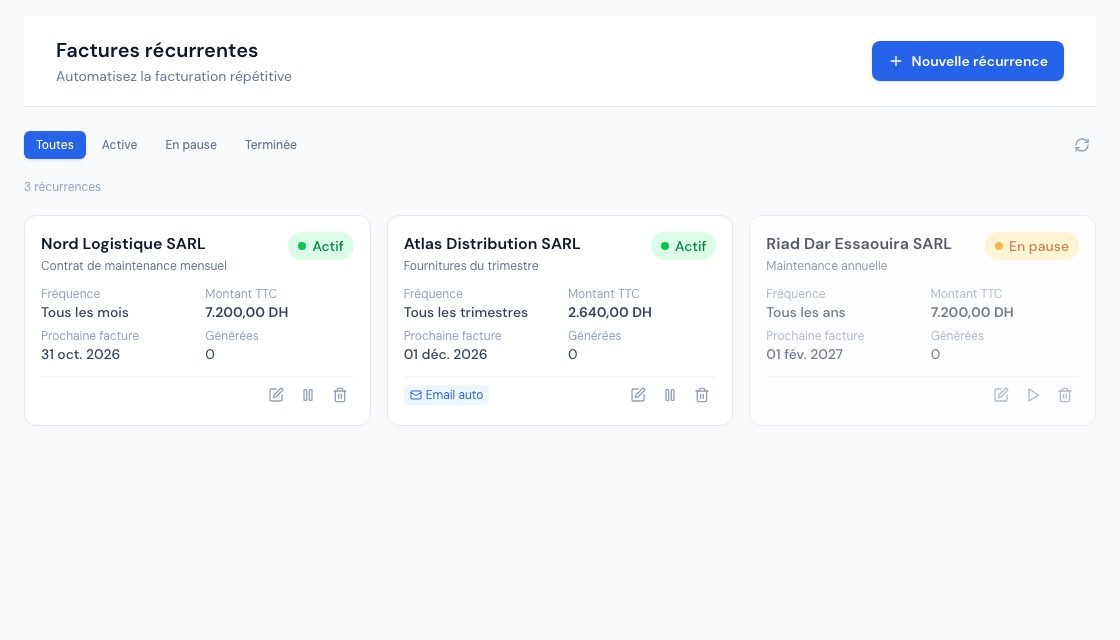 The list of recurring invoices with their frequency and their next date.
5. Pause, reactivate or stop
- On the card, click the pause button (Mettre en pause, pause): no more invoices are created.
- To resume, click the play button (Réactiver, reactivate).
- A Terminé (ended) recurrence (end reached) no longer has a pause or reactivation button: create a new recurrence if needed.
If the Prochaine date passed during the pause, an invoice is created at the next daily run, then one per day as long as the next date remains in the past. To avoid catch-up invoices, first edit the recurrence and choose a next date in the future.
6. Edit or delete a recurrence
- Modifier (Edit, pencil icon) opens Modifier la récurrence (Edit the recurrence); save with Mettre à jour (Update). Changes apply to the next invoices only: invoices already created do not change.
- Supprimer (Delete, bin icon) asks for confirmation (« Supprimer la récurrence pour … ? Cette action est irréversible. », delete the recurrence for …? This action is irreversible.). Invoices already created are kept.
7. Who can manage recurrences?
- Owner, administrator and collaborator: create, edit, pause and delete.
- Viewer: sees the list, with the read-only banner. Cards show no pencil, pause button or bin, and the form says « Ce compte est en lecture seule : les factures récurrentes ne peuvent pas être créées ni modifiées » (This account is read-only: recurring invoices cannot be created or edited).
- External accountant: read-only as well; the Recurring invoices page does not appear in their menu.
Frequently asked questions
At what time is the invoice created?
During Billora's automatic daily run, on the next date. The invoice carries the date of the day it is created.
Can I trigger the invoice right now?
There is no button for that. Set the next date to today: the invoice will be created at the next daily run. For an immediate invoice, create it manually (see Create an invoice).
Are emails sent in test mode?
Yes, emails are really sent in test mode (with « [MODE TEST] » in the subject). Use an address you own on the client record during your tests.
What happens to the invoices if I delete the recurrence?
They stay in your invoices, unchanged. Only the template disappears.
An expected invoice was not created. Why?
Check that the recurrence is Actif (Active) and that its next date has been reached. If your monthly invoice limit is reached, the invoice is not created, the owner receives the « Facture récurrente non générée » (Recurring invoice not generated) notification and Billora tries again every day (see section 2).
Next steps
Related articles
Was this article helpful?
Invoice compliantly, effortlessly
DGI-compliant invoices, quotes, credit notes, VAT and supplier tracking in a single tool.
Try it free