Browse help
What is a purchase receipt for?
When a supplier delivers, not everything always arrives in good condition, nor all at once. The purchase receipt (« bon de réception », BR) keeps a record of what you have actually received and what you have rejected, delivery by delivery.
You order 10 cartons of A4 paper reams and 5 boxes of pens from Papeterie Atlas. The driver arrives with 10 cartons, but 2 are wet: you reject them. He only brings 3 boxes of pens out of 5. In Billora, you enter: reams 8 received, 2 rejected; pens 3 received. Billora adds 8 cartons and 3 boxes to your stock, keeps the reason for the rejection and knows that 2 boxes are still to come.
This feature depends on your subscription: if it is not included, the page indicates the plan from which it is available. The « Tout reçu » (All received) button, however, is always available.
Two ways to receive goods
Open a purchase order (menu Facturation → Commandes d'achat (Invoicing → Purchase orders)). Two buttons are offered as long as the order is neither « Reçu » (Received) nor « Annulé » (Cancelled):
| Button | When to use it | What it does |
|---|---|---|
| Tout reçu (All received) | Everything arrived, in good condition. | Full receipt in one click: all remaining quantities are received. A purchase receipt is created behind the scenes. |
| Réceptionner (Receive) | Partial delivery, or rejected goods. | You indicate, line by line, the quantity received and the quantity rejected (with the reason). |
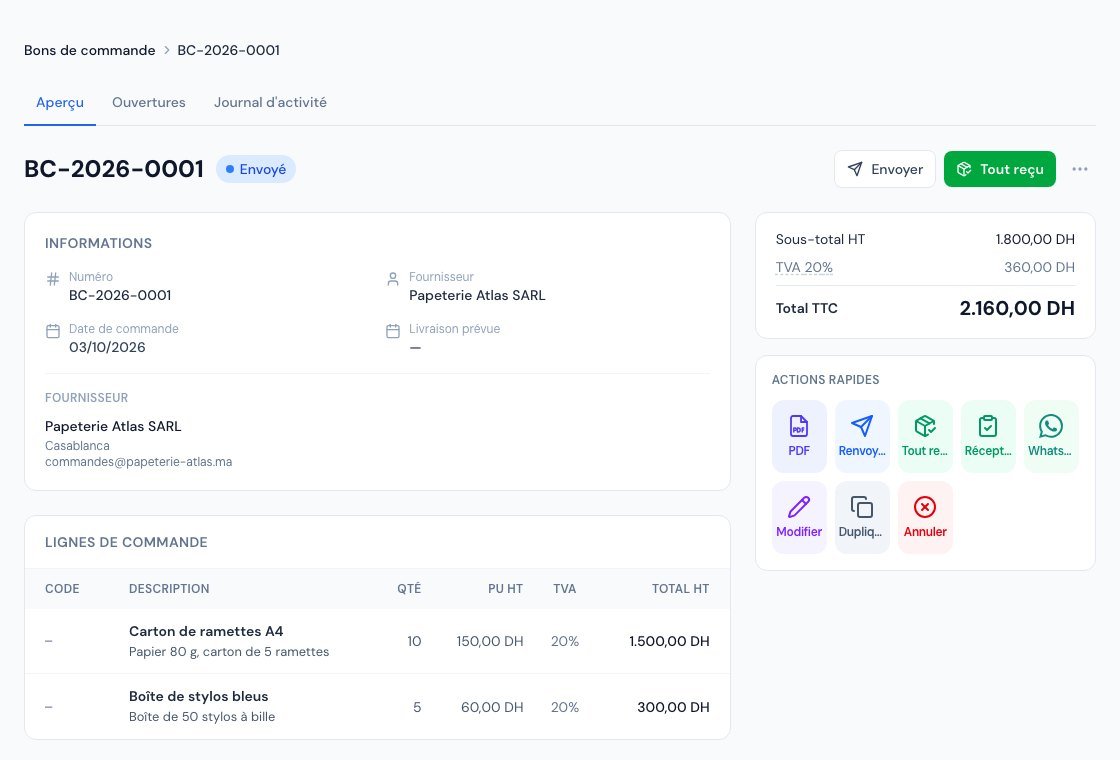 A sent purchase order: the « Tout reçu » button and the « Réceptionner » tile in the quick actions.
Receive a delivery, step by step
- Open the purchase order concerned.
- Click « Réceptionner »: either in the quick actions tile, or in the « Réceptions » (Receipts) section. For each item, you see Commandé, Reçu, Refusé, Reste (Ordered, Received, Rejected, Remaining).
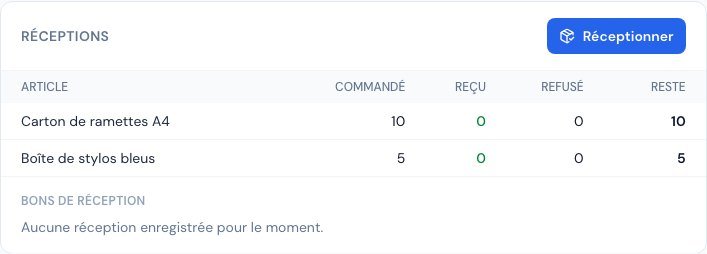 The « Réceptions » section: for each item, what is ordered, received, rejected and what remains.
- Check the receipt date. It defaults to today, and cannot be in the future.
- For each item, look at the line « Commandé … · déjà reçu … · refusé … · reste … » (Ordered … · already received … · rejected … · remaining …). The Reçu (Received) field is already filled with what remains to be received: correct it if the delivery is incomplete.
- If part of it is damaged or non-compliant, enter the quantity in Refusé (Rejected). The Motif du refus (Reason for rejection) field appears: it is mandatory (for example « emballage endommagé » (damaged packaging)).
- At the bottom of the list, a summary shows Reçu, Refusé and Reste après (Remaining after). When nothing remains, it says « bon de commande soldé » (purchase order settled).
- If needed, add Notes (remarks about the delivery).
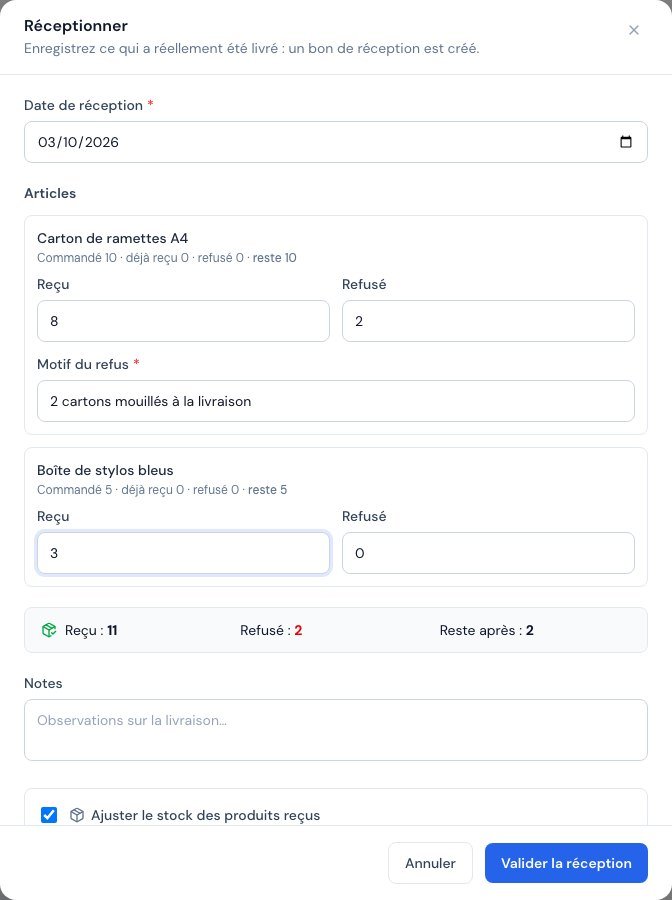 The « Réceptionner » window: 8 cartons received, 2 rejected with their reason.
- Further down, choose the stock and expense options (detailed below).
- Click « Valider la réception » (Confirm the receipt).
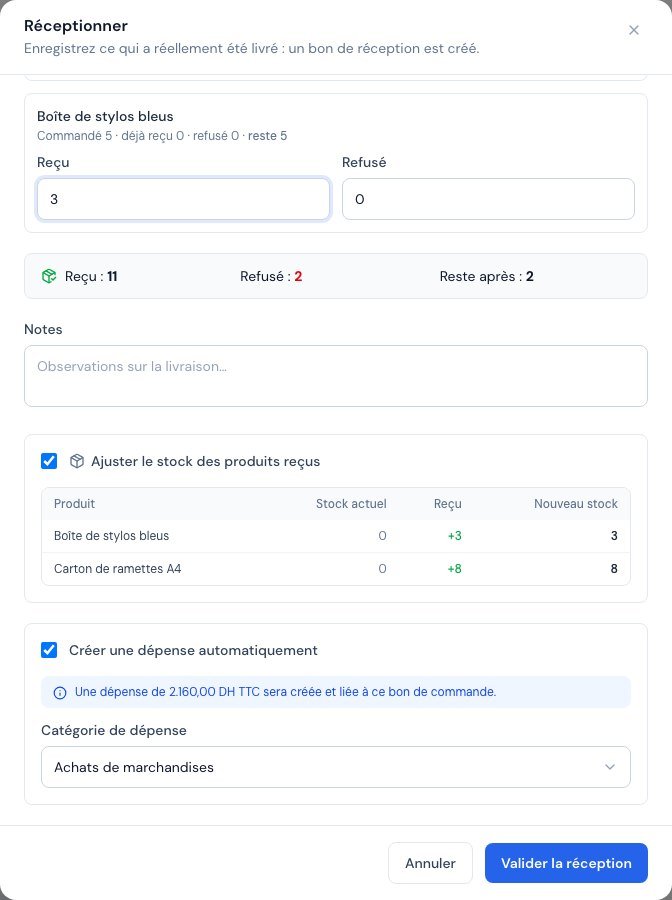 Bottom of the « Réceptionner » window: stock adjustment and expense creation.
What you see next: the window closes, the « Réceptions » section shows a new numbered purchase receipt (for example BR-2026-0001) with the « Validé » (Validated) status, and the « Reçu », « Refusé » and « Reste » quantities of each line are up to date.
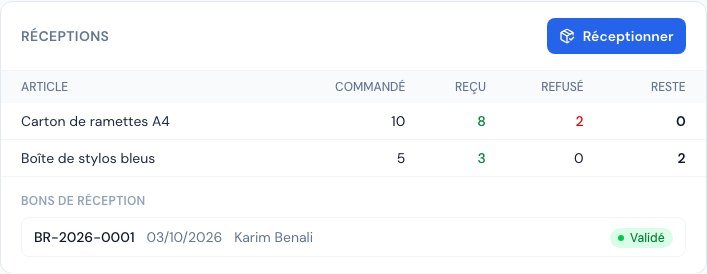 The « Réceptions » section after validation: the purchase receipt created and what remains to be received.
Billora prevents you from entering more than what remains to be received (message « Au plus X restant à réceptionner. » (At most X remaining to receive.)). At least one received or rejected quantity is also required. A rejected quantity without a reason is flagged in red.
What happens to stock
If stock management is active and your products are « suivis en stock » (tracked in stock), the « Ajuster le stock des produits reçus » (Adjust the stock of received products) checkbox appears, with a table Produit, Stock actuel, Reçu, Nouveau stock (Product, Current stock, Received, New stock).
- Only received quantities enter stock. Rejected quantities never do: they are not your goods.
- If you have several warehouses, choose the Entrepôt de réception (Receiving warehouse).
- If a product has negative stock (for example because you sold before being delivered), you can tick « Ignorer le stock négatif » (Ignore negative stock): stock restarts from 0 before the receipt is added.
- Untick the box if you do not want to touch stock for this receipt.
What happens to the expense
On the first receipt, the « Créer une dépense automatiquement » (Create an expense automatically) box is ticked. Billora then creates an expense linked to the purchase order, with the « En attente » (Pending) status: you can then record the supplier's payment.
- The amount is that of the purchase order (incl. VAT), not that of the delivery. It is not recalculated on subsequent receipts.
- The expense category is suggested for you: that of this supplier's latest expense, otherwise a category whose name suggests purchases (achat, marchandise, fourniture, matière, stock). You can change it.
- The due date is calculated from the receipt date and this supplier's payment term.
- No expense is created if everything is rejected on the first receipt, nor if an expense already exists for this purchase order (the window says so: « Dépense déjà créée » (Expense already created)).
- If your monthly expense quota is reached, the receipt is still recorded, but without an expense: create it manually afterwards.
How the purchase order evolves
| Status | When |
|---|---|
| Envoyé (Sent) (or Brouillon (Draft)) | No receipt so far. |
| Partiel (Partial) | Only part has been processed (received or rejected): quantities remain to be received. |
| Reçu (Received) | All lines are settled: received + rejected = ordered. |
A rejected quantity is considered « processed »: Billora no longer waits for it. If the supplier has to deliver a replacement, place a new purchase order.
As soon as a purchase order has had a receipt, its lines can no longer be edited, even if the receipt is cancelled afterwards (it remains kept for the history). This is intentional: it prevents the received quantities from no longer matching the order. If the order changes, place a new purchase order.
If the purchase order did not have a number yet (draft), it receives one on the first receipt.
« Tout reçu »: one-click receipt
- Open the purchase order and click « Tout reçu » (green button at the top of the page, or quick actions tile).
- Check the receipt date and, if needed, the Notes.
- Review the stock and expense options, identical to those of « Réceptionner ».
- Click « Confirmer la réception » (Confirm the receipt).
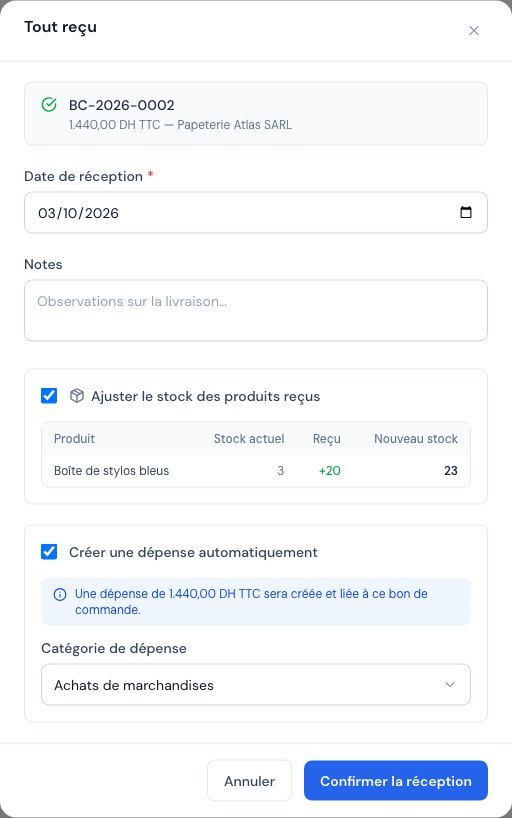 The « Tout reçu » window: full receipt in one click.
What you see next: the purchase order switches to « Reçu ». Billora has created a complete purchase receipt: all remaining quantities are counted as received, none as rejected.
Find, print and attach a purchase receipt
The Facturation → Bons de réception (Invoicing → Purchase receipts) menu lists all recorded deliveries. You can search by number, supplier or purchase order, filter by status and by period, open the details (« Voir le détail » (View details)) or the PDF (« Bon PDF »).
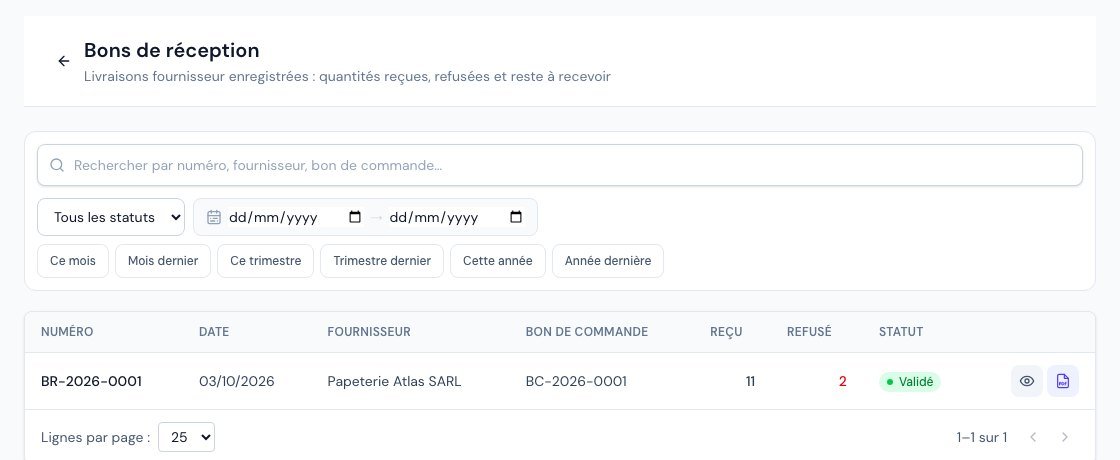 The list of purchase receipts.
In the details of a purchase receipt, you find the items with their rejection reason, a summary (quantity received, quantity rejected, stock adjusted yes/no) and the activity log.
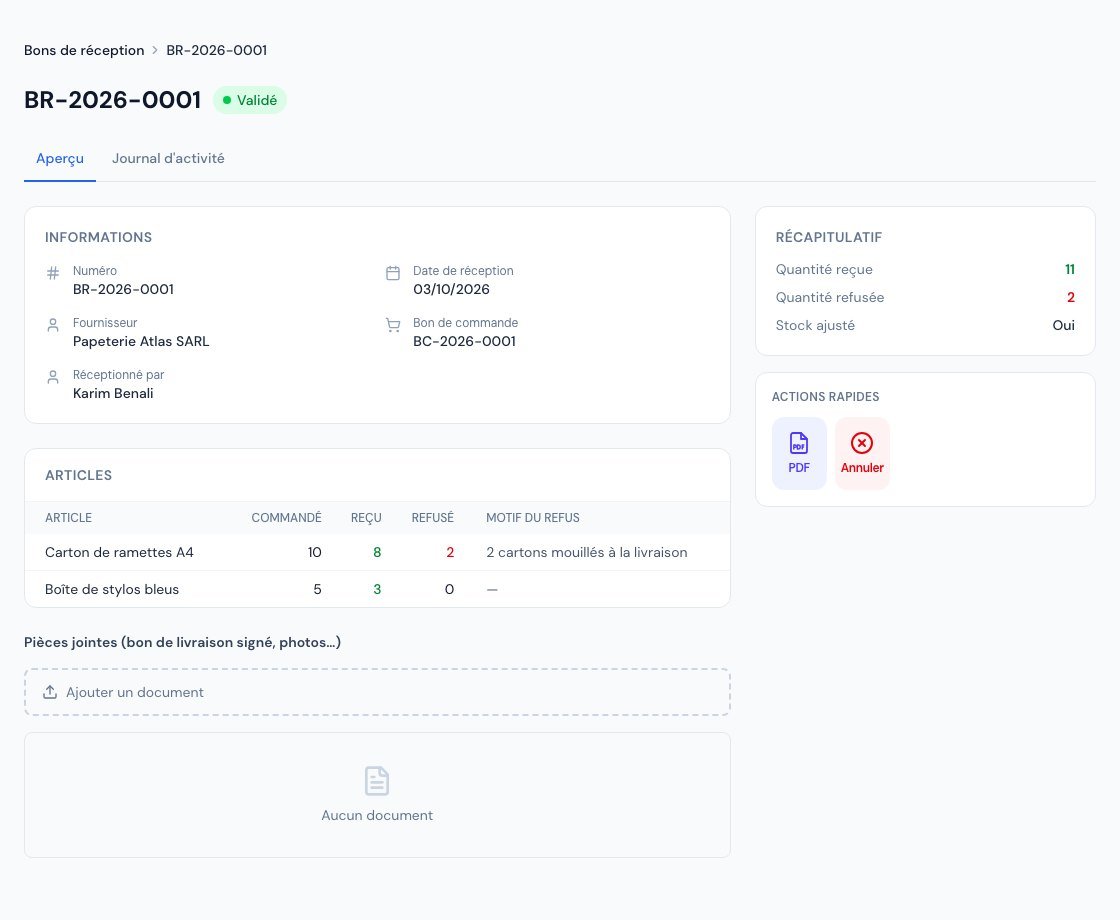 The details of a purchase receipt: items, rejection reason, attachments and quick actions.
- PDF: click the « PDF » tile. The document carries a « Signature du réceptionnaire » (Receiver's signature) line: print it and have it signed on delivery. It is written in the language of the purchase order (French, English, Arabic, or bilingual French / Arabic); if the purchase order has no language of its own, the default document language of your company is used.
- Attachments: in the « Pièces jointes (bon de livraison signé, photos…) » (Attachments (signed delivery note, photos…)) block, add the supplier's signed delivery note or photos of the damaged goods. These files serve as proof in case of a dispute.
Cancel a receipt
Did you get a quantity wrong? Open the purchase receipt and click the « Annuler » (Cancel) tile. A window asks you to confirm, with an optional reason.
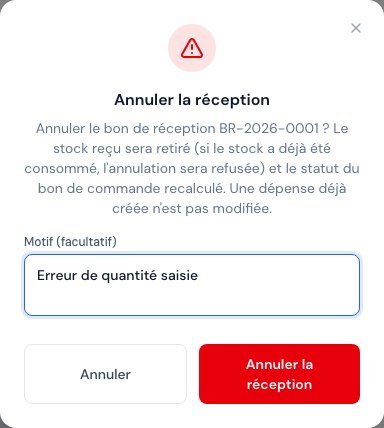 The « Annuler la réception » confirmation with the optional reason.
- Click « Annuler la réception » (Cancel the receipt) to confirm.
- The stock added by this receipt is removed, and the purchase order's status is recalculated (it goes back to « Brouillon », « Envoyé » or « Partiel » depending on what remains received).
- The purchase receipt switches to « Annulé »: a banner reminds you, and its quantities no longer count in the purchase order. Its number is not reused.
If you have already sold or transferred part of the goods received, Billora refuses the cancellation with the message « Le stock reçu a déjà été en partie consommé… » (The received stock has already been partly consumed…), indicating the product concerned, the available stock and the quantity to remove. Why? Removing 8 cartons when only 1 is left would make your stock wrong. First correct the stock with a manual adjustment (product page, « Stock » tile then « Ajuster le stock » (Adjust stock)), then try again.
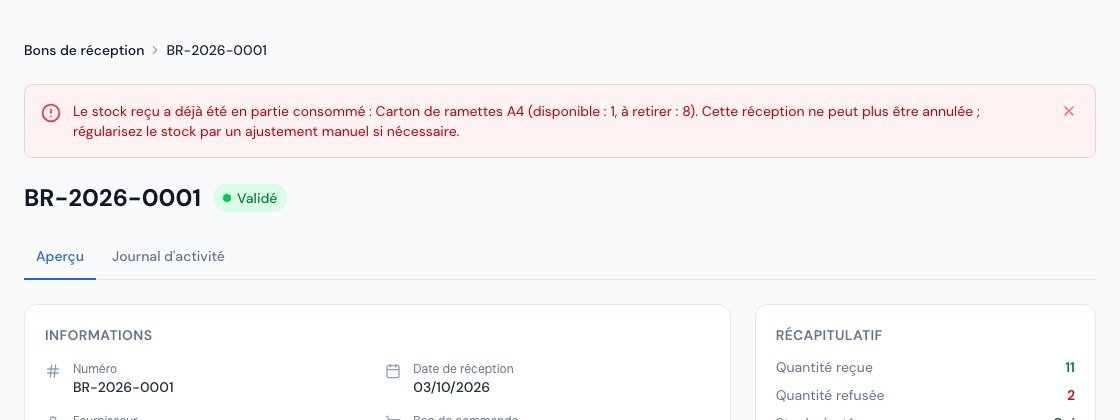 Cancellation refused because the received stock has already been partly consumed.
Cancelling a receipt does not touch the expense already created: edit or cancel it yourself if it is no longer relevant.
Purchase receipt numbering
Numbers look like BR-2026-0001: the « BR » prefix, the year, then a counter. You can change the prefix, the number length and the separator in Paramètres → Numérotation (Settings → Numbering), « Bons de réception » line of the « Préfixes des documents » (Document prefixes).
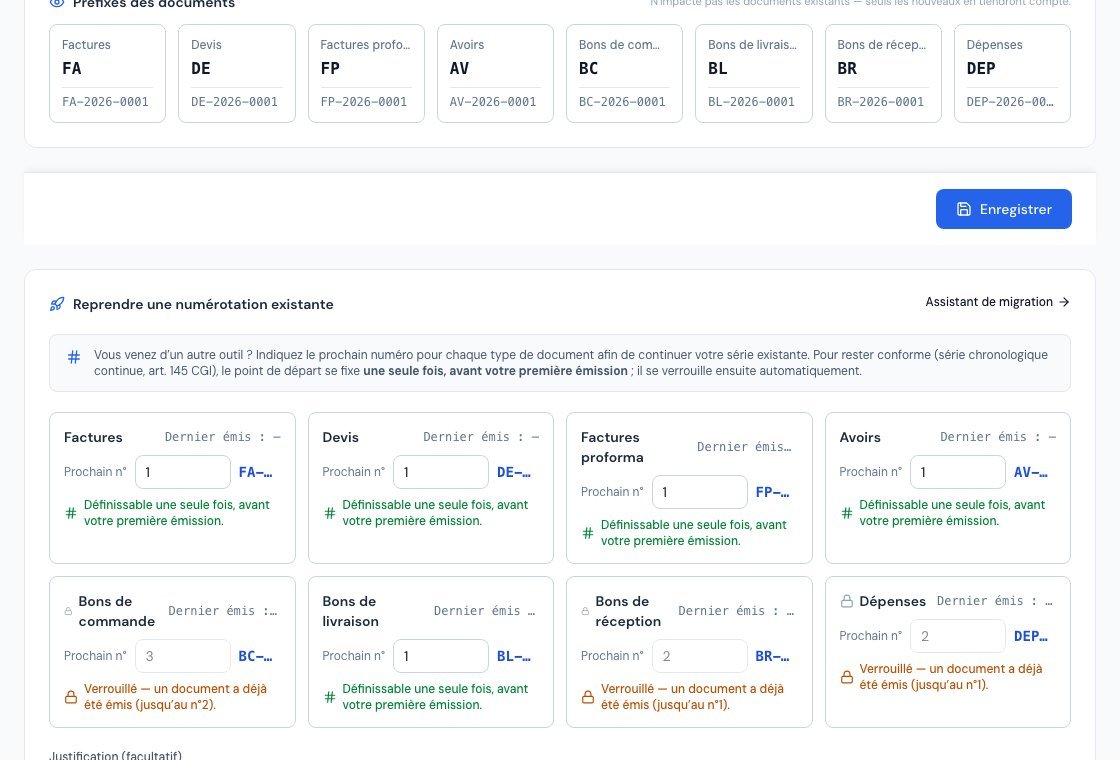 Settings, Numbering: the purchase receipt prefix (BR by default).
Who can do what?
- The owner, administrators and collaborators can receive and cancel.
- Accountants and viewers see the receipts in read-only mode.
Frequently asked questions
The supplier delivers in two batches. What should I do?
Receive the first delivery with « Réceptionner », leaving only what has arrived in « Reçu ». The purchase order switches to « Partiel ». At the second delivery, do it again: the « Reçu » field is pre-filled with what remains.
I clicked « Tout reçu » by mistake. How do I go back?
Open the purchase receipt created (« Réceptions » section of the purchase order) and cancel it. The stock is removed and the purchase order returns to its previous status, unless the stock has already been used.
Why was the expense not created?
Either an expense already existed for this purchase order, or everything was rejected, or the « Créer une dépense automatiquement » box was unticked, or no active expense category exists on your account (create one in Dépenses → « Catégories » (Expenses → Categories), then create the expense from the purchase order), or your monthly expense quota was reached. You can create it from the received purchase order (« Créer la dépense associée » (Create the associated expense)).
Stock did not move. Why?
Check that stock management is available on your subscription, that the product is indeed « suivi en stock » in its record, and that the « Ajuster le stock des produits reçus » box was ticked. Lines without a product (free text) have no stock.
Can I receive more than the quantity ordered?
No. For the surplus, place a new purchase order.
Next steps
Related articles
Was this article helpful?
Invoice compliantly, effortlessly
DGI-compliant invoices, quotes, credit notes, VAT and supplier tracking in a single tool.
Try it free