Browse help
Create an invoice in a few minutes
A Billora invoice automatically picks up your legal information (ICE, IF, RC…), calculates the totals and breaks down VAT (TVA) by rate. It is saved as a draft: you review it, then send it when you are ready.
Example. Salma is a freelance graphic designer in Casablanca. She has just delivered a visual identity to a bakery: 1 « Logo et charte » (Logo and brand guidelines) package at 4,000 DH excl. VAT, VAT 20%. She creates the invoice, adds a 10% loyalty discount, checks the total incl. VAT and sends it to her customer.
Before you start
- Fill in your company details (company name, ICE, IF, RC, address, logo): this information appears on your PDFs.
- Create the customer. You can also create them along the way.
- Optional: add your products and services to pick up their prices and VAT in one click. Without products, you enter the lines by hand.
Step 1 — Open the form
- In the menu, open Facturation → Factures (Billing → Invoices).
- Click « Nouvelle facture » (New invoice) at the top right.
Shortcut: from the customer list, the « Nouvelle facture » action opens the form with the customer already selected.
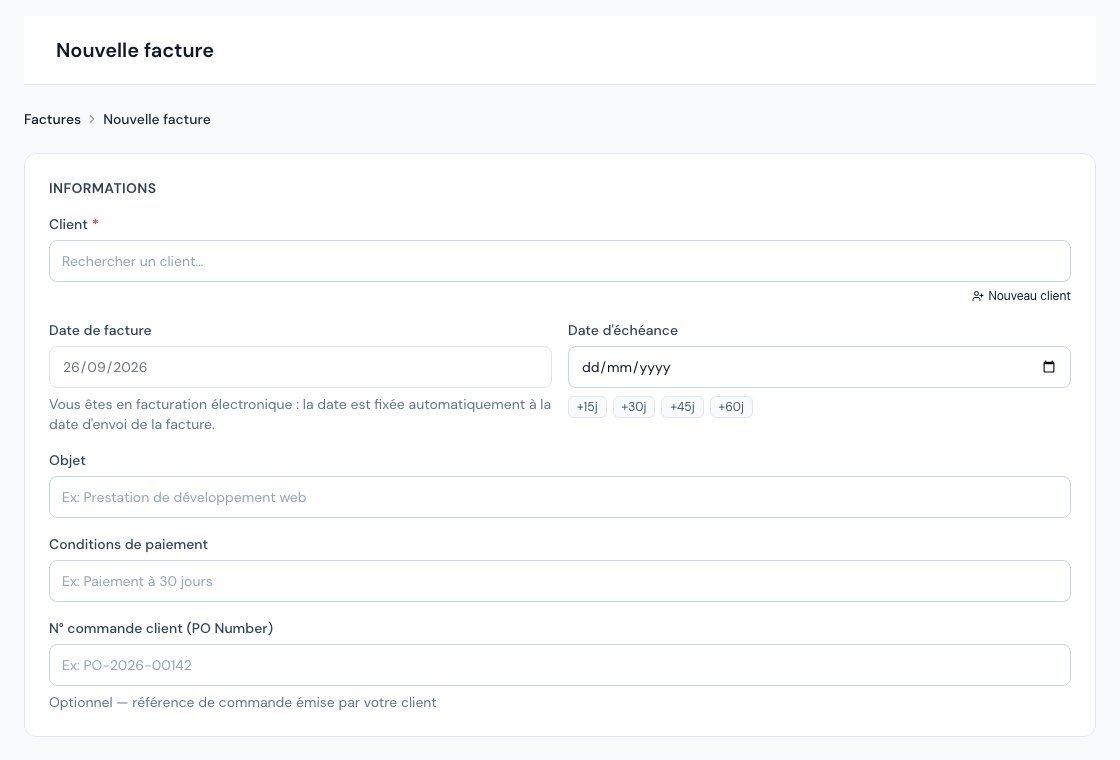 The invoice creation form.
Step 2 — Choose the customer and the dates
In the « Informations » (Information) card:
- Client (Customer): type a few letters in « Rechercher un client… » (Search for a customer…) and choose from the list. If the customer does not exist, the « Nouveau client » (New customer) link under the field opens its creation.
- Date de la facture (Invoice date): today by default. With e-invoicing, this date is set automatically to the sending date and the field is greyed out.
- Date d'échéance (Due date): enter it, or click a shortcut +15j, +30j, +45j, +60j (+15d, +30d, +45d, +60d). If the customer has a default payment term, the due date is already calculated from the invoice date.
- Optional: Objet (Subject), Conditions de paiement (Payment terms) and N° commande client (PO Number) (Customer order no.), your customer's order reference.
If the customer's page specifies a default discount, it is offered as the global discount in the new invoice (see Create and manage your customers). If the customer is invoiced in a foreign currency, a « Devise étrangère — affichage indicatif » (Foreign currency — indicative display) card appears: amounts remain in MAD and the equivalent is shown for information only.
Step 3 — Add the lines
In the « Lignes » (Lines) card, enter each service or item:
- In the « Nom / désignation — produit, code… » (Name / description — product, code…) field, type a product name to find it: its price and VAT are picked up. You can also write a free-form description.
- Fill in the Qté (Qty), the Unité (Unit), the Prix HT (Unit price excl. VAT) and the TVA (VAT) (20%, 14%, 10%, 7% or 0%, the latter rate covering exempt transactions).
- The line's Total HT (Total excl. VAT) is calculated automatically.
- For another line, click « Ajouter une ligne » (Add a line) and choose « Ligne produit » (Product line).
Going further with lines
Each line can have a name and a formatted description (bold, lists…), which you can choose not to print on the PDF. You can also organise a long invoice with sections, subtotals and separators using the « Ajouter une ligne » button. Everything is explained in Document lines.
Step 4 — Discounts and totals
Below the lines, the totals block updates live:
- Line discount: click « Ajouter une remise » (Add a discount) under the line, choose the type (%, DH/u for an amount per unit, or DH for a total amount) and enter the value; the total then shows « Remises sur lignes » (Line discounts).
- Global discount: click « Ajouter une remise globale » (Add a global discount) for a percentage or fixed-amount discount on the whole invoice. It then appears as « Remise globale (10%) » (Global discount (10%)).
- Total HT, one TVA line per rate (for example « TVA 20% ») then the Total TTC (Total incl. VAT).
If your lines have different rates, Billora calculates VAT rate by rate and the PDF shows this breakdown. A global discount reduces the base of each rate proportionally.
Step 5 — Notes and PDF layout
- « Notes » card: « Notes (visibles sur la facture) » (Notes (visible on the invoice)) and « Notes internes (non visibles) » (Internal notes (not visible)), for your team only.
- « Présentation du PDF » (PDF layout) card: choose the Langue du document (Document language) (French, English, Arabic or bilingual) and the Police (Font) for this invoice only. Leave « Par défaut du compte » (Account default) to follow your settings.
Step 6 — Create, review, send
- Click « Créer la facture » (Create the invoice) (bottom bar). If a line is incomplete, or if no line has been entered, a message tells you so.
- The invoice page opens. It is in « Brouillon » (Draft) and does not have a number yet: it will be assigned on sending, in the format set in Paramètres → Numérotation (Settings → Numbering) (for example FA-2026-0001).
- Click the « PDF » tile (« Voir le PDF ») to check the rendering, then « Envoyer » (Send) (see Send an invoice by email). While it is a draft, you can edit it; as long as it has no number, you can also delete it. Once numbered, it can no longer be deleted: it is cancelled instead.
Depending on your subscription, the number of invoices created per month may be limited. When it is reached, Billora shows « Limite de factures atteinte » (Invoice limit reached) with a link to change your subscription (see Understand plans and limits).
Frequently asked questions
Can I edit an invoice after sending it?
Yes, as long as it is neither paid, nor cancelled, nor validated by the DGI: click « Modifier » (Edit), then resend it (Billora reminds you with a banner). A paid invoice or one validated by the DGI is corrected with a credit note.
Why does my invoice have no number?
Because it is a draft. The number is assigned on sending, or when you click « Marquer comme envoyée » (Mark as sent).
How do I redo an identical invoice?
Use the « Dupliquer » (Duplicate) action on the invoice: see Duplicate a document.
How do I turn a quote into an invoice?
See Convert a quote into an invoice.
Next steps
Related articles
Was this article helpful?
Invoice compliantly, effortlessly
DGI-compliant invoices, quotes, credit notes, VAT and supplier tracking in a single tool.
Try it free