Browse help
What is it for?
Stock tracking keeps the available quantity of each product up to date. Billora lowers it when you sell, raises it when you receive goods, and warns you when a product falls below its alert threshold.
Example. Hicham sells spare parts in Agadir. He sends an invoice for 12 oil filters: stock goes from 30 to 18. Since his alert threshold is 20, he receives an « Alerte stock bas » (low stock alert) email and the product appears on the Alertes stock (Stock alerts) page. He orders from his supplier, records the receipt, and stock goes back up on its own.
Stock management is a feature that depends on your subscription. If it is not included, the Gestion de stock (Stock management) card of the product form shows « La gestion de stock est disponible à partir du plan … » (Stock management is available from the … plan) and no movement is recorded. In test mode, everything is open.
1. How do I turn on stock tracking for a product?
Stock only applies to physical products (not services).
- Open Répertoire → Produits (Directory → Products), then create or edit a product.
- In the Gestion de stock card, turn on the Suivre le stock de ce produit (Track this product's stock) switch (« Les ventes diminueront automatiquement la quantité en stock » — sales will automatically lower the quantity in stock).
- Enter the starting Quantité en stock (Quantity in stock) and, if you want to be warned, a Seuil d'alerte (Alert threshold), for example 10.
- Save. The starting stock appears in the history as an Entrée (In) with the note « Stock initial » (Initial stock).
On the page of a physical product whose tracking is not yet on, the Gestion de stock block also offers the Activer le suivi de stock (Enable stock tracking) button, which opens the adjustment window directly.
2. What moves stock automatically?
| Event | Effect on stock | Label in the history |
|---|---|---|
| An invoice goes from draft to sent (sent by email or « Marquer comme envoyée » — Mark as sent) | Decreases by the quantity of each line linked to a tracked product | Vente (Sale) |
| The lines of an invoice already sent are changed | Corrects the difference (up or down) | Vente or Annulation |
| A sent invoice is cancelled | Puts back what went out (minus what its credit notes already returned) | Annulation (Cancellation) |
| A cancellation credit note (full or partial) is issued and you answer Oui, remettre en stock (Yes, put back in stock) | Puts the items back in stock, never more than the invoice took out | Avoir (Credit note) |
| A goods receipt is recorded (or a purchase order is marked as received) | Adds the accepted quantities (never the rejected ones) | Réception BC (PO receipt) |
| A transfer between warehouses | Removes from the source warehouse, adds to the destination warehouse; the total does not change | Transfert envoyé / Transfert reçu (Transfer sent / received) |
- A draft invoice: stock only moves when it becomes « sent ».
- Quotes, proforma invoices and delivery notes.
- Commercial-gesture or overpayment credit notes, and a cancellation credit note for which you answered Non (No).
With electronic invoicing, the stock of a credit note is only put back when the DGI validates the credit note.
3. How do I adjust stock by hand?
For a stock count, breakage or an unrecorded delivery, use a manual adjustment.
- Open the Ajuster le stock (Adjust stock) window: from the product list (action Ajuster le stock), from the product page (Stock tile) or from the Alertes stock page.
- Choose the Type d'ajustement (Adjustment type):
- Entrée (In): add stock;
- Sortie (Out): remove stock;
- Correction: set the exact quantity (0 is accepted and empties the product's stock across all warehouses).
- Enter the Quantité (Quantity), or the Nouvelle quantité exacte (New exact quantity) for a correction. If you manage several warehouses, choose the Entrepôt (Warehouse); the default is « Entrepôt par défaut » (Default warehouse).
- Add a note if needed (« Raison de l'ajustement... » — reason for the adjustment). Check the Nouveau stock estimé (Estimated new stock), then click Enregistrer l'ajustement (Save adjustment).
Billora does not block a removal larger than the stock: the window shows « Le stock deviendra négatif. L'opération est autorisée. » (Stock will become negative. The operation is allowed.) Negative stock often means a sale was invoiced before the receipt was recorded.
Changing the Quantité en stock field in a product's form also records a Correction movement (note « Correction via édition produit »). If you manage several warehouses, this field is greyed out (« Géré par entrepôt — utilisez « Ajuster » sur la page entrepôt. » — managed by warehouse, use "Adjust" on the warehouse page).
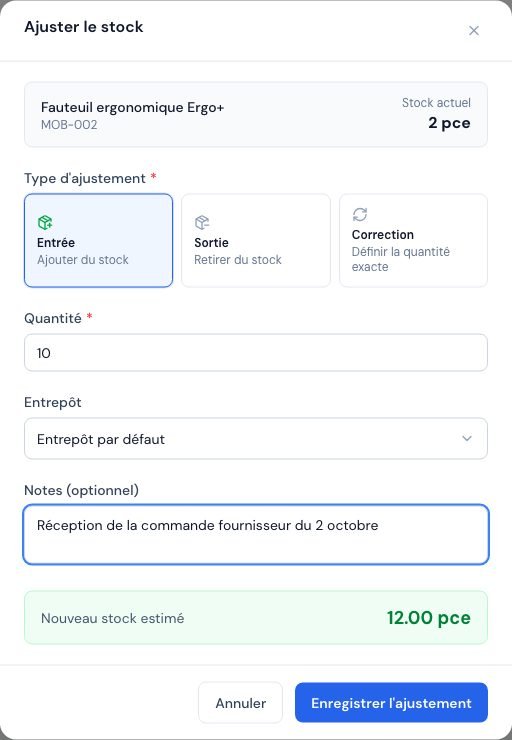 The « Ajuster le stock » (Adjust stock) window of a product with the adjustment type, the quantity and the warehouse.
4. Where can I see the movement history?
- In the product list, choose the Historique stock (Stock history) action; on the product page, click the Historique (History) tile.
- The Historique du stock panel shows the Stock actuel (Current stock), the number of Mouvements (Movements) and, if the product is below its threshold, the reminder « Stock bas — seuil d'alerte : … » (Low stock — alert threshold: …).
- Each movement shows its type (Vente, Annulation, Avoir, Entrée, Sortie, Correction, Réception BC, Transfert reçu, Transfert envoyé), the quantity (+ or −), the note if any (for example « Facture … »), the date and the stock after the movement (« → … »).
- For a sale, an icon opens the related invoice.
The panel shows the product's 50 most recent movements.
5. How do low-stock alerts work?
A product is "on alert" when it is tracked, active, has an alert threshold and its stock is strictly lower than that threshold.
- Alertes stock page (menu Répertoire → Alertes stock): three counters (Produits en alerte — products on alert, En rupture — out of stock, for a stock of 0 or less, Sous le seuil — below threshold), then a table Produit, Stock actuel, Seuil, Manque (Product, Current stock, Threshold, Shortfall). The products missing the most come first. Actions: Consulter (View) and Ajuster le stock.
- « Alerte stock bas – [product] » email: sent to your company's Email professionnel (professional email, Paramètres → Informations) when a sent invoice, a removal or a downward correction leaves the product below its threshold. It recalls the remaining quantity and the threshold, with a Gérer le stock (Manage stock) button.
- Activity log: a « Stock bas détecté » (Low stock detected) line is added in the owner's name.
- In the list and on the product page, a product below its threshold is shown in red with the Stock bas (Low stock) badge.
When everything is fine, the page shows « Aucune alerte stock — Tous vos produits ont un stock suffisant. » (No stock alert — all your products have enough stock.)
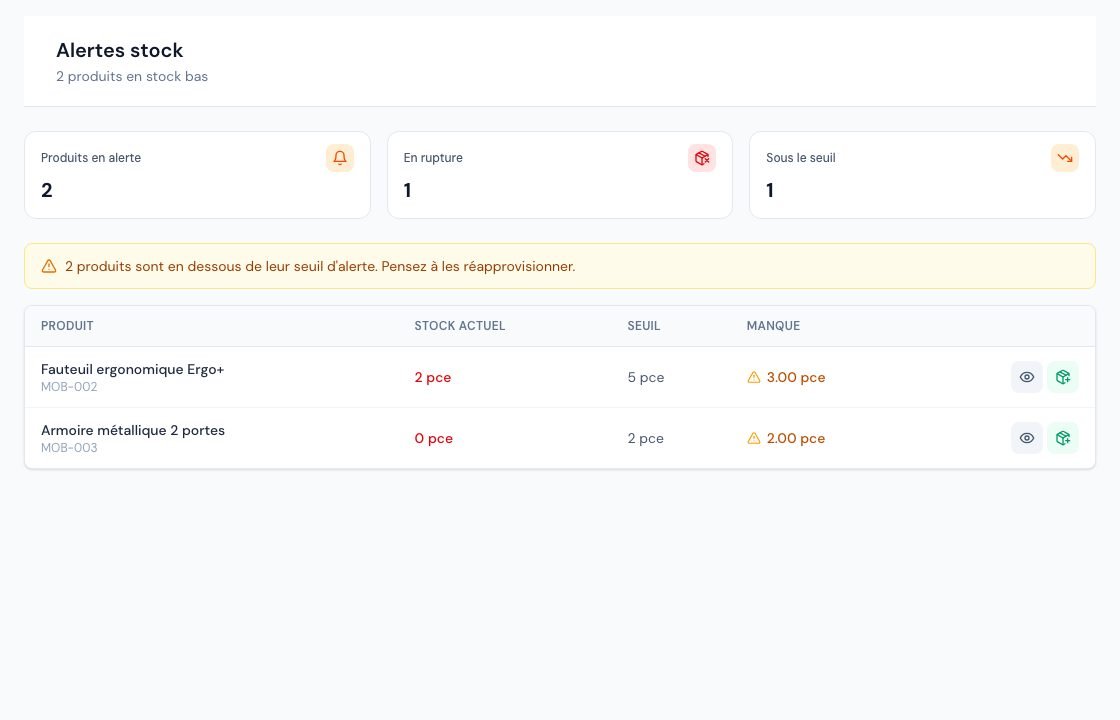 The « Alertes stock » (Stock alerts) page with the products below their threshold.
6. Who can view and change stock?
- Owner, administrator and collaborator: view stock, adjust it and see the history.
- Viewer: views quantities and alerts. The Ajuster le stock (Adjust stock) and Historique stock (Stock history) actions are not offered to them, neither in the product list nor on the product page, on the website as in the mobile app (which does not show the « Mouvements récents » (Recent movements) either).
- External accountant: the stock pages (alerts, warehouses, transfers) are not part of their space, and the stock actions are not offered to them either.
Role details are in Team roles and access.
Frequently asked questions
I created an invoice but stock did not move. Why?
Stock only decreases when the invoice becomes « sent » (sent by email or « Marquer comme envoyée »). A draft invoice does not touch stock. Also check that the product on the line has stock tracking turned on.
Did my delivery note lower the stock?
No. In Billora, it is the sent invoice that takes stock out, not the delivery note.
I cancelled an invoice: does the stock come back?
Yes, if the invoice had been sent: Billora puts back what went out, minus what any credit notes of that invoice already returned. Nothing is ever put back twice.
Can I prevent stock from going negative?
No, Billora allows negative stock and warns you at adjustment time. Fix it afterwards with an Entrée or a Correction.
Who receives the low-stock alert email?
The company's Email professionnel, entered in Paramètres → Informations. If no address is entered, no email is sent; the Alertes stock page stays up to date.
Next steps
Related articles
Was this article helpful?
Invoice compliantly, effortlessly
DGI-compliant invoices, quotes, credit notes, VAT and supplier tracking in a single tool.
Try it free