Browse help
What are email templates for?
Every time Billora sends a message on your behalf (an invoice, a quote, a reminder, a receipt), it uses a template. A template is pre-written text with "blanks" (the client's name, the amount, the due date…) that Billora fills in automatically. By customising them, you speak to your clients in your own tone, not with standard text.
Example: "Cabinet Kettani" prefers a warmer "Dear client" and adds a sentence about the accepted payment methods. It edits the "Envoi de facture" (Invoice sending) template just once, and all its future sends follow.
The available templates
The Paramètres → Modèles d'e-mails (Settings → Email templates) page lists all the templates, with a short description:
- Envoi de facture (Invoice sending), Envoi d'avoir (Credit note sending), Envoi de devis (Quote sending), Envoi de facture proforma (Proforma invoice sending), Envoi de bon de commande (Purchase order sending);
- Relance manuelle (Manual reminder) and the automatic reminders: Rappel avant échéance (J-3) (Reminder before due date), Relance à l'échéance (J0) (Reminder on the due date), Relance tardive (J+7) (Late reminder), Relance tardive (J+30);
- Confirmation de paiement automatique (Automatic payment confirmation), Reçu d'encaissement (client) (Collection receipt (client)) and Reçu de paiement (fournisseur) (Payment receipt (supplier)).
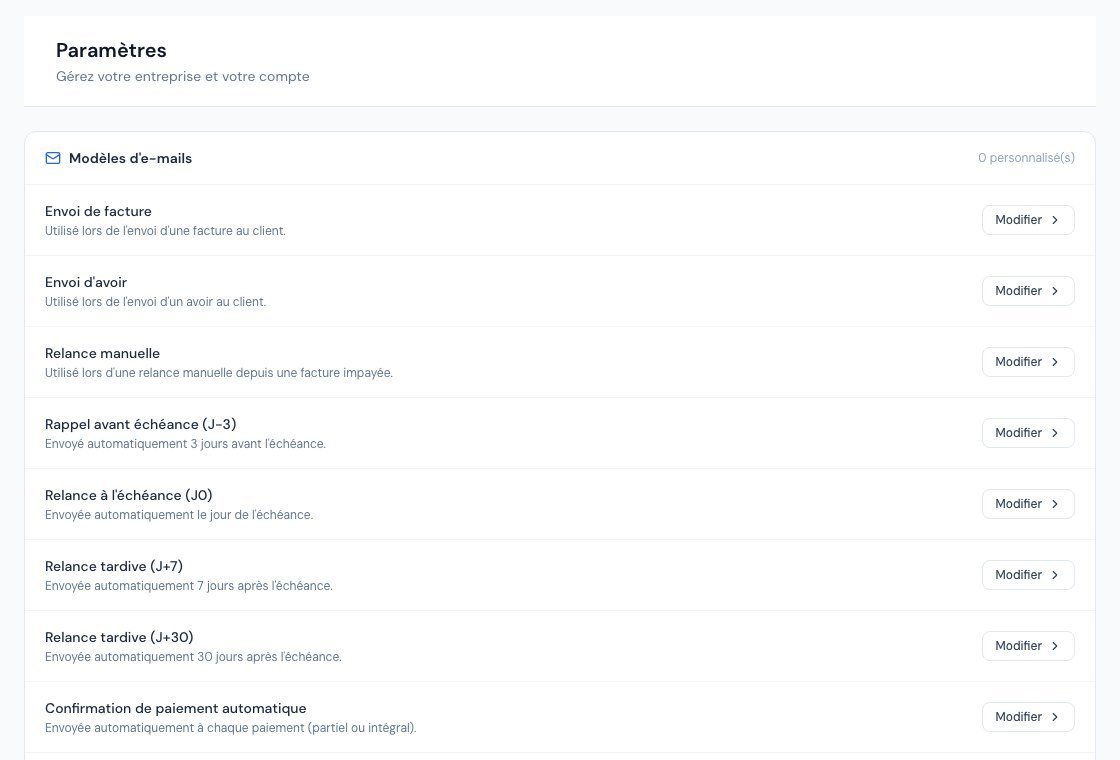 The email templates.
A padlock on a row means that this template depends on a feature missing from your subscription: the "Disponible à partir du plan …" (Available from the … plan) message indicates the plan concerned. Customisation itself is a subscription feature: if it is not included, the page says so and shows the corresponding plan.
Customise a template, step by step
- Go to Paramètres → Modèles d'e-mails.
- On the row of the template you want, click Modifier (Edit). A panel opens on the right.
- Edit the Objet de l'e-mail (Email subject) (the line displayed in the inbox).
- Under Variables disponibles (Available variables), click a variable to insert it into the subject. For the message body, type the variable between double curly braces, for example {{client_nom}}.
- Write the Corps du mail (Email body) in the Riche (Rich) editor (bold, lists, links) or, if you know HTML, in the HTML mode.
- Click Aperçu (Preview) to see the final result, then Retour à l'édition (Back to editing).
- Click Enregistrer (Save).
What you see next: the template's row displays the Personnalisé (Customised) badge and the date "Modifié le …" (Edited on …). The counter at the top of the list shows how many templates are customised.
The variables
A variable is written between double curly braces. At the time of sending, Billora replaces it with the real value. Here are the main ones:
| Variable | Replaced by |
|---|---|
| {{societe_nom}} | Your company's name |
| {{client_nom}} | The client's name (or {{fournisseur_nom}} for a supplier) |
| {{facture_numero}} | The invoice number ({{devis_numero}}, {{avoir_numero}}, {{bdc_numero}}, {{proforma_numero}} for the other documents) |
| {{montant_ttc}} | The amount incl. VAT (TTC) (without the unit: write "DH" after it) |
| {{solde_restant}} | The remaining balance to pay |
| {{date_echeance}} | The due date ({{date_expiration}} for a quote) |
| {{jours_retard}} | The number of days overdue |
| {{montant_paiement}}, {{date_paiement}} | The amount and date of a payment |
| {{lien_portail}} | The link to the client's space |
Each template only knows certain variables: the list shown in the panel is the right one for that template.
A misspelled variable (for example {{nom_client}}) is not replaced: the client would literally see the curly braces in their email. Use the variable buttons for the subject and always check the Aperçu.
What Billora adds for you
- The header with your logo and the "Envoyé via Billora" (Sent via Billora) footer are added automatically: do not write them in the template.
- The "Envoi de facture" template contains "à régler avant le {{date_echeance}}" (to be paid before {{date_echeance}}): if the invoice has no due date, this part is removed automatically, so you will not get a truncated sentence.
- The content is cleaned on sending: dangerous elements (scripts…) are removed, only standard formatting is kept.
- In the window for sending a document or a reminder, the text is pre-filled from your template and remains editable before sending: you can adapt a message without changing the template.
A change only affects emails sent after saving. For a special case, do not change the template: simply adapt the text in the sending window, just before clicking Send.
Go back to the original template
At the bottom of the panel, Remettre le modèle par défaut (Restore the default template) asks for confirmation ("Réinitialiser vers le modèle système ? Cette action est irréversible." (Reset to the system template? This action is irreversible.)) then restores Billora's original text. Useful when a customisation no longer suits you.
Frequently asked questions
I edited the template, but the old text came back.
Check that you did click Enregistrer (the "Personnalisé" badge must appear). Emails already sent do not change; only the following ones use the new text.
Can I write in Arabic or English?
Yes, the text is free. There is only one template per type of email: choose the language of most of your clients, or adapt the message in the sending window.
Variables with single curly braces (like {client_name}) do not work.
Billora's variables use double curly braces and French names, such as {{client_nom}}. Refer to the table above.
I cannot edit a template.
Either customisation is not included in your subscription (the page shows the plan concerned), or the template itself depends on a missing feature (padlock on the row).
Next steps
Related articles
Was this article helpful?
Invoice compliantly, effortlessly
DGI-compliant invoices, quotes, credit notes, VAT and supplier tracking in a single tool.
Try it free