Browse help
What is it for?
If your goods are stored in several places (a depot, a shop, a van…), warehouses tell you how much of each product you have, and where. A product's global stock remains the sum of its warehouses.
Example. Naima distributes hygiene products from a depot in Tangier and a shop in Tetouan. She creates both warehouses, places her existing stock in the depot, then transfers 40 boxes to the shop every week. Global stock does not change; only the split moves.
Multi-warehouse management is a feature that depends on your subscription (it complements stock management, see Tracking stock). If it is not included, the Entrepôts (Warehouses) page shows « Cette fonctionnalité est disponible à partir du plan … » (This feature is available from the … plan) and the Entrepôts and Transferts menus do not appear. In test mode, everything is open.
1. How do I create a warehouse?
- Open Répertoire → Entrepôts (Directory → Warehouses) and click Nouvel entrepôt (New warehouse).
- Enter the Nom de l'entrepôt (Warehouse name, required) and, if you wish, a short Code (for example WH-01; it must be unique, otherwise « Ce code est déjà utilisé » — this code is already used), the Adresse / Localisation (Address / Location) and a Description.
- Tick Entrepôt par défaut (Default warehouse) if this warehouse should be used by default (see section 3).
- Click Enregistrer (Save).
When you create the first warehouse, Billora opens the Placement du stock existant (Placing existing stock) window: all the stock you already had is placed in this first warehouse when you click Placer le stock dans cet entrepôt (Place stock in this warehouse). To move part of it elsewhere, create the other warehouses then use transfers.
2. How do I read stock by warehouse?
- On the product page: the Stock card shows the Stock global (Global stock), and the Stock par entrepôt (Stock by warehouse) card details each warehouse's quantity (the default warehouse is marked « défaut »), with the reminder « Le stock global est la somme des entrepôts. » (Global stock is the sum of the warehouses.)
- On a warehouse's page (action Consulter — View — or a click on its name): the Stock tab lists the products with Quantité, Seuil alerte and État (Quantity, Alert threshold, State: « Stock bas » when this warehouse's quantity is below the product's threshold). The Informations tab shows name, code, address, description and « Entrepôt par défaut ». The counters show Produits suivis, Unités en stock, Alertes stock and Statut (Tracked products, Units in stock, Stock alerts, Status). The Changer d'entrepôt (Switch warehouse) selector moves from one warehouse to another.
In the warehouse list, the Produits (Products) column counts the products held in each. A search by name and an Actif / Archivé (Active / Archived) filter are available (active ones by default).
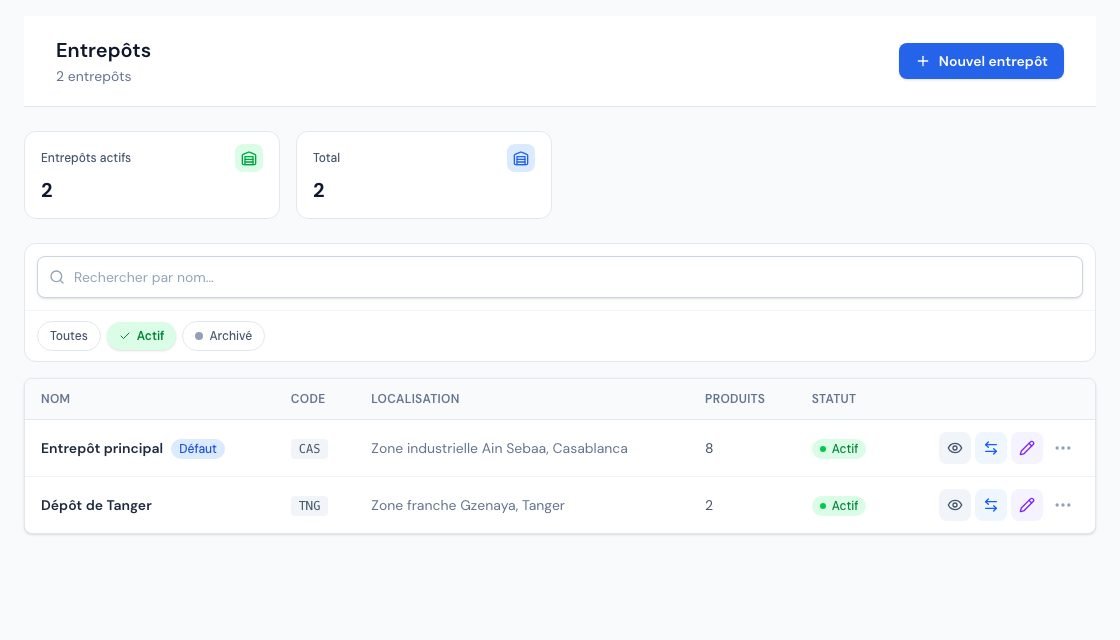 The « Entrepôts » (Warehouses) page with the warehouses and their stock.
3. Which warehouse does a sale or a receipt affect?
| Operation | Warehouse affected |
|---|---|
| Invoice sent, invoice cancelled, credit note put back in stock | The default warehouse |
| Manual adjustment | The warehouse chosen in the Ajuster le stock window, otherwise the default warehouse |
| Goods receipt | The warehouse chosen when receiving |
| Transfer | The source warehouse and the destination warehouse |
To change the default warehouse, choose the Définir par défaut (Set as default) action on an active warehouse. There is only one default warehouse at a time. If no active warehouse is marked as default, Billora uses the oldest active warehouse.
When you manage warehouses, a product's stock can no longer be changed in its form: the Quantité en stock field is greyed out and you must use Ajuster (Adjust) on the warehouse or product page.
4. How do I transfer stock from one warehouse to another?
- Open Répertoire → Transferts and click Nouveau transfert (New transfer), or use a warehouse's Nouveau transfert action / Transférer tile, which preselects it as the source.
- Choose De (source) and Vers (destination) (From / To): two different, active warehouses.
- Add a Référence (optionnel) (Reference, optional), then the Produits à transférer (Products to transfer) with their quantity, and Notes (optionnel) if needed.
- Click Effectuer le transfert (Make the transfer). Stock is updated immediately: « Transfert effectué — le stock des entrepôts a été mis à jour. » (Transfer done — warehouse stock has been updated.)
A transfer cannot take more than the source warehouse holds. Otherwise it is refused with the message « Stock insuffisant dans l'entrepôt source : [produit] (disponible …, demandé …). » (Insufficient stock in the source warehouse: product (available …, requested …).) and nothing is moved.
The transfer list shows Référence, De, Vers, Produits, Statut and Date, with a search (« Rechercher par référence, entrepôt… »), start and end dates, and a status filter: Brouillon, Complété, Annulé (Draft, Completed, Cancelled). A transfer still in draft can be completed with Compléter (« Le stock sera déduit de l'entrepôt source et ajouté à l'entrepôt destination. » — stock will be taken from the source and added to the destination) or cancelled with Annuler (final).
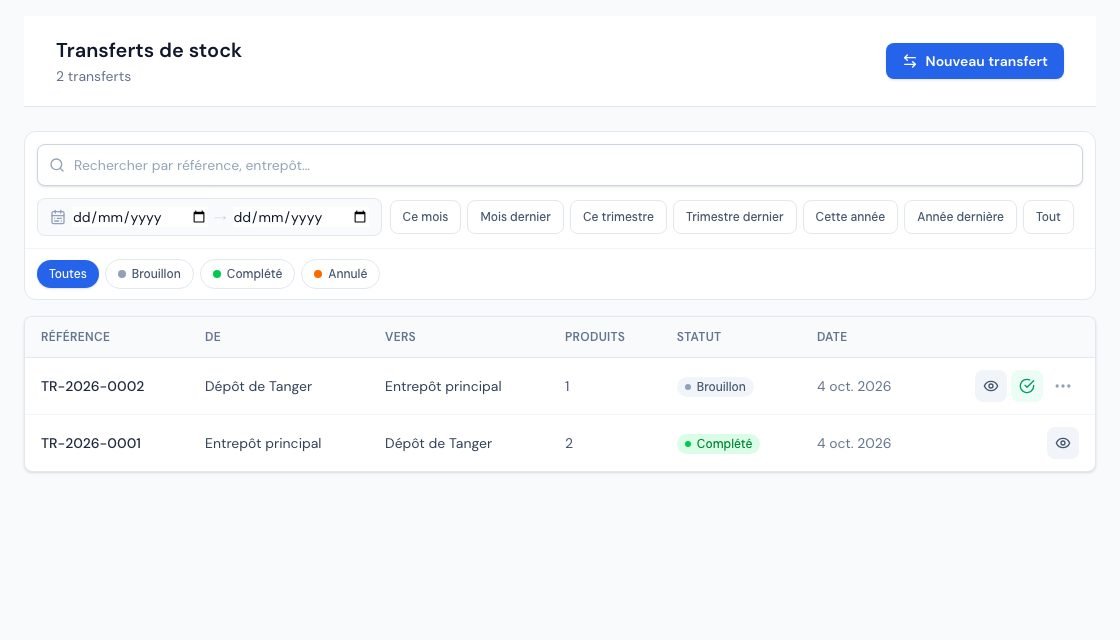 The « Transferts de stock » (Stock transfers) page between warehouses.
5. Archiving or deleting a warehouse
- Archiver (Archive): the warehouse disappears from the default list and can no longer be the source or destination of a transfer. Désarchiver (Unarchive) puts it back in service.
- Supprimer (Delete): if the warehouse holds stock, that stock is automatically moved to the default warehouse (the total is unchanged). If it is the last warehouse, the stock is kept as global stock. Deletion is irreversible.
6. Who can manage warehouses?
The owner, the administrator and the collaborator create, edit, archive and delete warehouses and make transfers. The viewer can only consult. The Warehouses and Transfers pages are not part of the external accountant's space.
Frequently asked questions
My product's global stock does not match any warehouse.
That is normal: global stock is the sum of all warehouses. Look at the product page's Stock par entrepôt card to see the split.
An invoice took stock out of the wrong warehouse.
Sales always come out of the default warehouse. Make a transfer to rebalance, and change the default warehouse if most of your sales leave from another place.
Can I create a transfer without moving stock right away?
No: from the « Nouveau transfert » form, stock is moved as soon as you click Effectuer le transfert. Only older transfers may still appear as drafts.
What happens to the stock of a warehouse I delete?
It is moved to the default warehouse; if no other warehouse remains, it is kept as global stock. Nothing is lost.
Next steps
Related articles
Was this article helpful?
Invoice compliantly, effortlessly
DGI-compliant invoices, quotes, credit notes, VAT and supplier tracking in a single tool.
Try it free