Browse help
What is a credit note for?
A credit note (« avoir ») is a document that corrects or cancels, in whole or in part, an invoice that has already been sent. It is always linked to its original invoice, and has its own number (for example AV-2026-0001) and its own PDF.
Example. Hajar runs a stationery shop in Rabat. She invoiced a school 1,000 DH, and the school has already paid 400 DH. A week later, the school returns all the supplies. Hajar creates a full cancellation credit note: the invoice is cancelled and Billora tells her she owes the school 400 DH, which she can refund or keep as credit for a future order.
No. It depends on the state of the invoice:
- Unpaid invoice (without validated e-invoicing): no credit note to cancel it. Billora says so clearly: « Facture non payée : modifiez-la pour la corriger, ou annulez-la si le client n'en veut plus » (Unpaid invoice: edit it to correct it, or cancel it if the client no longer wants it). The Avoir (Credit note) button is not even offered on the page.
- Paid or partially paid invoice: it can neither be edited nor cancelled directly. A credit note is the right answer.
- Invoice validated by the DGI: it is locked (« Facture verrouillée — validée par la DGI » (Invoice locked — validated by the DGI)). To correct it, a credit note is mandatory.
Where to find your credit notes?
In the menu, open Facturation → Avoirs (Invoicing → Credit notes). The table shows the N° Avoir (Credit note no.), the Client, the Facture liée (Linked invoice), the Date, the Total TTC (Total incl. VAT) and the Statut (Status). The « Statut » filter accepts several choices at once.
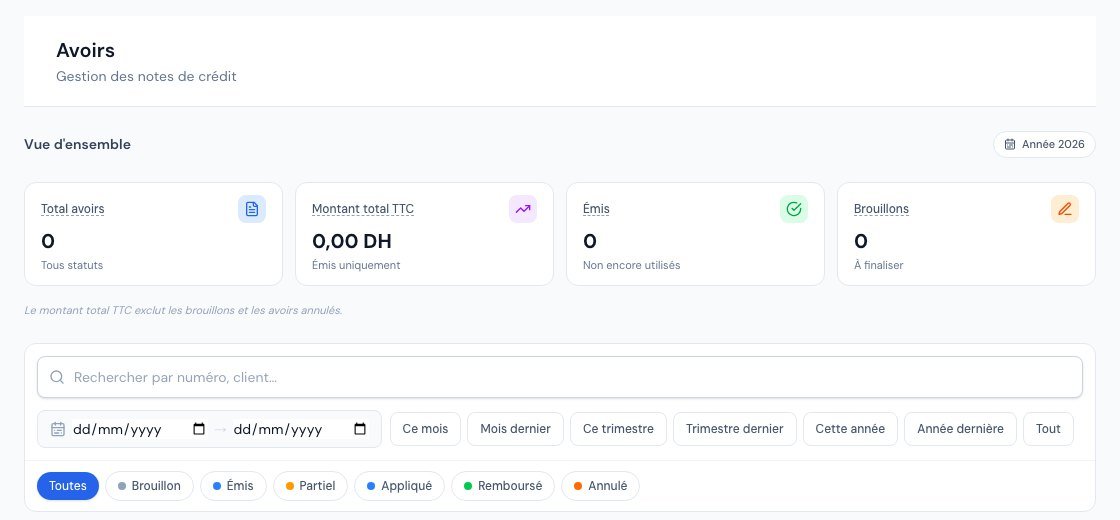 The list of credit notes.
A credit note is always created from an invoice (see below). On a client's page, the Avoirs (Credit notes) tab and the Crédit client (Client credit) block (« Crédit récupérable » (Recoverable credit)) summarise their credit notes and what they can still recover.
The three types of credit notes
When creating, Billora asks you to choose a type:
| Type | When to use it | What happens on issuance |
|---|---|---|
| Annulation totale (Full cancellation) | Invoice issued by mistake, duplicate, order entirely cancelled. The credit note cancels 100% of the invoice. | The invoice switches to « Annulée (avoir) » (Cancelled (credit note)) and its balance drops to 0. What the client had already paid becomes credit to be returned to them. |
| Annulation partielle / Retour (Partial cancellation / Return) | Return of part of the products or cancellation of some services. | The credit note amount is deducted from the invoice. |
| Remise / Geste commercial (Discount / Goodwill gesture) | Rebate, discount or refund granted after invoicing. | The credit note amount is deducted from the invoice, as for a partial return. |
You may still come across the « Trop-perçu » (Overpayment) label on older credit notes: this type is no longer offered when creating.
Create a credit note, step by step
- Open the invoice concerned (Facturation → Factures (Invoicing → Invoices)), then click the « Avoir » tile in the Actions rapides (Quick actions). The « Nouvel avoir » (New credit note) page opens with the invoice already chosen.
- Step 1 — « Facture & type » (Invoice & type): choose the type. « Annulation partielle / Retour » is preselected. On an unpaid invoice, the « Annulation totale » card is greyed out with the message explained above. Click « Suivant » (Next).
- Step 2 — « Lignes & détails » (Lines & details): check the Date d'émission (Issue date), optionally add a Motif (Reason), then the lines:
- Annulation totale: the lines are taken from the invoice and cannot be edited (« Reprises de la facture — non modifiables » (Taken from the invoice — not editable)).
- Annulation partielle / Retour: the lines are pre-filled from the invoice. Adjust the quantities or delete the lines you do not want to credit.
- Remise / Geste commercial: you start from an empty line and enter the discount amount.
- Step 3 — « Récapitulatif » (Summary): review the totals excl. VAT, VAT and incl. VAT. For a full cancellation, a box shows the amount « À rembourser » (To refund). Click « Créer l'avoir en brouillon » (Create the credit note as a draft).
What you see next: the credit note page opens with the title Brouillon (Draft) and an « Avoir en brouillon » banner. At this stage, the credit note has no number and has no effect on the invoice.
During creation, Billora shows the amount still available for a credit note (« disponible pour avoir »): the invoice's total incl. VAT minus the credit notes already issued and those in draft. A credit note cannot exceed this amount. It is calculated by the server: you have nothing to recalculate.
Issue the credit note
- On the draft page, click « Émettre » (Issue). The « Émettre l'avoir » (Issue the credit note) window opens: it reminds you that the final number will be assigned and can no longer change.
- For a full cancellation, an « Impact sur la facture source » (Impact on the source invoice) box warns that the invoice will be marked cancelled and its balance brought to 0.
- A « Envoyer par email au client après émission » (Send by email to the client after issuance) checkbox is ticked by default. The button becomes « Émettre & envoyer » (Issue & send); untick the box to just « Émettre ».
- If the question « Remettre les articles en stock ? » (Put the items back in stock?) appears, answer it (see below).
What you see next: the credit note carries its number, its status switches to Émis (Issued) (or directly to Appliqué (Applied), see below) and the invoice is updated.
If the original invoice was validated by the DGI, the credit note must be too. Issuance then follows four steps (issuance, digital signature, DGI validation, secure archiving). The credit note's effects (invoice cancelled, credit available) only apply once the credit note is validated. As long as the DGI has not responded, it can neither be applied nor refunded, and a validated credit note can no longer be cancelled. If the DGI rejects the credit note, the invoice remains unchanged. As long as the DGI has not ruled on the invoice itself (validation in progress or network error), creating a credit note is refused.
Use the credit: apply or refund
Depending on the type of credit note, there may be a credit left to use. Billora calculates it for you: it is what the client can actually recover (never more than what they overpaid).
- Discount or partial return: on issuance, Billora automatically deducts the credit note amount from the invoice balance (within the limit of what remains due). If the credit note is larger than the balance, the excess remains as credit.
- Full cancellation: the money already collected becomes credit. You choose whether to refund it, apply it to another invoice or keep it.
On the credit note page, the « Utiliser cet avoir » (Use this credit note) block offers two actions (the Appliquer (Apply) and Rembourser (Refund) tiles in the Quick actions do the same thing):
- « Crédit sur une facture » (Credit on an invoice): the « Utiliser le crédit sur une facture » (Use the credit on an invoice) window lists the same client's other unpaid invoices. Choose the Facture à créditer (Invoice to credit), enter the Montant à appliquer (Amount to apply) then click « Appliquer le crédit » (Apply the credit).
- « Rembourser le client » (Refund the client): the « Enregistrer le remboursement » (Record the refund) window asks for the Montant à rembourser (Amount to refund) (partial allowed), the Méthode de remboursement (Refund method) (Bank transfer, Cheque, Cash, Bank card or Other), the Date du remboursement (Refund date) and any Notes. Click « Confirmer le remboursement » (Confirm the refund). An Effectué (Made) payment is recorded in your payments.
Maximum amounts are displayed (« Rembourser jusqu'à … DH » (Refund up to … DH)). A partial refund leaves the rest available: the credit note switches to Partiel (Partial).
Credit note statuses
| Status | Meaning |
|---|---|
| Brouillon (Draft) | Created but not yet issued: no number, no effect. It can be deleted. |
| Émis (Issued) | Number assigned. If any credit remains, it is available to be applied or refunded. |
| Partiel (Partial) | Part of the credit has already been used (partial refund, for example); a balance remains. |
| Appliqué (Applied) | The credit has been deducted from an invoice: the credit note is settled. |
| Remboursé (Refunded) | The credit has been returned to the client. |
| Annulé (Cancelled) | The credit note has been cancelled: its effects are undone. |
Practical cases
Examples on an invoice of 1,000 DH incl. VAT, without e-invoicing:
| Situation | What to do? | Result |
|---|---|---|
| Unpaid, the client cancels | No credit note: cancel the invoice | The invoice switches to « Annulé » (Cancelled) |
| Paid 400 DH, the client cancels | Full cancellation credit note | Invoice « Annulée (avoir) », balance 0; 400 DH credit to refund, keep or apply elsewhere |
| Paid 1,000 DH, the client cancels | Full cancellation credit note | Same result, with a 1,000 DH credit |
| Unpaid, return of part of the items (300 DH) | Annulation partielle / Retour | 300 DH are deducted: invoice « Partiel » (700 DH remaining), credit note « Appliqué » |
| Paid 1,000 DH, goodwill gesture of 300 DH | Remise / Geste commercial | Nothing to deduct (the invoice is settled): credit note « Émis », 300 DH to refund or keep |
| Paid 900 DH, 100 DH remaining, gesture of 300 DH | Remise / Geste commercial | 100 DH deducted (invoice « Payé » (Paid)), credit note « Partiel » with 200 DH of credit |
Cancel or delete a credit note
- A draft can be deleted (« Supprimer » (Delete)): it never had any effect.
- An issued or applied credit note can be cancelled (« Annuler l'avoir » (Cancel the credit note), in the menu or the « Annuler » tile): applications to invoices are undone and those invoices get their balance back. For a full cancellation, the original invoice gets its status back (Paid, Partial or Sent depending on collections).
- A credit note that has already been refunded or validated by the DGI can no longer be cancelled.
There is no « Modifier » (Edit) button on a credit note: in case of an error on a draft, delete it and recreate it.
Credit note PDF and sending
Each credit note has its PDF (« Voir le PDF » (View the PDF) or « Télécharger PDF » (Download PDF)). It carries the « AVOIR » header with its number, a banner reminding the type and the original invoice (« Avoir d'annulation totale — Facture FA-2026-0001 », « Avoir d'annulation partielle — Facture … » or « Avoir sur facture … »), the lines, the totals with VAT by rate, the amount in words (« Avoir arrêté à la somme de ») and the reason. The PDF does not contain an internal summary: it goes to your client as is.
Once the credit note is issued, the « Envoyer » (Send) tile (then « Renvoyer » (Resend)) opens the « Envoyer l'avoir AV-… » (Send credit note AV-…) window. The text comes from the « Envoi d'avoir » (Credit note sending) template in Paramètres → Modèles d'e-mails (Settings → Email templates).
Put the items back in stock
When a client sends the goods back to you and you cancel their invoice, the items are back with you. Billora can put them back in stock at the time you issue the credit note, so your stock stays accurate without manual handling.
You had invoiced 6 binders to Maroc Bâtiment. The client cancels: you issue a cancellation credit note. Billora asks you whether the 6 binders come back into stock. You answer « Oui » (Yes): the binder stock increases by 6.
When is the question asked?
- Only for a cancellation credit note (full or partial). A commercial discount or an overpayment returns no goods: no question.
- Only if stock management is active and the invoice contains items tracked in stock (products whose record says « Suivre le stock de ce produit » (Track this product's stock)).
- Only if there are items left to put back: the invoice must have taken some out (see the « Envoi de facture et stock » (Invoice sending and stock) section of the article on invoice statuses).
Answer the question, step by step
- Open the draft credit note and click « Émettre ».
- In the window, the « Remettre les articles en stock ? » block lists the items and quantities (for example « Classeur à levier × 6 » (Lever arch binder × 6)).
- Choose « Oui, remettre en stock » (Yes, put back in stock) or « Non » (No). No answer is preselected, and the issue button stays greyed out until you have chosen.
- Click « Émettre & envoyer » (Issue & send) (or « Émettre » if you unticked sending by email).
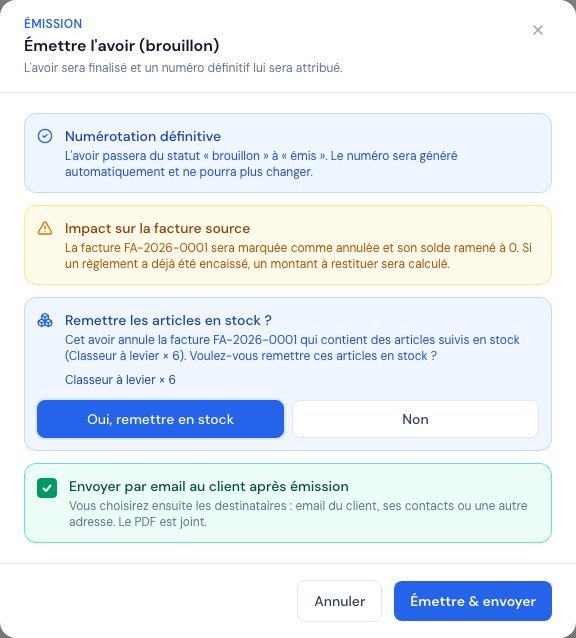 When issuing a cancellation credit note: the question « Remettre les articles en stock ? ».
What you see next: the credit note page shows a « Stock » block with « Articles remis en stock » (Items put back in stock) and the list of items.
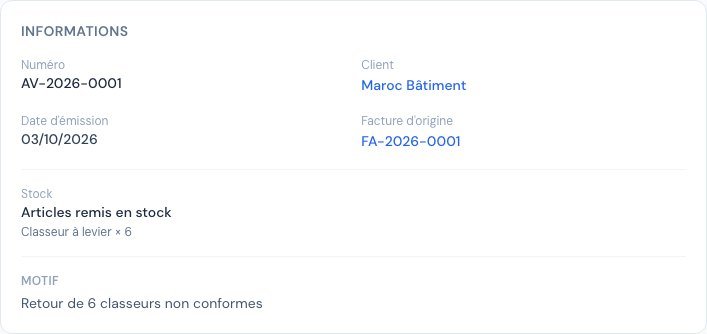 The credit note page shows « Articles remis en stock » with the list of items.
Which quantities are put back in stock?
- Never more than what the invoice actually took out of stock, minus what other credit notes have already put back. Why? So that the same item cannot come back into stock twice.
- For a full cancellation credit note, everything that remains taken out goes back into stock.
- For a partial cancellation credit note, these are the quantities of the credit note's lines, within the limit above.
With e-invoicing (DGI)
If the invoice was declared to the DGI, the credit note must be validated too. The window asks you the same question (buttons « Oui, remettre en stock », « Non » and « Annuler » (Cancel)), but the stock is only put back when the DGI validates the credit note. In the meantime, the page shows « Remise en stock à la validation DGI » (Put back in stock upon DGI validation). If the DGI rejects the credit note, nothing is put back.
Cancel the credit note
If you cancel a credit note that had put items back in stock, those items are taken out of stock again: the confirmation window tells you so (« Les articles remis en stock à l'émission (…) seront ressortis du stock. » (The items put back in stock on issuance (…) will be taken out of stock again.)).
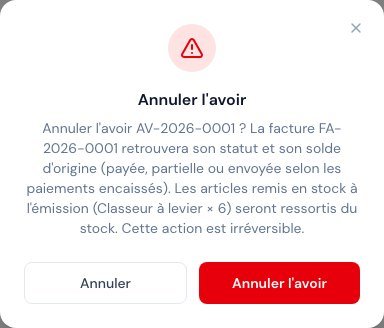 Cancel the credit note: the confirmation warns that the items will be taken out of stock again.
The states shown on the page
| Message | Meaning |
|---|---|
| Articles remis en stock | You answered « Oui » and the stock has been updated. |
| Articles non remis en stock (Items not put back in stock) | You answered « Non » (or the DGI rejected the credit note). |
| Remise en stock à la validation DGI | « Oui » is recorded; the stock will move once the DGI has validated the credit note. |
| Articles ressortis du stock (avoir annulé) (Items taken out of stock again — credit note cancelled) | The credit note has been cancelled: the items put back were removed from stock. |
| Rien à remettre en stock (aucune sortie de stock sur cette facture) (Nothing to put back in stock — no stock movement on this invoice) | The invoice had not taken anything out of stock, or everything has already come back. |
| Articles non remis en stock (gestion de stock désactivée) (Items not put back in stock — stock management disabled) | Stock management was turned off before the items were put back in stock. |
| Remis en stock — non ressortis (gestion de stock désactivée) (Put back in stock — not taken out again, stock management disabled) | The credit note was cancelled while stock management was turned off: the stock put back was not removed. |
Answer « Non » if the goods did not come back to you (item destroyed, never delivered…). The choice is recorded on issuance: it can no longer be changed afterwards. To correct an oversight, cancel the credit note or adjust the stock manually from the product page.
Frequently asked questions
Why am I not asked about stock?
Either the credit note is not a cancellation credit note, or none of the invoice's items is tracked in stock, or the invoice took nothing out of stock, or stock management is not active.
The quantity offered is smaller than my credit note line. Is that normal?
Yes: Billora caps it at what the invoice took out minus what other credit notes have already put back.
I forgot to answer « Oui ». What can I do?
Adjust the stock manually (product page, « Stock » tile), or cancel the credit note and redo it.
Frequently asked questions
Why does the « Avoir » button not appear on my invoice?
Several possible reasons: the invoice is still a draft or already cancelled; it is not paid and does not go through the DGI (cancel it or edit it); the DGI has not responded yet; the invoice is already fully covered by credit notes; a draft credit note is already waiting for it.
What is the difference between « Appliquer » and « Rembourser »?
« Appliquer » deducts the credit from the balance of another unpaid invoice of the same client: no money moves. « Rembourser » returns the money to the client and records a payment made.
Can I edit an issued credit note?
No. Cancel it if it is neither refunded nor validated by the DGI, then create a new one.
Does the client keep their credit if they do not want a refund?
Yes. The credit remains available on the credit note (status « Émis » or « Partiel ») and is shown in the « Crédit client » block of their page, ready to be applied to a future invoice.
Next steps
Related articles
Was this article helpful?
Invoice compliantly, effortlessly
DGI-compliant invoices, quotes, credit notes, VAT and supplier tracking in a single tool.
Try it free