Browse help
What is a quote for?
A quote (devis) is a price offer that you send before the invoice. It commits your business until its expiry date, and lets the client compare, decide, then accept. Once accepted, it turns into an invoice in one click.
Example: "Imprimerie Atlas" in Casablanca prepares a quote for 2,000 flyers and 3 banners for the restaurant "Dar Salam". The restaurant manager receives it by email, reads it and accepts it. The printer then converts the quote into an invoice.
Create a quote, step by step
- In the menu, open Facturation → Devis (Invoicing → Quotes), then click Nouveau devis (New quote).
- Choose the Client: type the first letters of the name and select it from the list. Does not exist yet? The Nouveau client (New client) link, under the field, takes you to its creation.
- Look at the Date d'émission (issue date): it is greyed out, because it is set automatically to the date the quote is sent.
- Enter the Date d'expiration (expiry date), that is, the last date on which your offer remains valid. The +15j, +30j, +45j and +60j buttons calculate it for you. The field is empty at first: remember to fill it in.
- If needed, complete the Objet (Subject, the title of the quote), the Conditions de paiement (Payment terms) (for example "50% on order, balance on delivery") and the N° commande client (PO Number) (client order no.) if your client gave you one.
- Add the lines with Ajouter une ligne (Add a line): a catalogue product, free text, a comment, a section or a subtotal. The totals excl. VAT (HT), VAT (TVA) and incl. VAT (TTC) are calculated live. See Document lines.
- Write the Notes (visibles sur le devis) (notes visible on the quote); the Notes internes (non visibles) (internal notes, not visible) stay for you alone.
- In Présentation du PDF (PDF layout), choose the Langue du document (document language) (French, English, Arabic or bilingual) and the Police (font).
- Click Créer le devis (Create the quote).
What you see next: the quote's page, with the Brouillon (Draft) status, with a PDF preview and quick actions (Envoyer, Convertir, Dupliquer…). A draft does not have a number yet: it is assigned when it is sent.
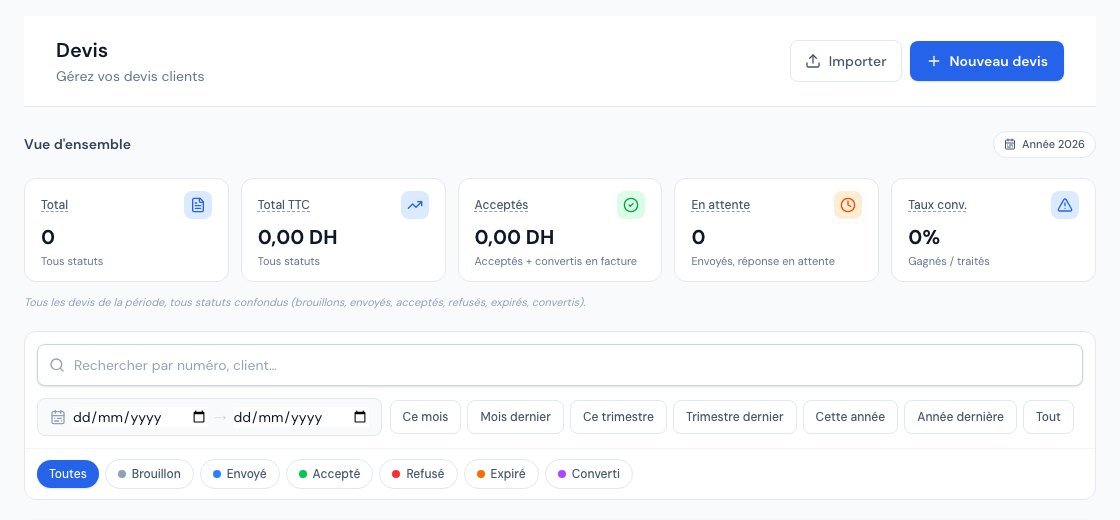 The list of quotes with their statuses.
The Notes field is pre-filled with your business's Conditions des devis (quote terms). You set them once and for all in Paramètres → Informations (Settings → Information), documents section. Edit them on a specific quote without touching the general setting.
An Taux de change (exchange rate) field appears to set the conversion into dirhams. Amounts remain stored in MAD: the foreign currency is only an indicative display.
Send the quote
From the quote's page, click Envoyer (Send): a window pre-filled with your email template opens, and the PDF can be attached. You can also Envoyer via WhatsApp (Send via WhatsApp) (if your subscription includes it) or, if you handed the quote over in person, choose Marquer comme envoyé (Mark as sent) in the "…" menu.
When sent, the quote receives its number and moves to Envoyé. If you edit it afterwards, a "modifié après envoi" (modified after sending) banner offers to Renvoyer (Resend) it.
Quote statuses
| Status | Meaning |
|---|---|
| Brouillon (Draft) | Quote being prepared, not yet sent, no number. |
| Envoyé (Sent) | Quote sent to the client, response awaited. |
| Accepté (Accepted) | The client said yes (you marked it, or they responded from the link received). |
| Refusé (Rejected) | The client said no. |
| Expiré (Expired) | A sent quote whose expiry date has passed without a response: Billora automatically moves it to Expired. |
| Converti (Converted) | The quote has been turned into an invoice. |
The link in the email takes your client to their space: they can accept or reject the quote there, and sign. You then see the signature and the acceptance date on the page. You can also record their response yourself with the Accepté or Refusé buttons, for example after a call.
A sent quote without a response? The Relancer (Remind) button ("…" menu or quick actions) sends a reminder by email.
Frequently asked questions
Why does my quote have no number?
A draft has no number. It is assigned when you send the quote (or when you convert it into an invoice). This avoids "burning" numbers on abandoned drafts.
Can I edit a quote that has already been sent?
Yes, as long as it is neither Converted nor Rejected. After editing, Billora tells you that the document has changed since it was sent: resend it to the client so they have the right version. The version history is available in the "…" menu: Historique des révisions (Revision history).
How do I redo a quote similar to an existing one?
Use Dupliquer (Duplicate): you get a new draft with the same lines. See Duplicate an invoice or a quote.
I cannot create a quote.
Either your monthly quote quota is reached (a message tells you), or your role is read-only: only the owner and administrators create documents.
Next steps
Related articles
The client portal: access protected by email and password
8 min read
Converting a quote into an invoice
4 min read
Create and manage your customers
7 min read
Create your first invoice
7 min read
Creating your products and services
7 min read
Document lines: name, formatted description, sections and subtotals
8 min read
Duplicating an invoice or a quote
4 min read
Customising email templates
6 min read
Send an invoice by email
5 min read
Was this article helpful?
Invoice compliantly, effortlessly
DGI-compliant invoices, quotes, credit notes, VAT and supplier tracking in a single tool.
Try it free