Browse help
What is it for?
When several people use Billora (a partner, an assistant, your chartered accountant), each should see and edit only what concerns them. The role assigned to each member handles this. You stay in control: only the owner invites, changes roles and deactivates access.
Example. Mounia runs a consulting firm in Casablanca. She invites her assistant as a Collaboratrice (Collaborator) to enter invoices, her partner as a Lecteur (Reader) to follow the figures, and her chartered accountant via accountant access to check the records at month end.
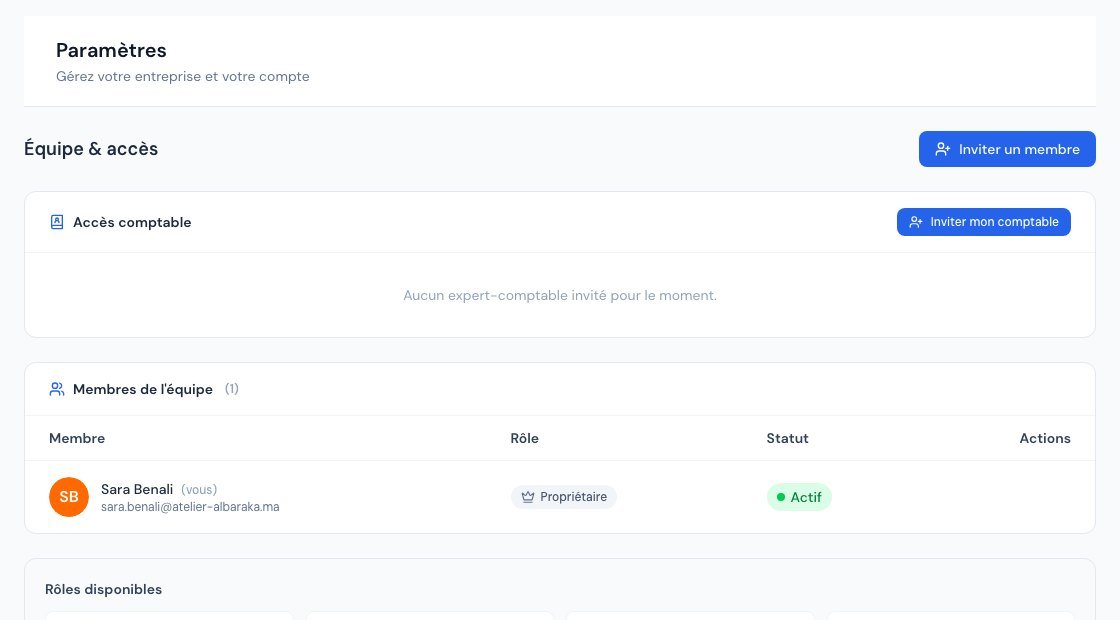 The Team page with members and their roles.
The 5 roles
| Role | Documents (invoices, clients…) | Company settings | Team, subscription, account |
|---|---|---|---|
| Owner (Propriétaire) | Full rights | Edit | Manage everything |
| Administrator (Administrateur) | Create and edit | Edit | View the subscription and the team; managing the team and the account remains with the owner |
| Collaborator (Collaborateur) | Create and edit | View only | View |
| Accountant (Comptable) (external) | View only, limited scope | No access | No access |
| Reader (Lecteur) | View only | View only | View |
Owner
They have all rights: documents, settings, team, subscription and account management (suspension, deletion). This is the person who created the account. They also activate the account when leaving test mode.
Administrator
They work like the owner on documents and can edit the company settings. However, only the owner invites members, changes their role, deactivates them, and accesses account management.
Collaborator
They create and edit everyday documents (invoices, quotes, clients, products, payments…). Settings and the team are open to them in read-only mode.
Accountant (external chartered accountant)
The accountant is read-only: they neither create nor edit any data, and do not access the settings. They view the Espace comptable (Accountant space), invoices and credit notes, expenses and payments, Points d'attention (Points of attention), Justificatifs manquants (Missing supporting documents) and the reports useful for accounting (for example the tax export and sequence continuity). They download PDFs and UBL files.
Their menu is deliberately reduced: they see neither quotes, nor the lists of clients, suppliers or products, nor the activity log.
Reader
They view everything open to their role and download PDFs, but cannot create or edit anything: all write buttons are hidden or refuse the action. Ideal for a partner or an adviser who wants to follow without touching.
Whatever their role, everyone can set their own security (Paramètres → Sécurité (2FA) (Settings → Security (2FA)): two-factor authentication, connected devices). See Securing your account.
1. Invite a team member
- Go to Paramètres → Membres (Settings → Members) (the page is titled "Équipe & accès", Team & access).
- Click Inviter un membre (Invite a member). The button shows the number of seats remaining if your subscription sets a user limit.
- Enter the email address, choose the role (Administrateur, Collaborateur or Lecteur) then click Envoyer l'invitation (Send the invitation).
- The person receives an email with a link valid for 72 hours. They open it, see the invitation details, enter their name and accept (or decline). You are notified of their response.
In the list, a status accompanies each member: En attente (Pending) (invitation not accepted), Actif (Active) or Désactivé (Deactivated). For a pending invitation, the Renvoyer (Resend) button sends a new email (with a short waiting delay between two sends).
- If the message "Limite de N membres atteinte" (Limit of N members reached) is displayed, the user limit of your subscription has been reached: see Understanding plans and limits.
- The same person can belong to several companies with the same email address and a different role in each: a Changer de compte (Switch account) selector then appears at the top of the screen.
2. Invite your chartered accountant
Accountant access has its own block, Accès comptable (Accountant access), on the same page.
- Click Inviter mon comptable (Invite my accountant). A box reminds you what they will be able to do (view invoices and credit notes, download PDFs and UBL files, access reports and exports) and what they will not be able to do (create or edit documents, edit settings, delete data).
- Enter their email and click Envoyer (Send).
- The accountant is an external contributor: they do not take up a seat in your subscription's "Utilisateurs" (Users) limit.
- Accountant access is a feature that depends on your subscription: if it is not included, the block displays "Accès comptable non inclus" (Accountant access not included) and the plan from which it is available.
- The owner has an accountant activity log to see what the accountant has viewed.
3. Change a role, deactivate or remove access
From the member list, the owner can:
- Change the role of a member with the role selector on their row. The member is notified by email.
- Désactiver (Deactivate) (or Activer (Activate)) a member: deactivation takes effect immediately. The person is logged out and can no longer get in. Handy for a departure, without losing any history.
- Supprimer définitivement (Delete permanently) (trash icon, "Supprimer définitivement"): removes the member from the team, irreversibly.
The owner themselves cannot be modified.
Frequently asked questions
Can the accountant enter invoices for me?
No, the accountant role is read-only. For someone who enters data, invite a collaborator.
What is the difference between administrator and collaborator?
The administrator can edit the company settings (identity, numbering, VAT (TVA), templates…). The collaborator can only view these settings.
Can I have several owners?
The account has a single owner. To share settings management, invite an Administrator.
Does a reader see everything?
They view documents and settings, without being able to edit. They nevertheless keep control over their own security (Sécurité (2FA)).
The invitation has expired.
Click Renvoyer on the person's row: a new 72-hour link is sent to them.
Next steps
Related articles
Was this article helpful?
Invoice compliantly, effortlessly
DGI-compliant invoices, quotes, credit notes, VAT and supplier tracking in a single tool.
Try it free