Browse help
What are statuses for?
Every invoice has a status that tells you where it stands: being prepared, sent, paid, overdue… It also determines what you can do with it (edit, cancel, record a payment, send a reminder).
Example. Leïla runs a consulting firm in Casablanca. On Monday morning she opens the invoice list and filters on « En retard » (Overdue): at a glance, she sees the three customers to chase.
Invoice statuses
Here is the label of the badge in the list and on the invoice page:
| Status | Colour | Meaning |
|---|---|---|
| Brouillon (Draft) | Grey | Invoice being prepared. The customer has not received it and, in general, it does not have a number yet (a draft may already have one after a failed sending or a rejection by the DGI). |
| Envoyé (Sent) | Blue | Invoice sent to the customer, awaiting payment. |
| Partiel (Partial) | Amber | A partial payment has been recorded; a balance remains to be paid. |
| Payé (Paid) | Green | The balance is settled: no action required. |
| En retard (Overdue) | Red | The due date has passed and a balance remains to be paid. |
| Annulé (Cancelled) | Orange | Invoice cancelled by you. |
| Annulée (avoir) (Cancelled by credit note) | Red | Invoice cancelled or entirely covered by one or more credit notes. It is read-only and its PDF carries the « ANNULÉE PAR AVOIR » (cancelled by credit note) stamp. |
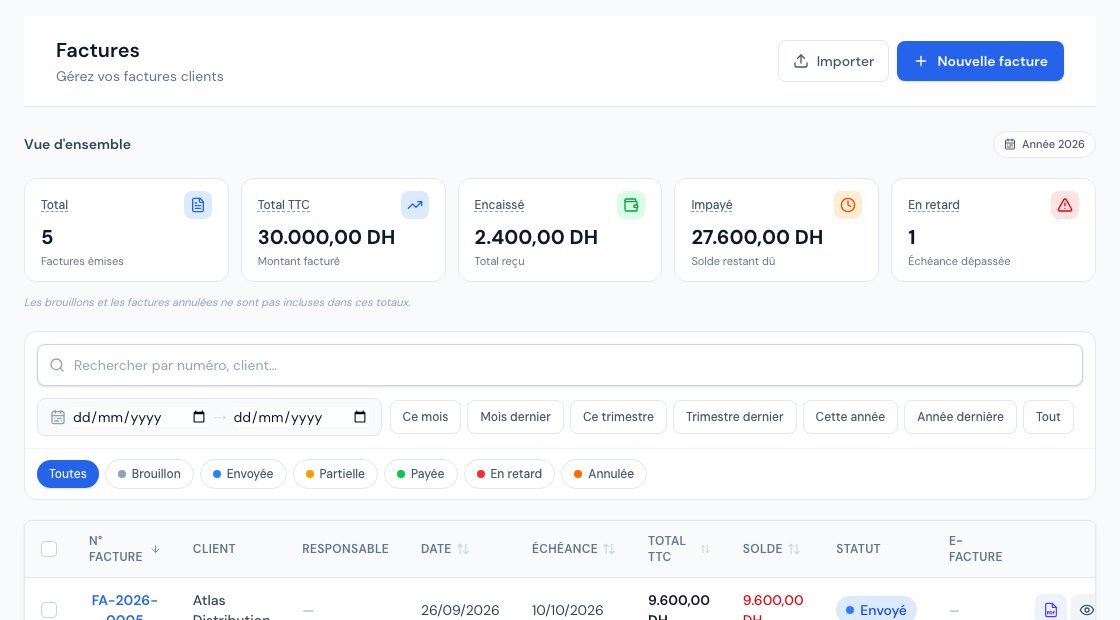 The invoice list with their statuses (paid, sent, overdue).
As soon as an invoice that is « Envoyé » (Sent) or « Partiel » (Partial) has passed its due date with a balance to pay, Billora shows it as overdue, without waiting: on the invoice page, a red pill « En retard · N j » shows the number of days, next to the « Envoyé » or « Partiel » badge. The stored status is also updated by an automatic task. The « En retard » filter in the list follows what you see on screen.
How an invoice changes status
- Brouillon → Envoyé: when you send the invoice by email (« Envoyer » (Send)), or when you click « Marquer comme envoyée » (Mark as sent) in the « … » menu if you delivered it another way. Its final number is assigned at that moment.
- Envoyé → Partiel: as soon as a partial payment is recorded (Record a payment).
- Envoyé or Partiel → Payé: when the balance is fully settled.
- Envoyé or Partiel → En retard: when the due date has passed and a balance remains.
- Envoyé or En retard → Annulé: with the « Annuler » (Cancel) button, as long as the invoice has received no payment.
- → Annulée (avoir): when a full cancellation credit note is issued, or when credit notes cover the whole invoice (Create a credit note).
What can you do depending on the status?
| Status | Available actions |
|---|---|
| Brouillon | Edit, duplicate, send, « Marquer comme envoyée », delete (if it does not have a number yet; otherwise « Annuler », Cancel). No payment possible. |
| Envoyé or En retard | Edit, resend, send a reminder, record a payment, cancel. |
| Partiel | Edit, resend, send a reminder, record a payment. No direct cancellation: create a credit note. |
| Payé | View, see the PDF, duplicate. Neither editing nor cancellation: create a credit note. |
| Annulé | View, see the PDF, duplicate. |
| Annulée (avoir) | View and see the PDF: the invoice is read-only. |
An invoice validated by the DGI is locked, whatever its status: neither « Modifier » (Edit) nor « Annuler », only a credit note can correct it.
- A sent invoice can still be edited as long as it is neither paid, nor cancelled, nor validated by the DGI. A « Facture modifiée après envoi » (Invoice modified after sending) banner reminds you to resend it, and the « Historique des révisions » (Revision history) (« … » menu) keeps a record of the changes.
- Only a draft without a number can be deleted. A draft that has already received a number (issued without being sent, failed sending, recurring invoice not sent, rejected by the DGI…) offers « Annuler » (Cancel) instead of « Supprimer » (Delete): an assigned number is never reused, and the cancelled invoice keeps it.
- Use the « Statut » (Status) filter in the list (several choices possible) to see only « En retard » invoices and plan your reminders. Billora can also send reminders automatically, depending on your subscription.
The « e-Facture » column
If e-invoicing is enabled, the list shows an e-Facture column, independent of the status above: « En attente » (Pending), « Validée DGI » (Validated by the DGI), « Rejetée » (Rejected), « Erreur réseau » (Network error) or « Déclarée payée DGI » (Declared paid to the DGI). See Enable e-invoicing.
Sending an invoice and stock
If you manage your stock in Billora, the invoice updates your quantities at the moment it is sent, not before.
You prepare an invoice for 6 binders as a draft. As long as it stays a draft, your stock does not move: you can edit it or abandon it. When you send it, the binder stock decreases by 6.
- Open the invoice and click « Envoyer », or, in the « … » menu, « Marquer comme envoyée » if you delivered it another way (by hand, via WhatsApp…).
- The invoice moves to the « Envoyée » (Sent) status. If it was a draft without a number, its final number is assigned at that moment.
- The stock of products tracked in stock decreases by the quantities on the invoice.
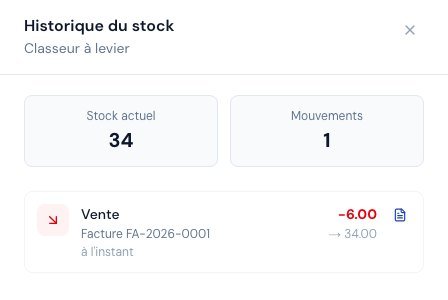 A product's stock history: the sale appears when the invoice is sent.
What you see: on the product page, the « Historique » (History) button shows a « Vente » (Sale) movement linked to the invoice.
- The stock outflow happens only once. Resending the invoice by email, or clicking twice, does not remove the stock twice.
- Only products whose page shows « Suivre le stock de ce produit » (Track this product's stock) are affected, and only if stock management is available on your subscription.
Cancelling a sent invoice
When you cancel a sent invoice, Billora puts back in stock exactly what had left it. An invoice still in draft removed nothing from stock: cancelling it changes nothing there.
A paid or partially paid invoice cannot be cancelled: create a credit note. An invoice that already carries a credit note (draft or issued) cannot be cancelled either, because the items would return to stock twice. To put items back in stock with a credit note, see Create a credit note.
If a product falls below its alert threshold after sending, Billora warns you with a low-stock alert.
Frequently asked questions
Why does my invoice stay « Brouillon », without a number?
Because it has not been sent yet. The number is assigned on the first sending, or when you click « Marquer comme envoyée ».
What is the difference between « Annuler » and a credit note?
« Annuler » is used for an invoice with no payment at all. As soon as a payment is recorded, or if the DGI has validated the invoice, you go through a credit note.
My invoice is « Partiel » but also « En retard · N j »: is that normal?
Yes: a partial payment was received, but the balance is not settled by the due date. The badge shows the partial payment and the red pill shows the delay.
Can I go back from « Envoyé »?
No, but you can edit the invoice and resend it, or cancel it if it has received no payment.
Next steps
Related articles
Was this article helpful?
Invoice compliantly, effortlessly
DGI-compliant invoices, quotes, credit notes, VAT and supplier tracking in a single tool.
Try it free