Browse help
What are reminders for?
A client who forgets to pay is not necessarily a bad payer: they have often simply forgotten. Reminders send a polite message, at the right time, without you having to think about it. This keeps your cash flow healthy without bothering your good clients.
Example: "Agence Digitale Marrakech" invoices 8,000 DH to a client with a due date on the 15th. Three days before, a reminder would go out; on the 15th, a due-date message; a week later, an overdue reminder. If the client pays in the meantime, nothing more is sent.
Billora offers two ways to send reminders: the manual reminder (you click) and automatic reminders (Billora sends them on a schedule).
Set up automatic reminders
- Go to Paramètres → Relances (Settings → Reminders).
- In the Relances automatiques (Automatic reminders) section, turn on the switch at the top right. The steps can only be edited once this switch is on.
- For each step of the schedule, turn on its switch (all are off at first), check the Délai (Delay) (in days relative to the due date) and choose the email Modèle (Template) used.
- Click Enregistrer (Save) (bar at the bottom of the page). The message "Configuration enregistrée" (Configuration saved) confirms.
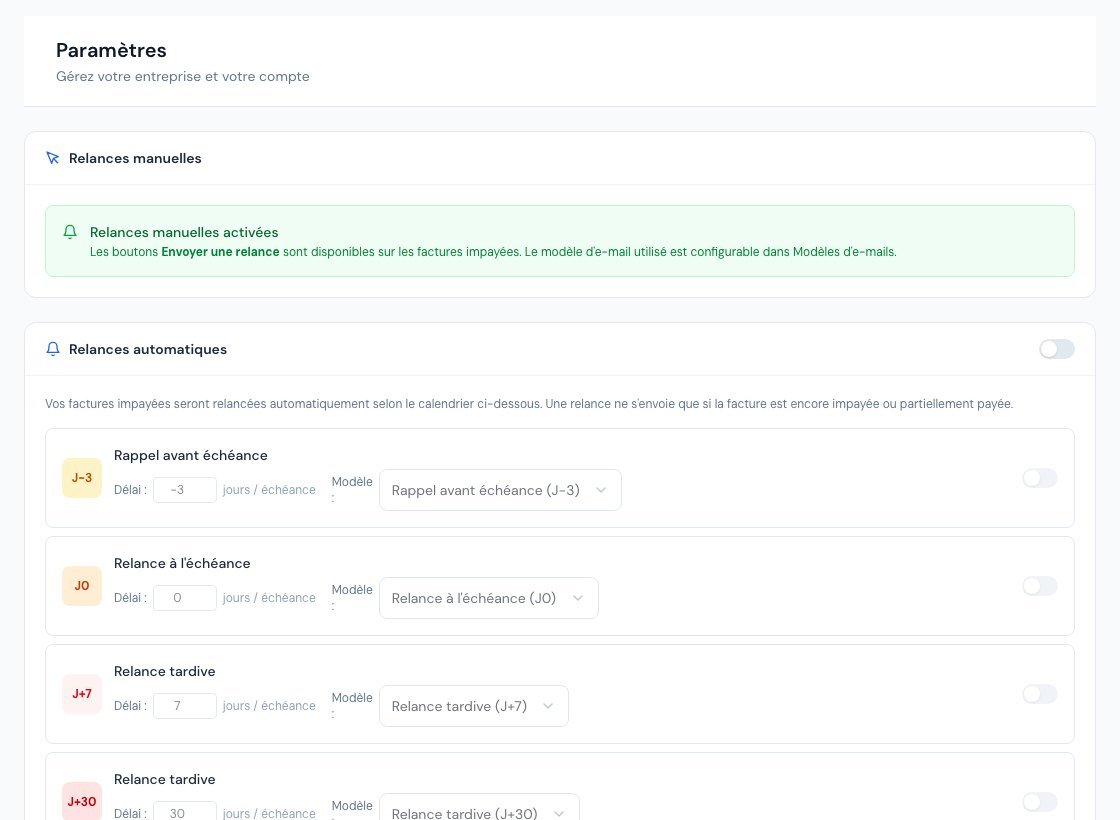 The reminder settings page.
If the feature is not included in your subscription, the section displays "Fonctionnalité verrouillée" (Feature locked) and the plan from which it is available.
The reminder schedule
| Step | Default delay | Default email template |
|---|---|---|
| Rappel avant échéance (Reminder before due date) | J-3 (3 days before the due date) | Rappel courtois (Courtesy reminder) |
| Relance à l'échéance (Reminder on the due date) | J0 (on the due date) | Échéance aujourd'hui (Due today) |
| Relance tardive (Late reminder) | J+7 (7 days after) | Relance de retard (Overdue reminder) |
| Relance tardive (avancée) (Late reminder (advanced)) | J+30 (30 days after) | Dernier rappel (Final reminder), mentioning a collections procedure |
The J+30 step is part of "Relances avancées et recouvrement" (Advanced reminders and collections): if it is not in your subscription, it is greyed out and shows the plan concerned. The delays can be changed: a negative number means "before the due date", zero "on the same day", a positive number "after".
When is a reminder actually sent?
- Only if the invoice is still unpaid or partially paid, and has a due date.
- Only if your client has an email address on file.
- Each step is sent only once per invoice.
- Sending takes place at a fixed time, in the morning, for invoices for which it is the day of a step. If the day's sending is missed, it is not made up the next day.
- If cheques in progress or upcoming payment promises already cover the whole balance, the reminder is skipped: no point harassing a client who has already handed over a cheque.
- A send that fails (mailbox full, server unavailable) is retried automatically a few hours later, up to 4 attempts.
A client who has paid receives nothing more. So remember to record each payment the same day: that is what stops the reminders.
Track what has been sent
At the bottom of Paramètres → Relances, the Historique des relances (Reminder history) section lists each message: the invoice number, the step (J-3, J0, J+7 or J+30), the client's address, the date, and a status: Envoyé (Sent), Retry en attente (Retry pending) (new attempt scheduled) or Échec définitif (Permanent failure) (with the cause). The Actualiser (Refresh) button reloads the list. This history lists the automatic reminders; a manual reminder is traced in the invoice's Journal d'activité (Activity log).
Send a reminder by hand
- Open the unpaid invoice: its status must be Envoyé (Sent), En retard (Overdue) or Partiel (Partial).
- Click the Relancer (Remind) tile in the Quick actions block, or "…" then Relancer par email (Remind by email).
- In the Envoyer une relance (Send a reminder) window, check the Destinataires (Recipients), the subject and the message: they are pre-filled from your "Relance manuelle" (Manual reminder) template and can be edited.
- Click Envoyer la relance (Send the reminder).
If your subscription includes WhatsApp reminders, a Relancer via WhatsApp (Remind via WhatsApp) action opens WhatsApp with a pre-filled message. A paid or cancelled invoice cannot be reminded.
When a client is really late, move on to the next step: record a payment promise, or follow the client's file in collections.
Customise the messages
Each step uses an email template that you can rewrite in Paramètres → Modèles d'e-mails (Settings → Email templates), with variables such as the client's name, the invoice number, the remaining balance or the number of days overdue. See Customising email templates.
Frequently asked questions
My client did not receive the planned reminder.
Check in order: is the reminder enabled (general switch AND step)? Does the invoice have a due date? Does the client have an email? Does a cheque or a promise already cover the balance? Finally, look at the history: a "Échec définitif" indicates the cause.
Can I send a reminder before the due date?
Yes: the "Rappel avant échéance" step does it automatically (J-3 by default), and the manual reminder is available as soon as the invoice is sent.
Does my client receive the same reminder several times?
No: each step is sent only once per invoice.
I do not see the "Relances" page.
It is visible in the Paramètres (Settings) menu. Manual, automatic and advanced reminders depend on your subscription; the page indicates from which plan each one is available.
Next steps
Related articles
Aged balance report
5 min read
The client portal: access protected by email and password
8 min read
Collections: reminder files per customer
7 min read
Customising email templates
6 min read
Understanding invoice statuses
6 min read
Recording and tracking your customers' payment promises
6 min read
Recording a payment
8 min read
Send an invoice by email
5 min read
Was this article helpful?
Invoice compliantly, effortlessly
DGI-compliant invoices, quotes, credit notes, VAT and supplier tracking in a single tool.
Try it free