Browse help
What is it for?
Instead of writing or calling you to place an order, your client opens their portal, picks items from your catalogue, adds a free line if needed (« 10 boxes of ink cartridges, model to be confirmed ») and sends their order request. You receive it in the Demandes clients (Client requests) menu, check it, then convert it into a draft quote in one click.
Example. The purchasing manager of Atlas Distribution SARL needs 20 reams of paper and 2 chairs. They put their request together from their portal, you receive a notification, and two minutes later the quote is ready to be sent.
It commits nobody and does not reserve any stock. It carries no final price: the prices shown to the client in the catalogue are indicative, only the quote is binding.
1. Turn on orders from the portal
The feature is off until you turn it on.
- In the menu, open Paramètres (Settings), then Portail client (Client portal).
- Turn on the switch « Permettre à vos clients d'envoyer des demandes de commande depuis leur portail » (Allow your clients to send order requests from their portal).
- Choose whether your prices should appear: the switch « Afficher vos prix HT dans le catalogue du portail » (Show your prices excl. VAT in the portal catalogue), available once the first switch is on.
- Click « Enregistrer » (Save). The message « Paramètres du portail enregistrés. » (Portal settings saved.) confirms it.
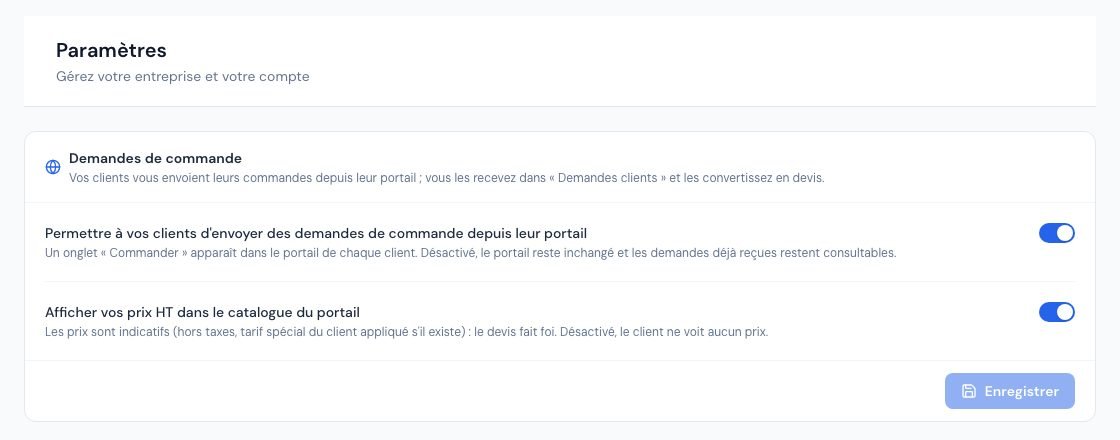 The Client portal settings page with the two order request switches.
- Prices shown: these are indicative prices excl. VAT. If the client has a special price (Prices per client), that price is shown, depending on your subscription. If the switch is off, the client sees no price at all.
- Turning it off: the « Commander » (Order) tab disappears from the portals; the rest of the portal is unchanged and the requests already received remain available in « Demandes clients ».
The owner and administrators save these settings. The feature depends on your subscription: if it is not included, the switches stay unchecked and the page tells you from which plan it is available (« Cette fonctionnalité est disponible à partir du plan … » — This feature is available from the … plan, read from the plan configuration). It cannot be turned on in that case.
2. What your client sees and does
When orders are turned on, each client's portal shows a « Commander » tab (and a « Faire une demande » banner on their home page). The client must have created their personal access and confirmed their e-mail address, as for the whole portal.
- The catalogue: it lists your active products and services (archived items do not appear). The client can search (« Rechercher un produit ou un service ») and add an item with the « Ajouter » button. Prices excl. VAT appear only if you turned them on.
- Their request: the « Votre demande » block gathers the chosen lines. They set the quantities (a number greater than 0, with at most three decimals) or remove a line.
- A free line: for an item that is not in the catalogue, they click « Ajouter une ligne libre » and enter the Libellé (label), Précisions (facultatif) (details, optional), the Quantité (quantity) and the Unité (facultatif) (unit, optional), then « Ajouter à la demande ». This line is tagged « Ligne libre ».
- Optional information: « Votre référence » (their internal order number), « Date souhaitée » (today or later) and « Commentaire » (delivery details, constraints…).
- Sending: « Envoyer la demande ». They see « Votre demande DC-… a bien été envoyée. » (Your request DC-… has been sent.) and receive an acknowledgement e-mail (« Votre demande de commande DC-… »), at the address of their portal access.
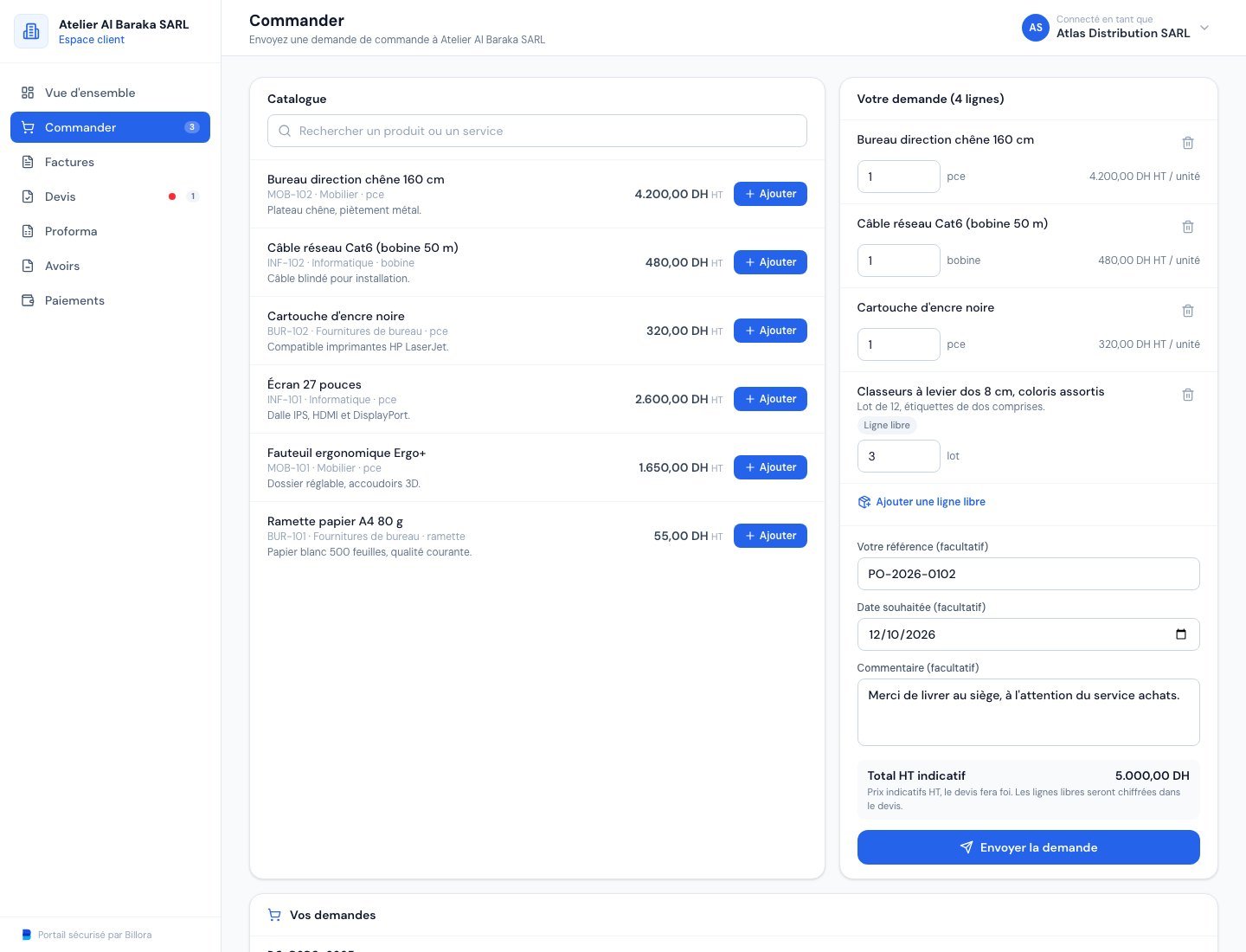 The Order tab of the client portal with the catalogue, the current request and a free line.
Each request gets a number of the form DC-2026-0001, specific to your company and numbered per year. The client can never send a price, VAT or total: only the items and quantities are sent, and Billora itself reads the name, code, unit and indicative price from your catalogue.
Tracking on the client's side
Below the form, the client follows their latest requests with their status:
- Reçue (Received): you have not opened it yet;
- En cours de traitement (Being processed): you have taken it on;
- Devis en préparation (Quote in preparation): it is converted, but the quote has not been sent yet;
- Devis envoyé (Quote sent): the quote is sent, and they find it in the « Devis » tab;
- Refusée (Declined): with the reason you entered.
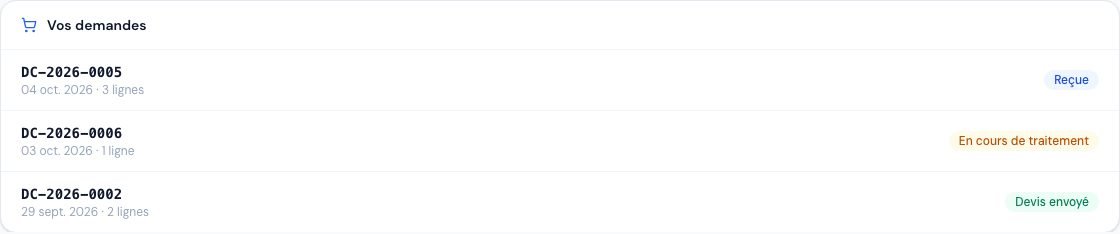 Request tracking in the client portal with their statuses.
If your account is being deleted, your clients see « ne peut plus recevoir de nouvelle demande pour le moment » (can no longer receive new requests for now): they can view their existing requests but cannot send new ones.
3. Receive and process a request
As soon as a client sends a request:
- all active team members receive a notification in Billora (« Nouvelle demande client »), and the owner, administrators and collaborators also receive an e-mail (« Nouvelle demande de commande DC-… »);
- a badge on the Facturation → Demandes clients menu counts the requests with the « Reçue » status.
Open Demandes clients: the table lists the requests (Numéro, Client, Reçue le, Lignes, Statut, Devis). Search by number, client or reference, filter by status (« Reçues », « En cours », « Converties », « Refusées ») or by period. Click a request to open its page.
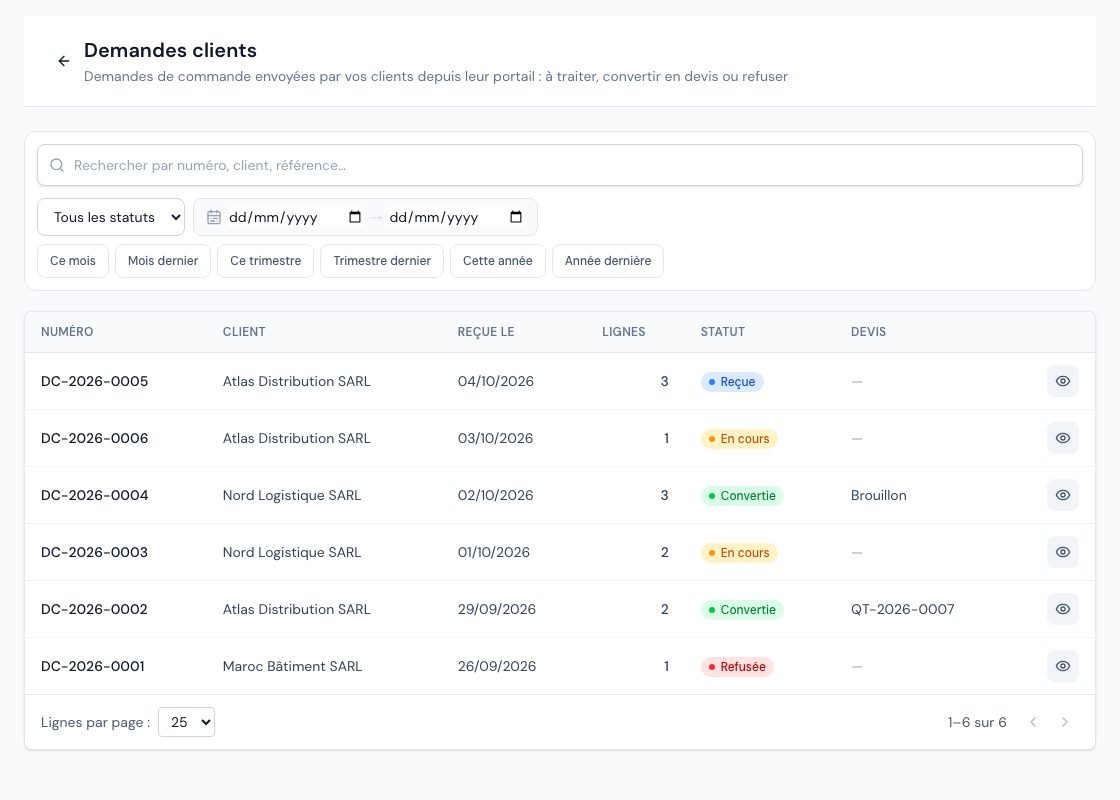 The Client requests page with received, in-progress, converted and declined requests.
The page shows:
- Informations: the client (link to their page), the date received, « Référence du client », « Date souhaitée », « E-mail du compte portail » and the linked quote;
- Commentaire du client (the client's comment);
- Articles demandés (requested items): description, code, quantity and, if the client saw them, the « Prix indicatif HT » (the quote is binding). A tag tells you the origin: « Ligne libre » (outside the catalogue), « Produit supprimé » (the product has been deleted since) or « Produit archivé » (archived product);
- Suivi (tracking): « Demande reçue depuis le portail », « Prise en charge par l'équipe », « Convertie en devis » or « Refusée », with dates. A « Journal d'activité » (activity log) tab keeps a trace of every action.
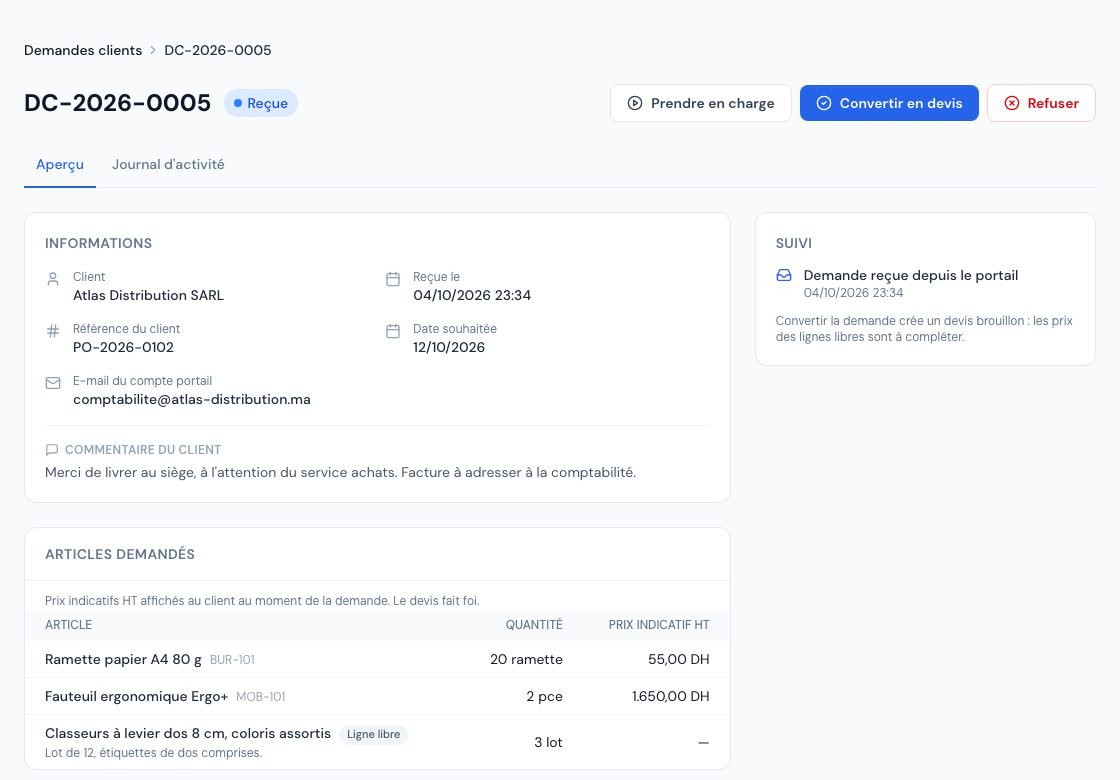 The page of a received request with its items, the client's comment and the three actions.
The statuses of a request
| Status | Meaning | Possible actions |
|---|---|---|
| Reçue (Received) | The request has just arrived. | Take it on, convert it to a quote, decline it. |
| En cours (In progress) | You have taken it on; the client can see it. | Convert it to a quote, decline it. |
| Convertie (Converted) | A draft quote has been created. | None: final status. |
| Refusée (Declined) | You declined it with a reason. | None: final status. |
« Prendre en charge » (Take on) is optional: it tells the client (and your colleagues) that someone is working on it. You can convert or decline a « Reçue » request directly. Click « Prendre en charge », then confirm: the request moves to « En cours ».
The owner, administrators and collaborators can take on, convert and decline. The viewer sees the requests without the action buttons. The external accountant does not see the « Demandes clients » menu. See user roles. If a colleague has already processed the request, you see « Cette demande a changé d'état entre-temps. Rechargez la page. » (This request changed status in the meantime. Reload the page.): nothing is done twice.
4. Convert a request into a quote
- On the request page, click « Convertir en devis » (Convert to quote).
- Read the confirmation, then click « Convertir en devis » again.
- Billora creates the quote and opens it: you land directly on it.
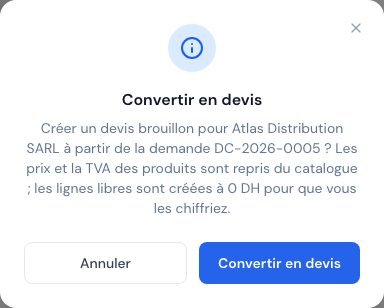 The Convert to quote confirmation window.
The quote created is a draft: it is not sent to anyone and does not have a number yet (the quote number is assigned when it is sent, as for any quote). A banner « Issu de la demande DC-… » (From request DC-…) links back to the request, which moves to « Convertie ».
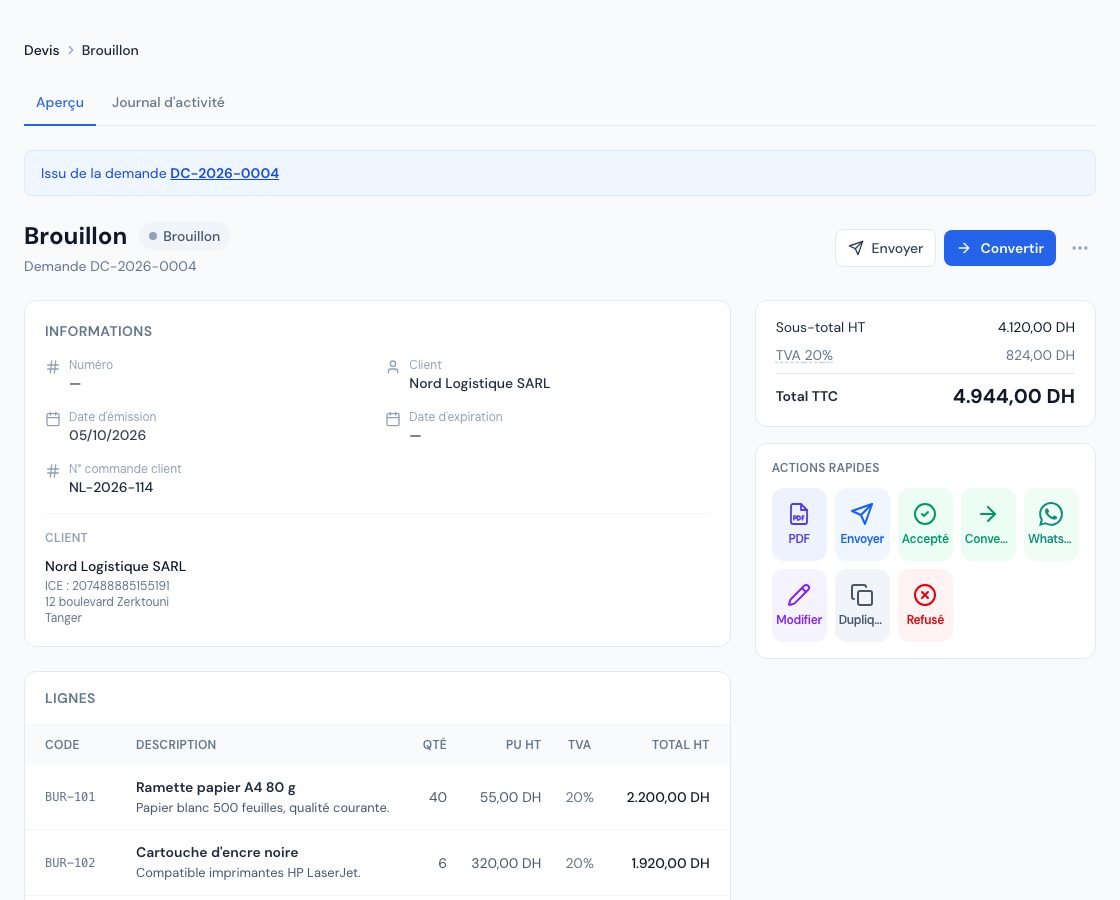 The draft quote created from the request with the From request banner.
How is the quote filled in?
- Catalogue items: price, VAT, product discount and description come from today's catalogue (not from the price shown to the client on the day of the request). If the client has a special price, it is applied, depending on your subscription. If your company is VAT-exempt, VAT is 0%. A product archived since is still converted at its current price.
- Free lines (and products deleted since): created at 0 DH, with your company's default VAT rate; it is up to you to price them in the quote before sending it.
- Global discount: the client's default discount, if they have one, is applied as on any new quote.
- Reference: the client's « Référence du client » becomes the quote's « N° commande client (PO Number) » field; without a reference, it is the request number (DC-…). The quote subject is « Demande DC-… ».
- Notes: the client's comment and the desired date are copied into the « Notes (visibles sur le devis) » (notes visible on the quote). Re-read them before sending: the client will see them on the PDF.
- Issue date: set automatically to the date the quote is sent.
- The conversion counts towards your monthly quote quota, like a quote created by hand (depending on your subscription). If the quota is reached, the conversion is refused with « Limite atteinte : … devis ce mois-ci. » (Limit reached: … quotes this month.) and the request is left unchanged.
- A converted request can neither be reopened nor converted a second time. If you later delete the quote, the request stays « Convertie ».
- Editing the quote does not edit the request, and vice versa. No e-mail is sent to the client at conversion: they are informed when you send the quote.
To finish the quote (pricing the free lines, sending), follow Create and send a quote.
5. Decline a request
- On the request page, click « Refuser » (Decline).
- Enter the « Motif du refus » (reason for declining) — at least 3 characters, at most 1,000 — for example « article indisponible, merci de nous recontacter » (item unavailable, please contact us again).
- Click « Refuser la demande ».
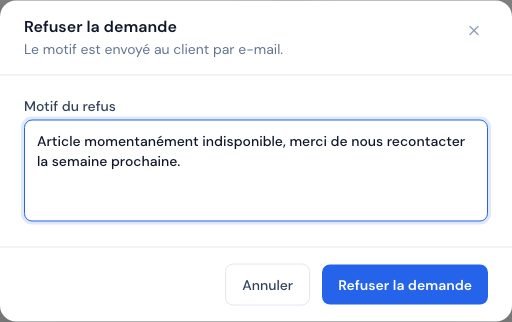 The Decline the request window with the reason to enter.
The reason is e-mailed to the client (« Votre demande de commande DC-… ») and they see it in their portal. On the page, a banner reminds you of the reason. A decline is final: the client must send a new request if they wish.
6. Find a client's requests
Each client's page has a « Demandes » (Requests) tab that lists their requests with their status and quote. It appears depending on your subscription.
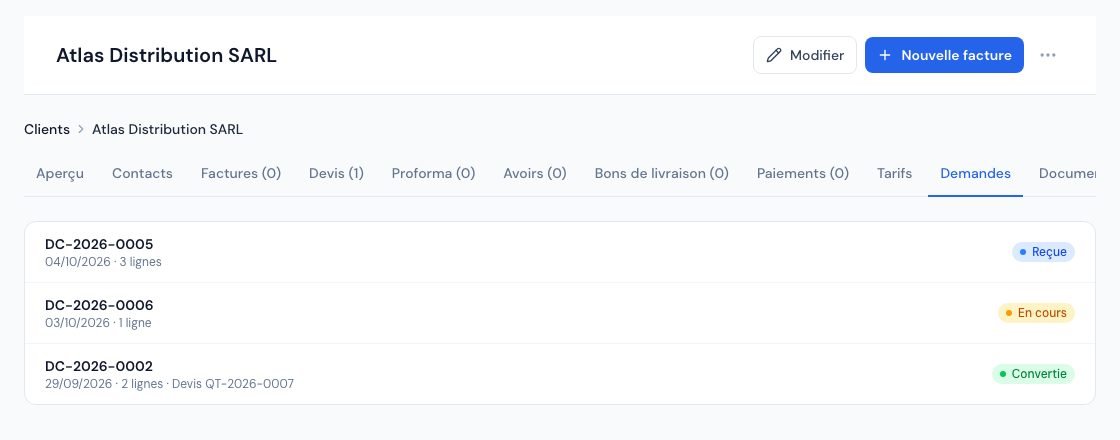 The Requests tab of a client's page.
7. The limits that protect your portal
The portal is reachable from the Internet: safeguards prevent abuse and mistakes.
- At most 20 « Reçue » requests per client: beyond that, the client sees « Vous avez déjà plusieurs demandes en attente de traitement » (You already have several requests awaiting processing) until you have taken on, converted or declined the previous ones;
- 10 submissions per hour per portal link and connection address; beyond that: « Trop de demandes envoyées. Réessayez dans quelques instants. » (Too many requests sent. Try again in a few moments.);
- At most 100 lines per request; quantity between 0 (excluded) and 1,000,000, with at most three decimals;
- free line label: 200 characters; details: 1,000; unit: 32; reference: 100; comment: 2,000;
- the desired date cannot be in the past;
- a product removed from the catalogue while the client is composing their request is reported: « Un produit de votre demande n'est plus disponible. Retirez-le et renvoyez la demande. » (A product in your request is no longer available. Remove it and send the request again.);
- a double click or a resubmission of the form never creates two requests.
8. On the mobile app
In the Plus tab, open « Demandes clients »: the list (search, status, period) and the request page are the same as on the web, with « Prendre en charge », « Convertir en devis » (the quote then opens) and « Refuser » (a sheet with a mandatory reason). A client's page also shows its « Demandes » section. Read-only roles do not see the action buttons, and the accountant does not have this entry. The « Portail client » setting is changed from the web.
Frequently asked questions
My client does not see the « Commander » tab.
Check that the switch is on in Paramètres → Portail client and that your subscription includes the feature. The client must also have a confirmed portal access (see The client portal); an archived client cannot open their portal.
The client asked for an item that is not in the catalogue.
They entered it as a « Ligne libre ». At conversion it is created at 0 DH: price it in the quote. Consider adding the item to your catalogue (Create products) so they find it next time.
The quote price is different from the one my client saw.
That is normal: the catalogue price is indicative; the quote takes the price and VAT in force at the time of conversion. The quote is binding.
Can I cancel a conversion or reverse a decline?
No, both statuses are final. For a conversion mistake, delete or edit the draft quote; for a decline by mistake, ask the client to send their request again.
Does my client receive an e-mail at each step?
They receive an acknowledgement when they send and an e-mail on a decline. Taking it on sends no e-mail (they see it in their portal) and neither does the conversion: they receive the quote when you send it.
Next steps
Related articles
Was this article helpful?
Invoice compliantly, effortlessly
DGI-compliant invoices, quotes, credit notes, VAT and supplier tracking in a single tool.
Try it free