Browse help
A client rarely pays one invoice at a time. Example: Atlas Distribution SARL owes you three invoices (2 400 DH, 3 600 DH and 1 800 DH, 7 800 DH in total). At the end of the month, they send you a single transfer of 7 800 DH. Without grouped payment, you would have to enter three separate payments and do the maths by hand. With it, you record one single payment and Billora splits it across the three invoices.
It also works the other way round: you pay several expenses from the same supplier with a single transfer or a single cheque.
Your bank statement shows only one line of 7 800 DH. With a grouped payment, your payment list matches the bank: one bank movement, one payment in Billora. Reconciliation is much easier.
1. Where to find it
Grouped payment opens from several places, depending on your habits:
- Paiements → Reçus (Payments → Received): the « Enregistrer un encaissement » (Record a receipt) button (for your clients' invoices).
- Paiements → Effectués (Payments → Made): the « Enregistrer un décaissement » (Record a disbursement) button (for your suppliers' expenses).
- Paiements → Vue d'ensemble (Payments → Overview): the « Paiement groupé » (Grouped payment) button.
- A client's page (Paiements tab): the « Encaisser plusieurs factures » (Collect several invoices) button. The client is then already selected.
- A supplier's page, to pay their expenses.
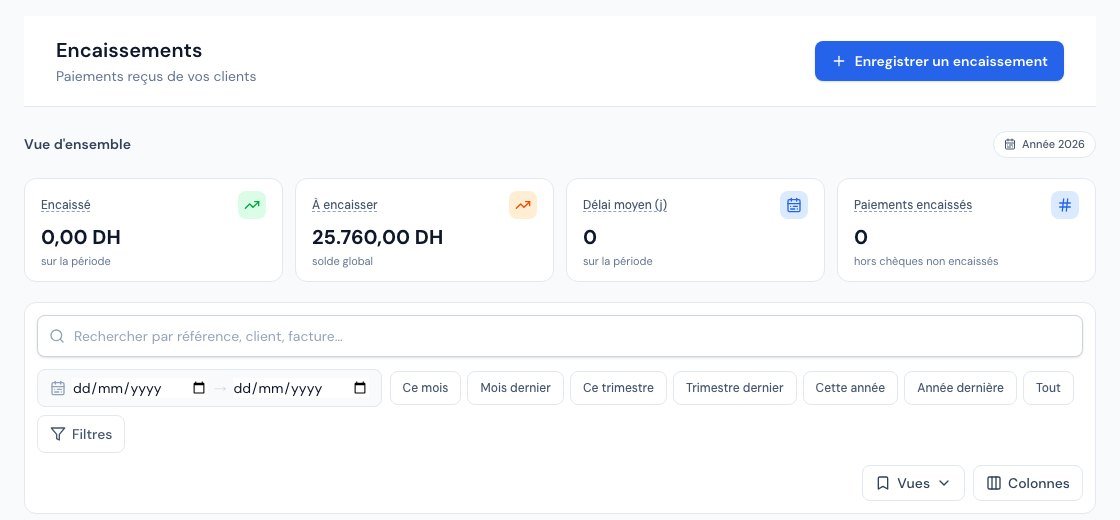 The Payments received page with the « Enregistrer un encaissement » (Record a receipt) button.
Even for a single invoice, the « Enregistrer un encaissement » button opens this same window: you simply tick one invoice. So there is only one way to record a payment from the Payments page.
2. Step 1: choose the client and the invoices
- In the « Paiement groupé » (Grouped payment) window, type the beginning of the client's name in the Nom du client… (Client name…) field and click the right client in the list. You can also enter an invoice number: Billora finds the client from it.
You then see the list of all this client's invoices awaiting payment, with their due date, their total incl. VAT and, in orange on the right, the amount still to be paid. - Tick the invoices this payment settles. The « Tout cocher » (Select all) link selects them all at once.
Below the list, Billora shows, for example, "3 sélectionnés — 7 800,00 DH" (3 selected) and automatically fills the « Montant du paiement (DH) » (Payment amount) field with that total. - Adjust the amount if needed: if your client paid only part of the total, enter what they actually paid (never more than the total of the ticked invoices).
- Check the date (today by default), choose the payment method and, if you wish, a reference (transfer number, cheque number…) and notes.
- Click « Continuer » (Continue).
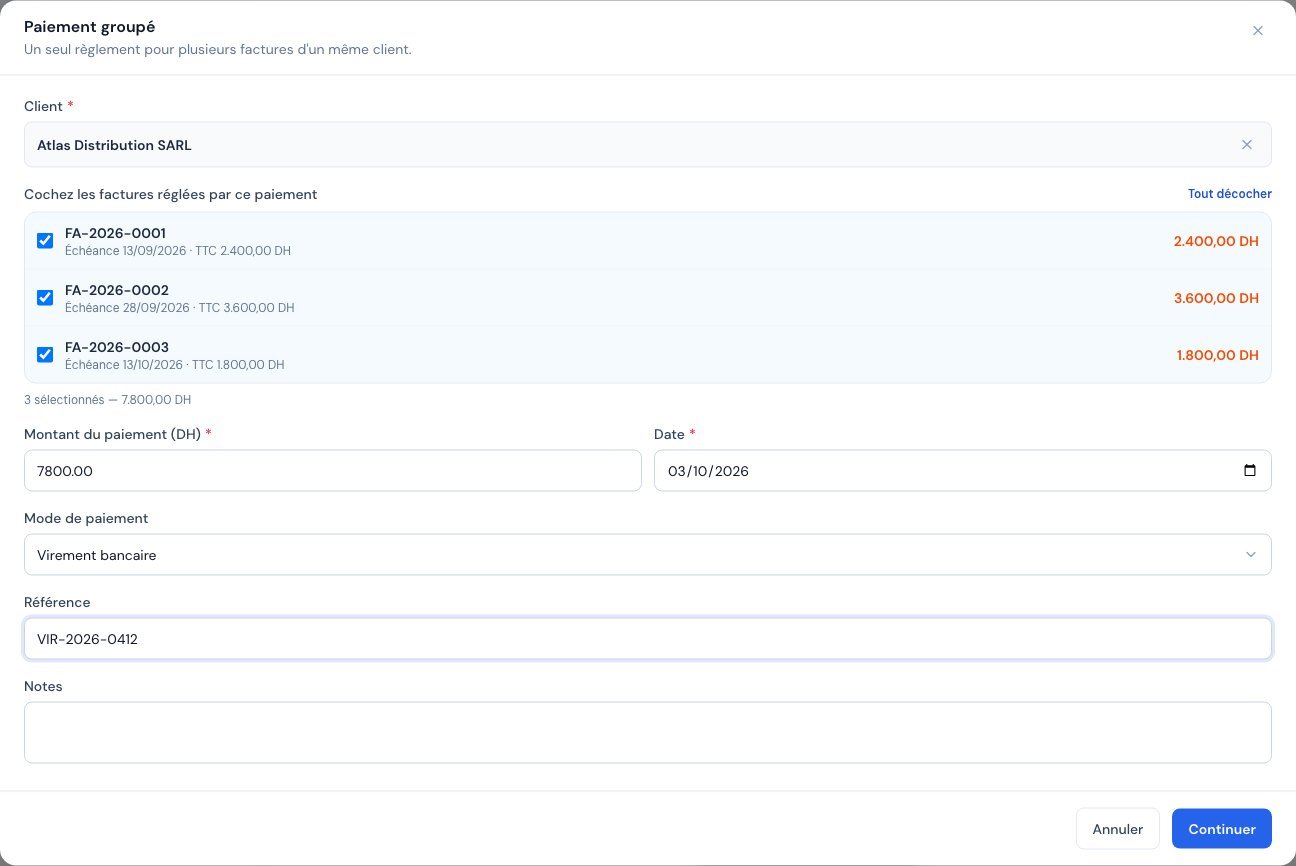 The Grouped payment window: the selected client, their three ticked invoices and the suggested amount.
Only invoices that can actually be collected are offered. So the following never appear: drafts, cancelled invoices (including those cancelled by a credit note) and invoices that are already fully paid. A partially paid invoice appears with its remaining balance only. An invoice whose remaining balance is already fully covered by a pending cheque is also hidden: a note explains it, so you know where it went.
3. Step 2: split the amount
The « Répartir le paiement » (Split the payment) screen shows a table with, for each invoice: the due date, the total incl. VAT, the Reste (Remaining), any Chèque en cours (Pending cheque) and the Imputé (Allocated) column, i.e. the part of the payment that settles that invoice.
- Billora immediately suggests a split from oldest to newest: the oldest invoices are settled first. You can get it back at any time with « Répartir automatiquement » (Split automatically).
- If you prefer another split, edit the amounts in the Imputé column. « Tout effacer » (Clear all) resets everything to zero.
- Look at the bottom line: Montant (Amount: what the client paid), Imputé (Allocated: what you have split) and Reste à imputer (Left to allocate). When the remainder is 0,00, a green tick appears.
- Click « Enregistrer le paiement » (Save the payment). The button stays greyed out as long as the amount left to allocate is not zero.
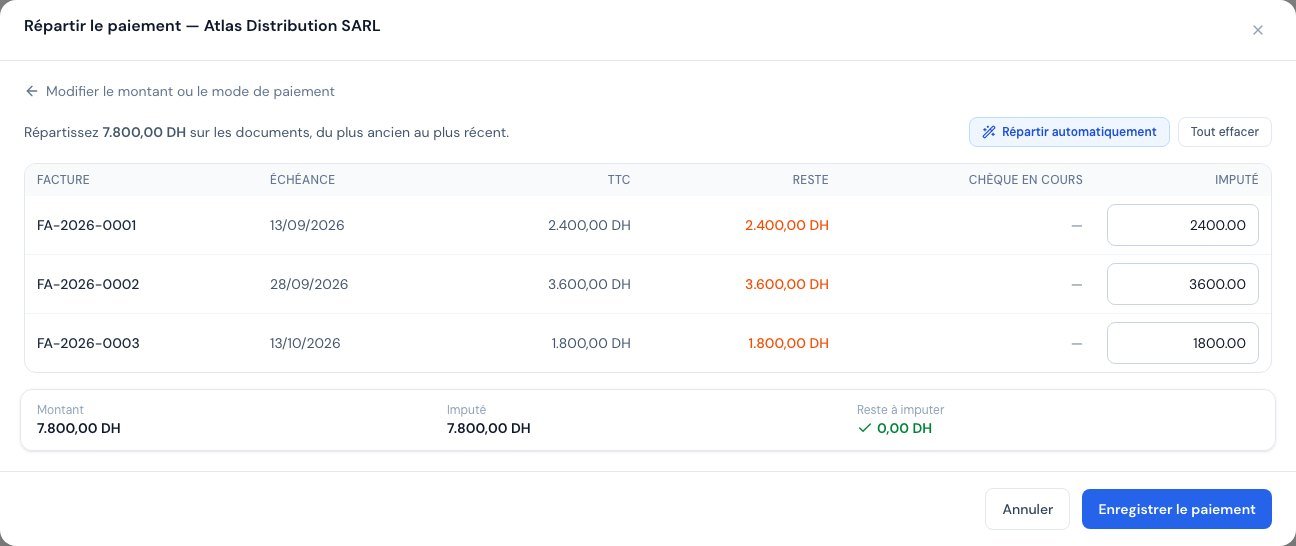 The Split the payment step: an allocated amount on each invoice and the amount left to allocate at zero.
Every dirham received must be attached to an invoice. Billora therefore refuses a payment whose parts do not add up to the amount, so that your accounts never contain "floating" money. If you received more than what is due, add another invoice, or handle the excess separately (a credit note, for example).
4. What happens next
- Each invoice is updated: it becomes Payée (Paid) if fully settled, or stays Partiellement payée (Partially paid) with its new balance.
- In the payment list, you see a single line, with the label of the first invoice followed by the number of others (for example "FA-2026-0001 +2").
- Open that payment: a « Documents réglés » (Documents settled) block lists each invoice, the amount allocated to it, what remains to be paid on it and its status.
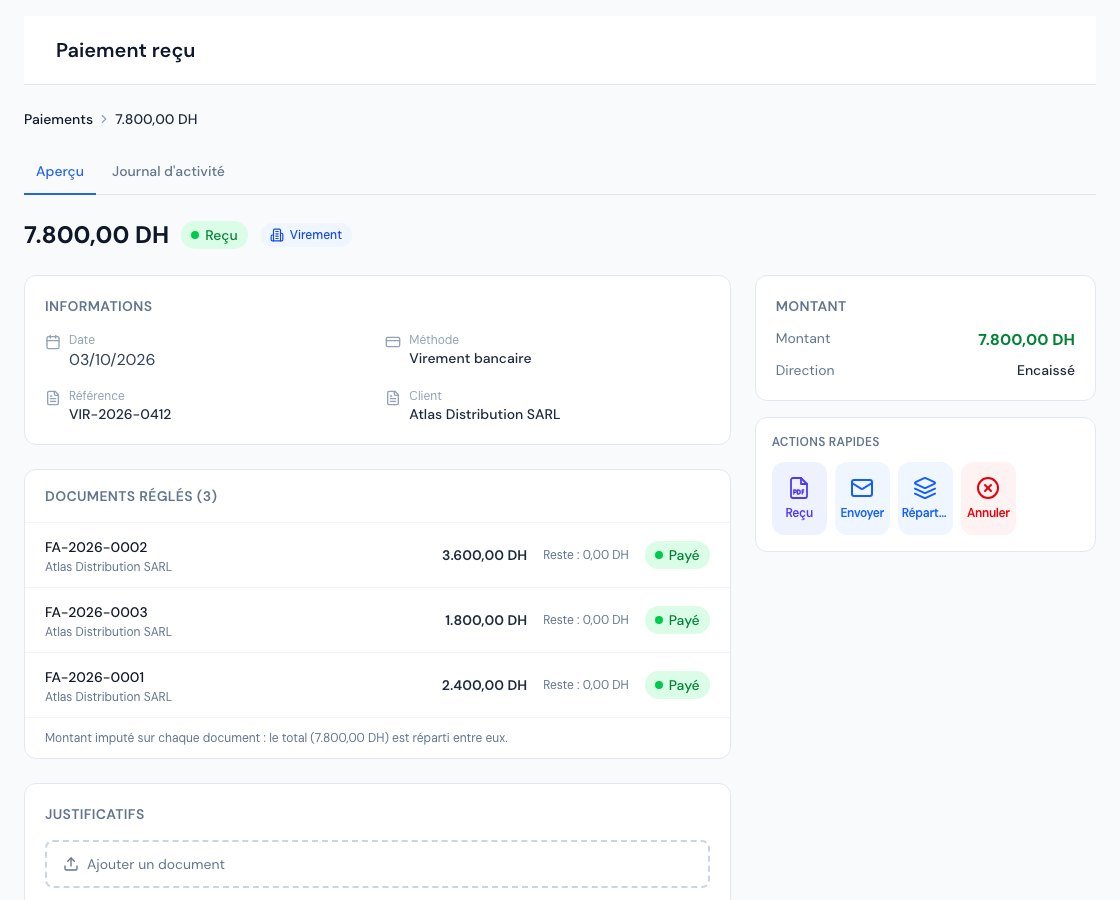 The payment details with the Documents settled block.
Depending on your email settings, a single summary confirmation email may be sent to the client (not one per invoice). Payment promises for these invoices are marked as kept if the amount fully covers them (see Payment promises).
5. Correct the split afterwards
Did you pick the wrong invoice? Open the payment and click the « Répartition » (Split) tile (tooltip: Modifier la répartition, Edit the split). You can change the date, the method, the reference, the notes and, above all, the allocated amounts. The total payment amount is then the sum of the parts you leave. The invoice balances and statuses are recalculated.
The « Annuler » (Cancel) tile cancels the entire payment: all the invoices concerned go back to their previous balance.
Editing the split is reserved for the owner and administrators. It is refused for a cancelled payment, for a payment linked to a cheque (in that case, everything is managed from the cheque in the register) and for a payment already declared to the DGI. A credit note refund cannot be edited.
6. Special cases
Paying by cheque
Choose the Chèque (Cheque) method in step 1: an Informations du chèque (Cheque information) block appears (drawer, issuing bank and number are mandatory). A single cheque is recorded for the whole payment. Invoices are only marked as settled according to your register setting (on deposit or on collection): read Track your cheques.
Paying in cash
The rule of the Code général des impôts (art. 193) applies: from 20 000 DH incl. VAT, a cash payment is refused without a justified exception. For a grouped payment, Billora uses the greater of the payment amount and the total incl. VAT of the largest document.
Paying a supplier's expenses
It is exactly the same process, with "Supplier" instead of "Client" and "expenses" instead of "invoices".
Frequently asked questions
Can I mix invoices from two clients in the same payment?
No. A payment concerns a single counterparty: one client, or one supplier. For two clients, record two payments.
How many invoices can I settle at once?
Up to 50 documents per payment.
My client paid less than the total of the invoices. What should I do?
Enter the amount actually received in step 1. Billora splits it from oldest to newest: the first invoices are settled, and the last one may remain partially paid.
Why can't I enter tomorrow's date?
A payment's date cannot be in the future: a payment is something that has already happened. For a post-dated cheque, use the target collection date in the cheque register.
An invoice is missing from the list. Why?
It is probably already fully paid, a draft, cancelled, or entirely covered by a pending cheque. The note below the list flags the latter case.
Next steps
Related articles
Was this article helpful?
Invoice compliantly, effortlessly
DGI-compliant invoices, quotes, credit notes, VAT and supplier tracking in a single tool.
Try it free