Browse help
Your customer tells you "I'll pay you 5,000 DH on Friday". A payment promise lets you note it properly, track the date and know, when the time comes, whether the commitment was kept.
It never changes the invoice balance or its status. It is a commitment to follow up, not money received. This feature is included in all subscriptions.
1. Add a promise
- Open an issued invoice (drafts and cancelled invoices do not accept any).
- Go to the Promesses (Promises) tab.
- Click Ajouter une promesse (Add a promise), enter the amount, the promised date (never in the past) and, if needed, a note.
The Reste à planifier (Left to schedule) banner shows what is not yet covered by a promise. The sum of pending promises cannot exceed the remaining balance of the invoice: Billora refuses a promise that would exceed it, even if two people create one at the same time.
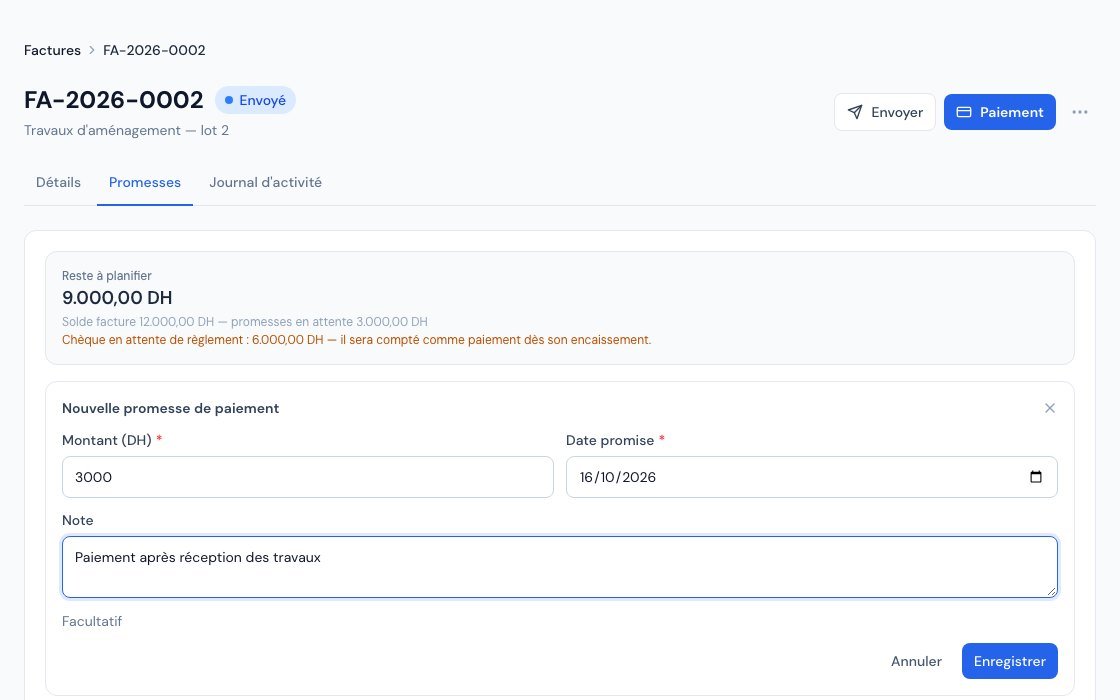 The « Nouvelle promesse de paiement » (New payment promise) form: amount, promised date and note.
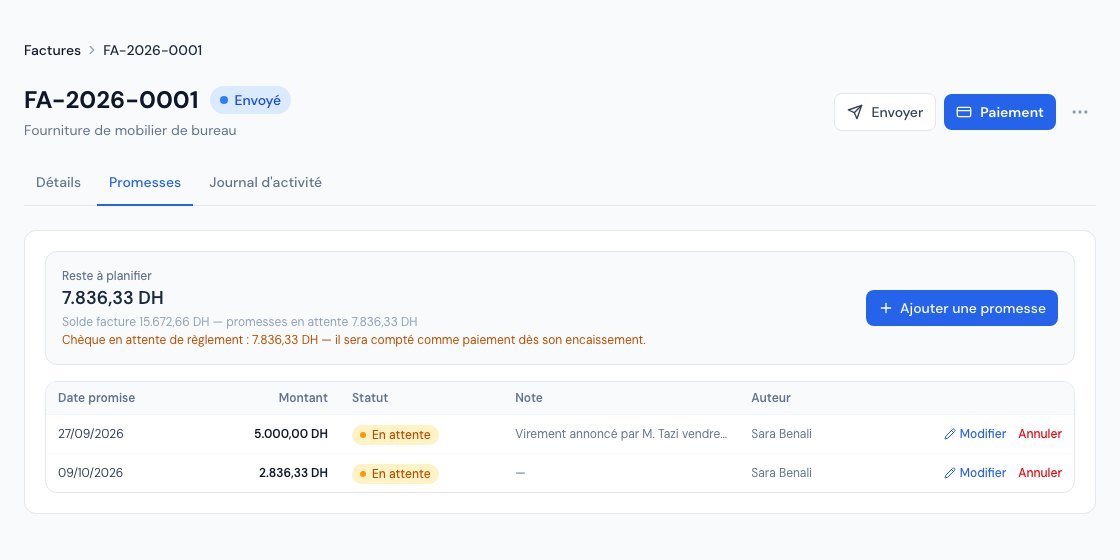 The « Promesses » tab of an invoice: the amount left to schedule, and one line per promise with its date, amount and status.
If a pending cheque is already linked to the invoice, a reminder is shown in the tab: this cheque will be counted as a payment as soon as it is cashed.
2. The statuses
| Status | Meaning |
|---|---|
| En attente (Pending) | The promised date has not yet passed. |
| Tenue (Kept) | A real payment has covered the promise (see below). |
| Non tenue (Broken) | The date has passed with no payment covering it. |
| Annulée (Cancelled) | You cancelled it (the customer renegotiated, entry error…). |
3. How a promise becomes « Tenue » (Kept)
Automatically, as soon as a real payment fully covers the promise: whether you record it from the invoice page, the Payments page or the mobile app. Several promises are covered in date order, the oldest first; a partial payment that does not cover the first promise does not mark it.
A cheque payment only counts when cashed: as long as the cheque is pending, the promise stays pending; it moves to "Tenue" when the cheque is cashed.
4. Edit, reschedule, cancel
- Edit: the amount, date or note of a pending promise.
- Reschedule a broken promise: click Modifier (Edit) and give a new date; it goes back to pending.
- Cancel: after confirmation. A kept or cancelled promise is frozen.
5. The « Promesses clients » report
Rapports → Promesses clients (Reports → Customer promises) lists all the account's promises: amount committed, pending, kept, broken, with search, period, status badges, sorting by column and CSV export. The dashboard links open this report already filtered.
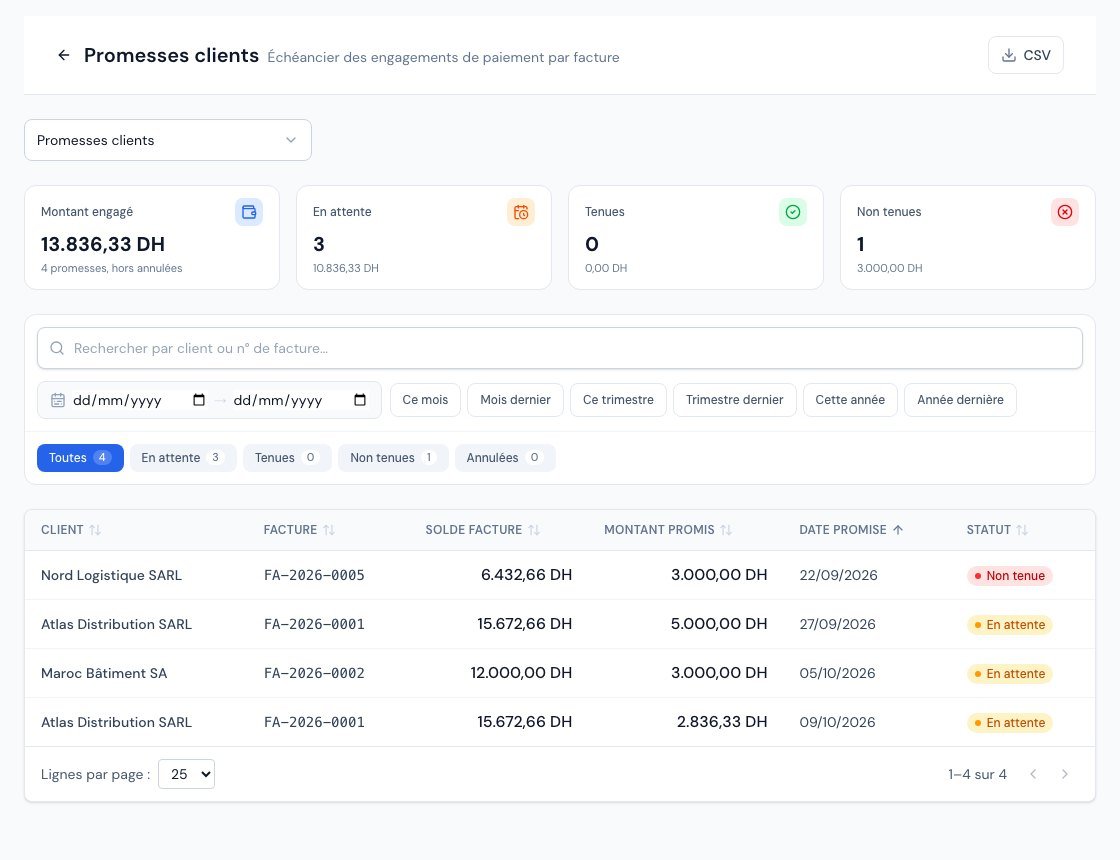 The « Promesses clients » report: amounts committed, status badges with counters, search, period and CSV export.
6. And automatic reminders?
Billora does not send an automatic reminder for an invoice that the customer has committed to paying on a future date, nor for an invoice already covered by a cheque in progress: that would be counter-productive. Once the promised date has passed, the promise becomes "broken" and reminders become possible again.
7. On the mobile app
Promises can also be managed from the Billora mobile app, with the same rules and the same balance cap.
- On an invoice: the Promesses de paiement (Payment promises) section shows the Reste à planifier (left to schedule) amount and the list of promises. Tap Ajouter une promesse (Add a promise), in the section or in the invoice's « … » menu, then enter the amount, the promised date and an optional note.
- Edit, reschedule, cancel: tap a promise (or long-press it) to open its actions: Modifier (Edit) for a pending promise, Replanifier (Reschedule) for a broken promise, Annuler la promesse (Cancel the promise). A kept or cancelled promise has no action.
- Report: Plus → Analyses → Promesses clients tab, with the same counters, search by customer or invoice number, and status and period filters. Tap a row to open the invoice.
If the whole amount due is already covered by pending promises, the app shows « Le solde de la facture est déjà couvert par des promesses en attente. Modifiez ou annulez une promesse existante. » (The invoice balance is already covered by pending promises. Edit or cancel an existing promise.) Reduce or cancel a promise to free up an amount.
The accountant and the viewer can see promises but not change them, on the web as on mobile.
Related articles
Was this article helpful?
Invoice compliantly, effortlessly
DGI-compliant invoices, quotes, credit notes, VAT and supplier tracking in a single tool.
Try it free