Browse help
What is the catalogue for?
Your catalogue gathers what you sell: products (physical goods) and services (work, time). When you create an invoice or a quote, you pick the item from the list: the price, the VAT (TVA) and the unit fill in by themselves. You save time and avoid pricing mistakes.
Example: "Atelier Couture Fès" creates a "Retouche robe" (Dress alteration) service at 150 DH excl. VAT (20% VAT, unit "Pièce") and a "Tissu coton" (Cotton fabric) product at 45 DH excl. VAT per metre. On the next quote, it adds them in two clicks.
Create a product or a service, step by step
- In the menu, open Répertoire → Produits (Directory → Products) ("Produits et services" page), then click Ajouter (Add).
- In the Identité (Identity) block, choose the Type: Produit (Product) or Prestation (Service). Enter the Nom (Name) (mandatory) and, if you want, a Description with formatting (bold, lists…).
- In Identifiants (Identifiers) (optional), fill in a Code produit / SKU (Product code / SKU), a Code-barres (EAN/GTIN) (Barcode), the Marque / Fabricant (Brand / Manufacturer) and the Catégorie (Category).
- In Tarification (Pricing), enter the Prix unitaire HT (Unit price excl. VAT) (mandatory), choose the Taux de TVA (VAT rate) and the Unité de mesure (Unit of measure) (mandatory).
- If you wish, enter the Prix d'achat HT (Purchase price excl. VAT): Billora calculates your Marge unitaire (Unit margin) in DH and as a percentage.
- Add a Remise catalogue (Catalogue discount) (in % or in DH) if you want a discount to be offered by default when the item is added to an invoice or a quote.
- Click Créer le produit (Create the product).
What you see: while you type, a box calculates live the Prix HT, the TVA and the Prix TTC. After saving, the item appears in the list.
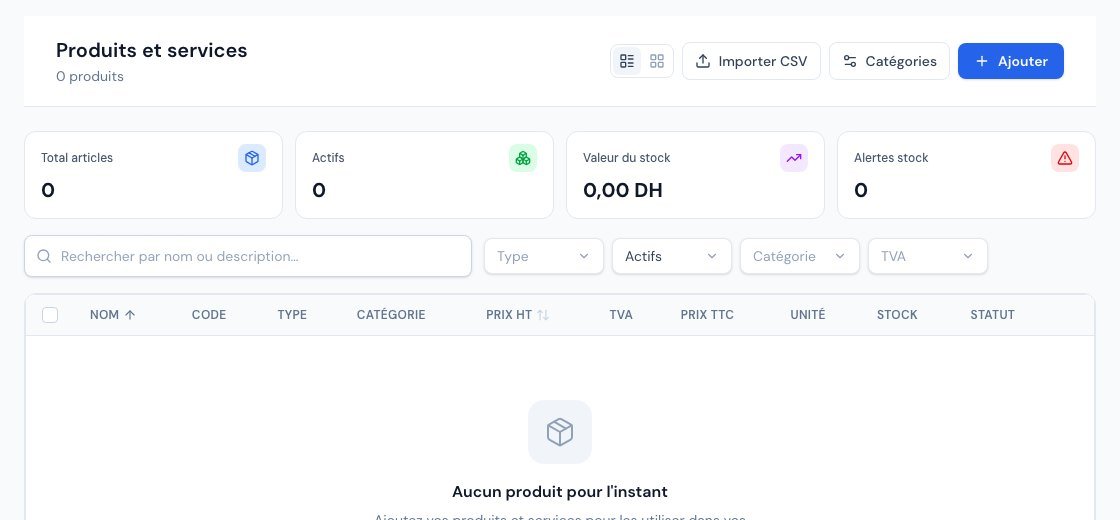 The list of products and services.
VAT and units
- Taux de TVA (VAT rate): VAT 20%, 14%, 10%, 7%, 0%, or Exonéré (Exempt). If in doubt about the right rate, ask your accountant: Billora applies the one you choose.
- Unité de mesure (Unit of measure): Heure (Hour), Jour (Day), Pièce (Piece), Forfait (Flat fee), Mois (Month), Kilomètre, Kilogramme, Mètre, Mètre carré, Litre… Yours is missing (carton, pallet, session)? Add it in Paramètres → Unités (Settings → Units) (Ajouter button: a short code like "h" or "m2" and a label like "Heure"). Deleting a unit does not change old documents.
Track stock (products only)
For a Produit, a Gestion de stock (Stock management) block lets you track quantities. It depends on your subscription: if it is not included, the block displays a padlock and the plan from which it is available.
- Turn on Suivre le stock de ce produit (Track this product's stock): sales will automatically reduce the quantity in stock.
- Enter the starting Quantité en stock (Quantity in stock) and the Seuil d'alerte (Alert threshold) (for example 10: Billora warns you when stock drops to that level).
- If you manage several warehouses, choose the Entrepôt de destination (Destination warehouse) of the initial stock. Stock is then managed per warehouse: use "Ajuster" (Adjust) on the warehouse page.
An item's stock decreases when you send the invoice (the move from Draft to Sent, not before). It increases when you receive a supplier order or, on a credit note, when you choose to put the items back in stock. To correct a discrepancy (inventory, breakage), use Ajuster le stock (Adjust stock) in the row's "…" menu: the Historique du stock (Stock history) keeps a trace of each movement.
Services have no stock. The Logistique et livraison (Logistics and delivery) block (dimensions, weight, delivery times) is optional.
Manage your catalogue
- Categories: the Catégories button at the top of the page opens "Gérer les catégories" (Manage categories): a name, a colour and an optional description. They are used to group and filter.
- Search and filters: by Type, Statut (Status) (Actifs / Archivés), Catégorie and TVA. Switch between table view and card view with the two icons at the top.
- Edit a price quickly: in table view, click the price excl. VAT directly in the list, edit it and confirm.
- A row's "…" menu: Consulter (View), Ajuster le stock, Historique du stock, Modifier (Edit), Dupliquer (Duplicate) (to create a similar item), Archiver (Archive) or Supprimer (Delete).
- Archive hides a product from the invoice selectors without deleting it: ideal for an item you no longer sell. The Désarchiver (Unarchive) button makes it available again.
- Bulk import: the Importer CSV (Import CSV) button leads to Paramètres → Import / Export.
Create a "Frais de livraison" (Delivery fee) or "Remise exceptionnelle" (Exceptional discount) item for one-off cases: you add them to an invoice without retyping the label or the VAT rate.
You can set a special rate per client. See Client-specific pricing.
Product quota
Your subscription may limit the number of products. When the limit is reached, the Ajouter button is disabled and the limit is explained: archive or delete an unneeded item, or change your subscription.
Frequently asked questions
What is the difference between "Produit" and "Prestation"?
A product is a physical good, with possible stock. A service is work (hours, flat fees): no stock or logistics. The price, VAT and unit work in the same way.
I changed a product's price: do my old invoices change?
No. Documents already created keep their prices. The new price only applies to the next documents.
I do not see the "Gestion de stock" section.
It only exists for products (not services), and only if your subscription includes it. Otherwise a padlock and the plan concerned are displayed.
The product no longer appears in my invoices.
It is probably Archived: filter the list on "Archivés" and use Désarchiver.
Which price should I enter: excl. VAT or incl. VAT?
The unit price is entered excluding tax. Billora displays the calculated price incl. VAT just below.
Next steps
Related articles
Client pricing: default discount and special prices
5 min read
Create and manage your customers
7 min read
Create your first invoice
7 min read
Document lines: name, formatted description, sections and subtotals
8 min read
Importing your clients and products from a file
9 min read
Understanding plans and limits
6 min read
Record a supplier delivery with a purchase receipt
8 min read
Saved views, custom columns and indicators that follow your filters
7 min read
Was this article helpful?
Invoice compliantly, effortlessly
DGI-compliant invoices, quotes, credit notes, VAT and supplier tracking in a single tool.
Try it free