Browse help
What is a purchase order for?
The purchase order (PO) is the document you send to a supplier to formalise a purchase: what you are ordering, in what quantity, at what price. It comes before the supplier's invoice. When the goods are received, it can lead to an expense.
Example. Yassine, a carpenter in Meknès, orders 20 cedar boards from a timber supplier. He creates a purchase order, sends it by email, and when the truck arrives, he clicks « Tout reçu » (All received): the stock is updated and the expense is created.
Create a purchase order
- In the menu, open Facturation → Commandes d'achat (Billing → Purchase orders) (the page is titled « Bons de commande »).
- Click « Nouveau bon de commande » (New purchase order).
- « Informations » (Information) card: choose the Fournisseur (Supplier) (« Rechercher un fournisseur… » (Search for a supplier…)), enter the Livraison prévue (Expected delivery). The Date de commande (Order date) is set automatically to the sending date. The Échéance de paiement (prévisionnelle) (Payment due date (estimated)) is calculated from the expected delivery and the supplier's payment term.
- « Lignes de commande » (Order lines) card: add the products or services ordered, with their quantities, prices and VAT.
- « Notes » card: « Notes » (delivery instructions, special conditions) and « Notes internes » (Internal notes) (not printed).
- Click « Créer le bon de commande » (Create the purchase order).
What you see next: the page opens with the title « Brouillon » (Draft): the purchase order does not have a number yet, it will be assigned on sending.
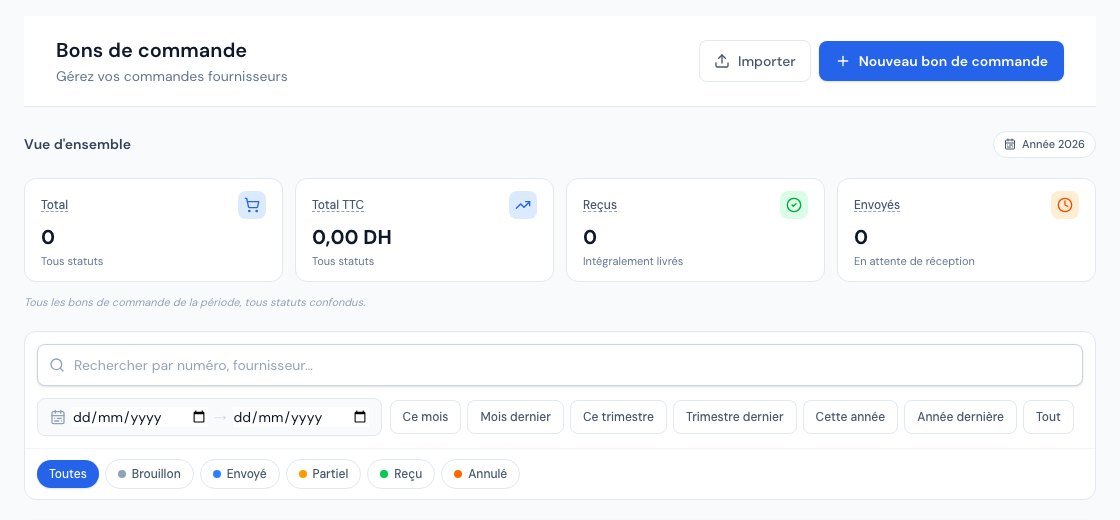 The purchase order list.
Send the purchase order
- On the page, click « Envoyer » (Send) (or « Envoyer par email » (Send by email) from the list).
- The « Envoyer le bon de commande BC-… » (Send purchase order BC-…) window offers the Destinataires (Recipients) (the supplier's company and contacts), the Objet (Subject), the Message and the « Joindre le bon de commande en PDF » (Attach the purchase order as a PDF) checkbox.
- Click « Envoyer ».
The purchase order receives its number and moves to the « Envoyé » (Sent) status. If you delivered it another way, use « Marquer comme envoyé » (Mark as sent) (« … » menu). The email text comes from the « Envoi de bon de commande » (Purchase order sending) template in Paramètres → Modèles d'e-mails (Settings → Email templates).
If you edit a purchase order after sending, a « Bon de commande modifié après envoi » (Purchase order modified after sending) banner offers to resend it to the supplier.
Purchase order statuses
| Status | Meaning | What you can do |
|---|---|---|
| Brouillon (Draft) | Being prepared, no number, not sent. | Edit, send, « Marquer comme envoyé », delete. |
| Envoyé (Sent) | Sent to the supplier, awaiting delivery. | Edit, resend, receive, cancel. |
| Partiel (Partial) | A partial delivery has been recorded. | Receive the rest. To cancel it, cancel its receipts first. |
| Reçu (Received) | Complete delivery: the purchase order is closed. | View, duplicate, create the associated expense if it is missing. |
| Annulé (Cancelled) | Order cancelled. | View, duplicate. |
A received or cancelled purchase order can no longer be edited. Only a draft can be deleted; a purchase order that has already been sent is cancelled.
Receive a purchase order
When the goods arrive, Billora offers two buttons on the purchase order:
- « Tout reçu » (All received): everything arrived in good condition. One click, one confirmation, and the order moves to « Reçu ».
- « Réceptionner » (Receive): partial delivery or rejected goods. You enter, line by line, the quantity received, the quantity rejected and the reason for rejection.
In both cases, a numbered purchase receipt (bon de réception) is created, the stock of tracked products is updated (only the quantities received go in) and, on the first receipt, Billora can create the associated expense automatically.
The complete guide, with screenshots, is in the article Record a supplier delivery with a purchase receipt.
The « Réceptionner » button (partial delivery, rejection, purchase receipt) is offered only if purchase receipts are included in your subscription; otherwise only « Tout reçu » is available. These buttons are in the page header and in the Actions rapides (Quick actions).
What you see next: the purchase order moves to « Reçu » (or « Partiel »), and a « Reçu le … — Voir la dépense associée » (Received on … — View the associated expense) banner appears on the page.
Keep the expense linked to the purchase order to preserve the whole chain: order, receipt, supplier payment. If it is missing, the « … » menu offers « Créer la dépense associée » (Create the associated expense) (see Convert a purchase order into an expense).
The purchase order PDF
The « Voir le PDF » (View the PDF) action opens a PDF with your logo and your legal information (file name « BC-… »). It goes as an attachment when you send the purchase order by email.
Frequently asked questions
Why does my purchase order have no number?
Because it is a draft. The number is assigned on sending (or when it moves to « Envoyé »).
What is the difference between « Tout reçu » and « Réceptionner »?
« Tout reçu » confirms in one go that the whole order arrived in good condition. « Réceptionner » lets you enter, line by line, what is received and what is rejected.
Can I edit a purchase order that has already been sent?
Yes, as long as it is neither received nor cancelled. Remember to resend it to the supplier. Its lines, however, can no longer be edited as soon as a receipt has been recorded (even if cancelled afterwards).
Can I cancel a received purchase order?
No: a received purchase order is closed. If needed, cancel its purchase receipts first: the purchase order is then no longer « Reçu » (Received) and can be cancelled.
Next steps
Related articles
Was this article helpful?
Invoice compliantly, effortlessly
DGI-compliant invoices, quotes, credit notes, VAT and supplier tracking in a single tool.
Try it free