Browse help
A construction-site invoice at Maroc Bâtiment SARL can have twenty lines: tiling, plumbing, painting… To help your client find their way around, you want a short name for each line, a detailed description underneath (with lists), and sections with their subtotal: « Matériel » (Materials), « Main-d'œuvre » (Labour). That is what document lines allow.
In invoices, quotes, proforma invoices, credit notes, purchase orders, delivery notes (without subtotals, since they have no prices) and recurring invoices. The steps are the same everywhere.
1. Add a line
In the document form, click « Ajouter une ligne » (Add a line). A menu offers five types:
- Ligne produit (Product line): a line with quantity, price and VAT (TVA).
- Section: a title that groups the lines that follow.
- Sous-total (Subtotal): the total of the lines above it.
- Séparateur (Separator): a simple horizontal line to give the document some breathing room.
- Commentaire (Comment): a free note, with no amount.
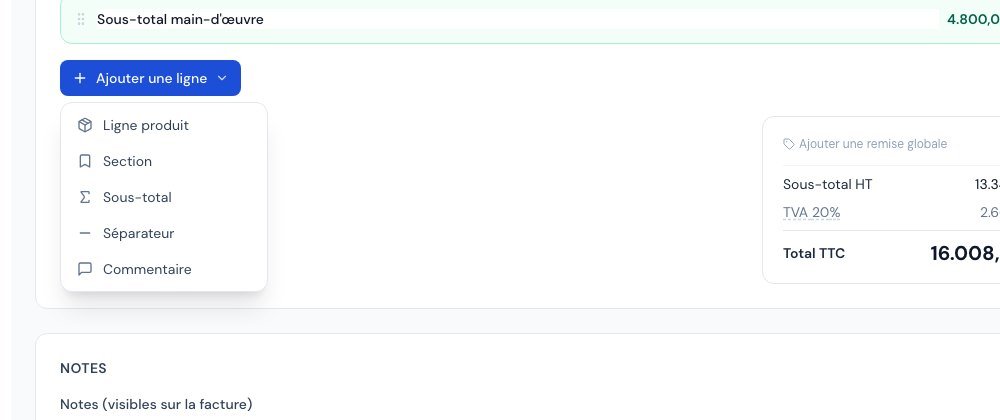 The Ajouter une ligne (Add a line) menu with the five line types.
2. A line's name and description
A product line has two text areas:
- the name (field « Nom / désignation — produit, code… », i.e. name / designation — product, code…): a short, unformatted text, 255 characters at most, optional;
- the description (field « Description (facultatif)… », i.e. Description (optional)…): a longer text that you can format.
- Enter the name, for example Maintenance annuelle.
- Click « Description (facultatif)… » and write.
A small toolbar appears above the text: « Gras » (Bold), « Italique » (Italic), « Souligné » (Underline), « Liste à puces » (Bulleted list) and « Liste numérotée » (Numbered list).
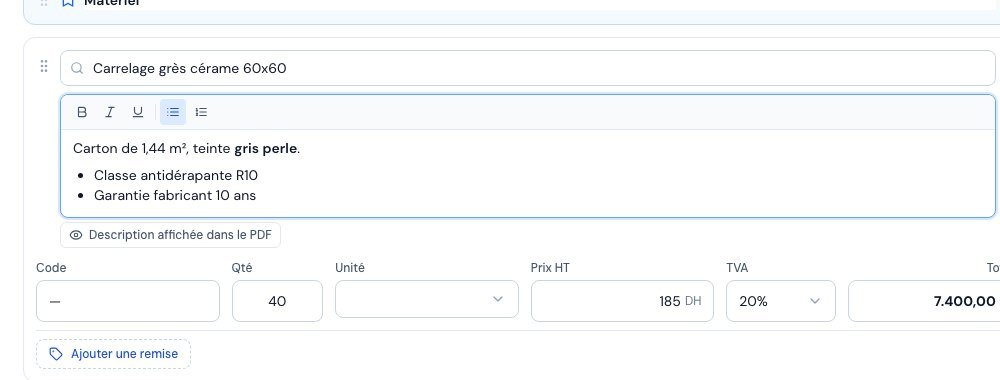 An invoice line with its name, its formatted description and the toolbar.
- When you choose a product from your catalogue, its name and description are copied into the line; you can edit them on this document without touching the product. A product's description is formatted the same way.
- Older descriptions (written before this feature) remain plain text, unchanged.
- Only the formatting above is accepted: bold, italic, underline and lists. A description that is far too long or too complex is rejected with the message « Description trop longue » (Description too long) or « Description trop complexe » (Description too complex).
3. Show or hide the description in the PDF
Sometimes the description contains details that are useful for your team (references, technical remarks) but not for your client. As soon as the line contains a description, a button appears just below it:
- « Description affichée dans le PDF » (Description shown in the PDF) (grey): the description is printed on the PDF. This is the default setting.
- « Description masquée dans le PDF » (Description hidden in the PDF) (amber): only the name is printed. Click the button to switch from one state to the other.
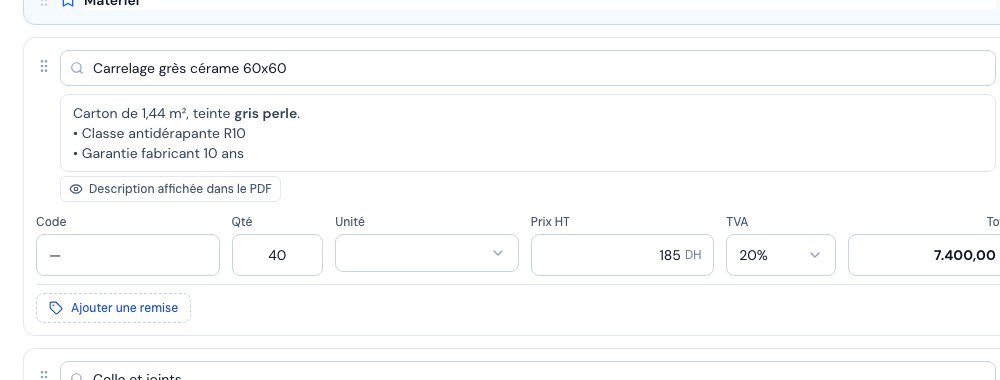 The Description affichée dans le PDF (Description shown in the PDF) button under a line's description.
It only changes the PDF. On screen, the description stays visible and editable, and the e-invoice sent to the DGI is not modified.
Special case: if a line has no name, the description is printed anyway, even when hidden. Otherwise the line would have no label at all on the PDF.
4. Organise with sections, subtotals and separators
- Add a Section and type its title (« Titre de la section », i.e. Section title), for example Matériel.
- Add your product lines below it.
- Add a Sous-total (Subtotal).
It immediately shows the total of the lines since the last section (or the last subtotal). You can rename it; with no text, it is called « Sous-total ». - If needed, add a Séparateur (Separator) and then a new section, for example Main-d'œuvre.
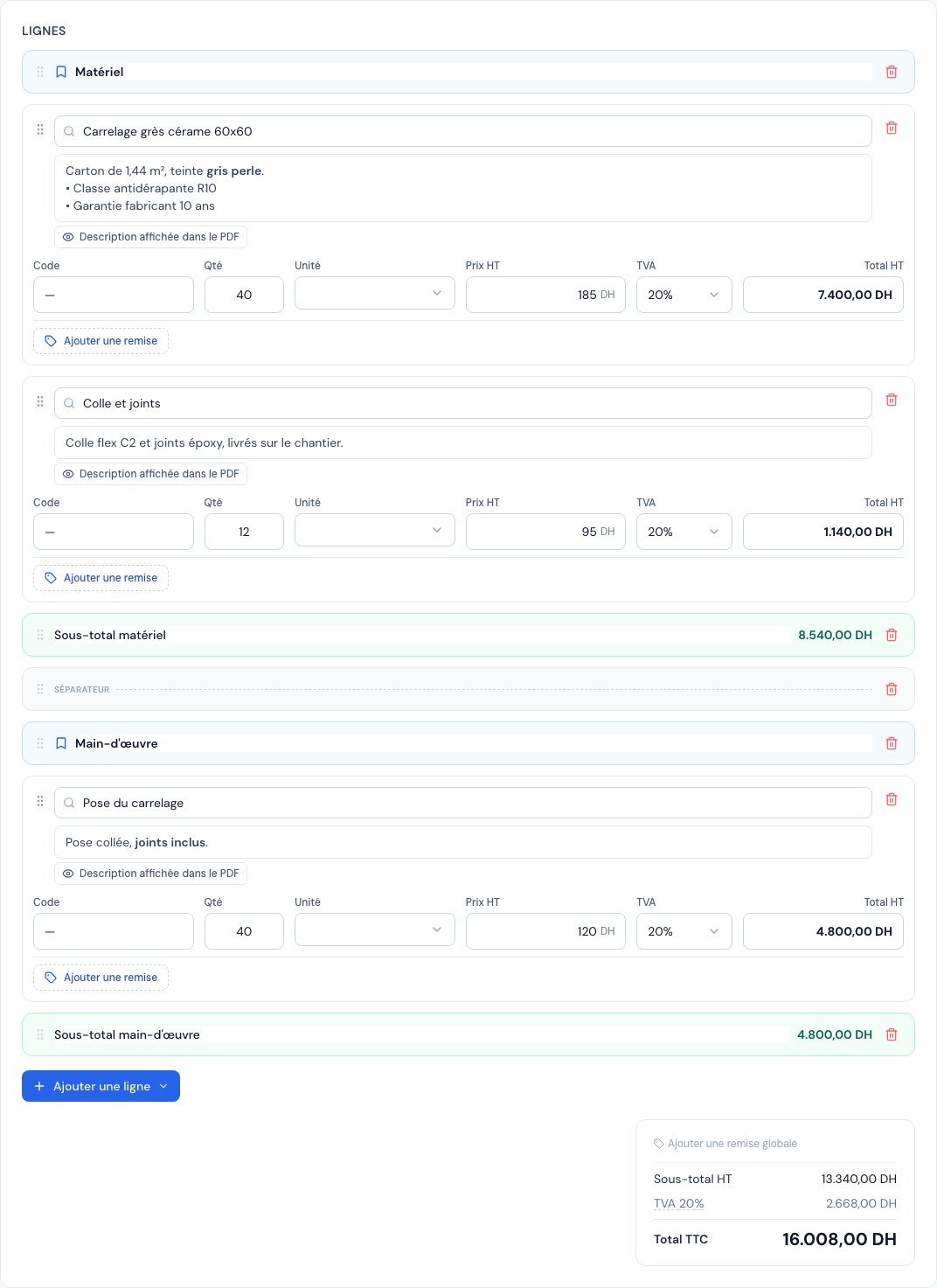 An invoice organised into sections, with two subtotals and a separator.
A section, a subtotal and a separator are simple display lines: quantity zero, price zero, VAT zero. They never count towards the total excl. VAT, the VAT, the VAT return or the e-invoice. The subtotal adds up the lines after their line discounts, before the document's global discount.
To change the order, drag a line by its handle (tooltip « Déplacer la ligne », i.e. Move the line): only the handle triggers the move, which prevents moving a line by mistake when you select text.
Frequently asked questions
Is my line name mandatory?
No, neither the name nor the description is mandatory on its own, but a line must have at least one of the two to be considered filled in.
Can I choose the colour or font of a description?
No. Only bold, italic, underline and lists are kept when you save. Colours and fonts are deliberately excluded so that all your documents stay consistent; the overall look is set in the invoice template.
Does the subtotal take my global discount into account?
No: it adds up the lines before the global discount. The global discount is applied further down, in the document totals.
Why is my hidden description still printed?
Because the line has no name: see the special case above. Add a name so that only the name is printed.
Next steps
Related articles
Was this article helpful?
Invoice compliantly, effortlessly
DGI-compliant invoices, quotes, credit notes, VAT and supplier tracking in a single tool.
Try it free