Browse help
What is it for?
An expense is an invoice that you must pay to a supplier: rent, internet subscription, raw materials, fees… By recording them, you keep track of what you owe, you follow what has been paid, and you recover deductible VAT (TVA) in your return.
Example. Karim runs a restaurant in Casablanca. He receives the electricity bill of 1 200 DH incl. tax, payable within 15 days. He records it the same day: he thus knows how much he still owes, and the VAT contained in this invoice will be taken into account in his VAT report.
1. Create an expense
- In the menu, open Dépenses (Expenses) (Facturation (Invoicing) group).
- Click Nouvelle dépense (New expense). The button is greyed out when the monthly expense limit is reached.
- Fill in the form (see the table below).
- Click Créer la dépense (Create the expense).
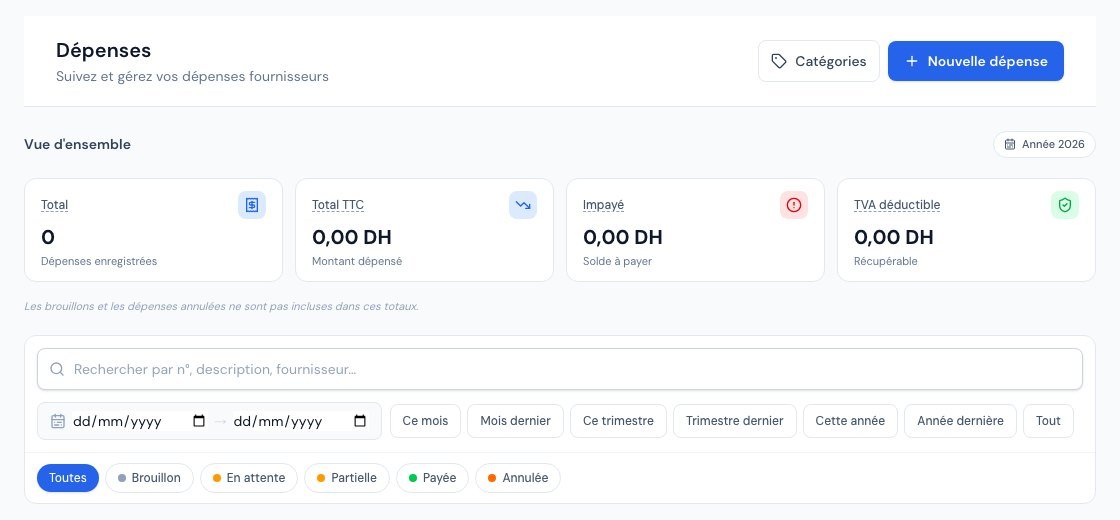 The expenses list.
| Field | Good to know |
|---|---|
| Description (required) | What you bought, for example "Achat matériel informatique" (Purchase of IT equipment). |
| Date de dépense (Expense date) (required) | Pre-filled with today's date. |
| Date d'échéance (Due date) | Payment deadline. If you choose a supplier who has a payment term, Billora suggests it for you (expense date + term), without ever overwriting a date you entered. |
| Catégorie (Category) (required) | Chosen from your list (see below). The first one is preselected. |
| Fournisseur (Supplier) | Type a few letters: a list of your active suppliers appears. The Nouveau fournisseur (New supplier) link lets you create one. |
| Référence / N° facture fournisseur (Reference / supplier invoice no.) | The number shown on the invoice received, for example "FAC-2026-001". |
| Montant TTC (DH) (Amount incl. tax) (required) | The total including all taxes, as written on the invoice. It must be greater than 0. |
| Taux de TVA (VAT rate) | Choose the rate on the invoice (20%, 14%, 10%, 7% or 0%). |
| TVA déductible (Deductible VAT) | Box ticked by default. Untick it if you cannot recover the VAT on this expense. |
| Notes | Free remarks. |
As soon as the amount incl. tax is entered, two boxes display the HT (excl. tax) and the TVA (VAT) calculated from the chosen rate. Check them: if they do not match your supplier's invoice, the selected rate is probably the wrong one.
Once saved, the expense receives an automatic number in the form DEP-2026-0001, and its detail page opens.
2. Expense statuses
A newly created expense is En attente (Pending). Its status then changes with the payments you record:
| Status | Meaning |
|---|---|
| Brouillon (Draft) | Unconfirmed expense. It is ignored by the aged balance and by the VAT report. |
| En attente (Pending) | Nothing has been paid yet. |
| Partielle (Partial) | Part has been paid; the balance remains due. |
| Payée (Paid) | The expense is fully settled. |
| Annulée (Cancelled) | The expense no longer counts: it can no longer be edited or paid. |
Depending on the screen, the badge may read "Partiel" or "Payé" (masculine form): it is the same status. The list offers a multi-choice status filter, a search ("Rechercher par n°, description, fournisseur…" (Search by no., description, supplier…)), a period, and four indicators at the top: Total, Total TTC, Impayé (Unpaid) and TVA déductible (Deductible VAT).
3. Categories
Categories are used to classify your expenses and analyse them in the expense report. When your account is created, Billora prepares a set (rent and charges, telecommunications, software, travel, fees, insurance, bank fees, taxes and duties…).
- On the Dépenses page, the Catégories (Categories) button opens the "Catégories de dépenses" (Expense categories) window: enter a name, choose a colour, then add. You can also rename a category ("Sauver" (Save)) or delete it.
- A category that already contains expenses cannot be deleted: Billora replies "Cette catégorie contient des dépenses et ne peut pas être supprimée" (This category contains expenses and cannot be deleted).
- The same categories can also be managed in Paramètres → Catégories (Settings → Categories), Dépenses tab.
4. Deductible VAT: why tick or untick?
When the TVA déductible box is ticked, the expense's VAT is deducted from the VAT you collect from your clients in the VAT report. When it is unticked, the expense appears as "non déductible" (non-deductible): its VAT is not recovered.
Under the "débit" (invoice-basis) regime, an expense's deductible VAT counts in the period of the expense date. Under the "encaissement" (cash-basis) regime, it counts in proportion to the payments made. See Setting up VAT.
5. Attach a receipt
An expense's detail page contains a Justificatifs (Receipts) block. Click Ajouter un document (Add a document) to upload the invoice received or a ticket (PDF or image file). Once a receipt has been added, the list offers Voir le justificatif (View the receipt) and the detail page a Justificatif tile to open it without leaving the page.
Expenses without a receipt can be found in Finding missing receipts.
6. Edit, duplicate, cancel, delete
- Modifier (Edit): possible as long as the expense is neither paid nor cancelled.
- Dupliquer (Duplicate): creates a new expense from this one, handy for a monthly rent or subscription.
- Annuler (Cancel) ("Annuler la dépense"): the expense remains visible but can no longer be edited or paid. On the list, this action only appears if a payment has already been recorded.
- Supprimer (Delete): permanent. Impossible for a paid expense ("Une dépense payée ne peut pas être supprimée" (A paid expense cannot be deleted)).
7. Record the payment
When you pay the supplier, open the expense then click Paiement (Payment) (or the Enregistrer un paiement (Record a payment) action in the list). Billora rejects an amount greater than the remaining balance. The rules specific to cash and cheque payments are explained in Recording a supplier payment and Recording a payment.
The owner and administrators. Viewers and external accountants can consult but not modify: the form shows them a read-only message.
Frequently asked questions
Should I enter the amount excl. tax or incl. tax?
Incl. tax. Billora derives the amount excl. tax and the VAT with the rate you choose.
Is the supplier mandatory?
No, but it is useful: it lets you find all of a supplier's expenses and suggests the due date automatically.
I made an error in the amount of an expense that is already paid.
A paid expense can no longer be edited. Contact your accountant for the correction to make, and see the payment options in the article on supplier payments.
Does a "Brouillon" (Draft) expense count in my reports?
No: drafts and cancelled expenses are excluded from the aged balance and the VAT report.
Can I create an expense from a purchase order?
Yes, when receiving the purchase order. See the next article.
Going further
Related articles
Was this article helpful?
Invoice compliantly, effortlessly
DGI-compliant invoices, quotes, credit notes, VAT and supplier tracking in a single tool.
Try it free