Browse help
Your client Atlas Distribution SARL has lost the invoice you sent them three months ago. Instead of sending it again, you give them the link to their portal: there they find all their invoices, their quotes (and can respond to them online), their credit notes and their payments, and can download the PDFs.
So that these documents are not opened by just anyone, the portal is protected by a personal login: an email address and a password. The link alone is no longer enough to get in. Each client creates their own access the first time.
Suppliers have an equivalent portal, with their purchase orders and a « Factures » (Invoices) tab (their invoices, that is, the expenses recorded on your side). Everything explained here also applies to them, with the supplier page instead of the client page.
1. Send the link to your client
- Open the client's page (Clients, then their name).
- In the right-hand column, find the « Portail client » (Client portal) block. It contains this client's portal link.
Under the link, the note "Accès au portail : Pas encore créé" (Portal access: Not created yet) indicates that the client has not yet created their access. - Click the « Copier le lien » (Copy the link) icon and send it to your client by email or message.
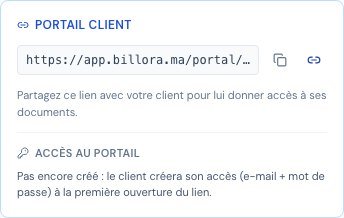 The Client portal block on the client page, before the access is created.
Each client has their own link, which only gives access to their documents. Do not publish it: it is meant for a single company.
2. The first visit: create your access
When your client opens the link for the first time, they see the « Créer votre accès » (Create your access) page: "Choisissez un e-mail et un mot de passe pour protéger l'accès à vos documents" (Choose an email and a password to protect access to your documents).
- They enter their email address. It may be different from the one on their page in your account: it is the one they will use to log in.
- They choose a password (8 characters minimum) and confirm it. The eye icon lets them show it to check what they typed.
- They click « Créer mon accès » (Create my access).
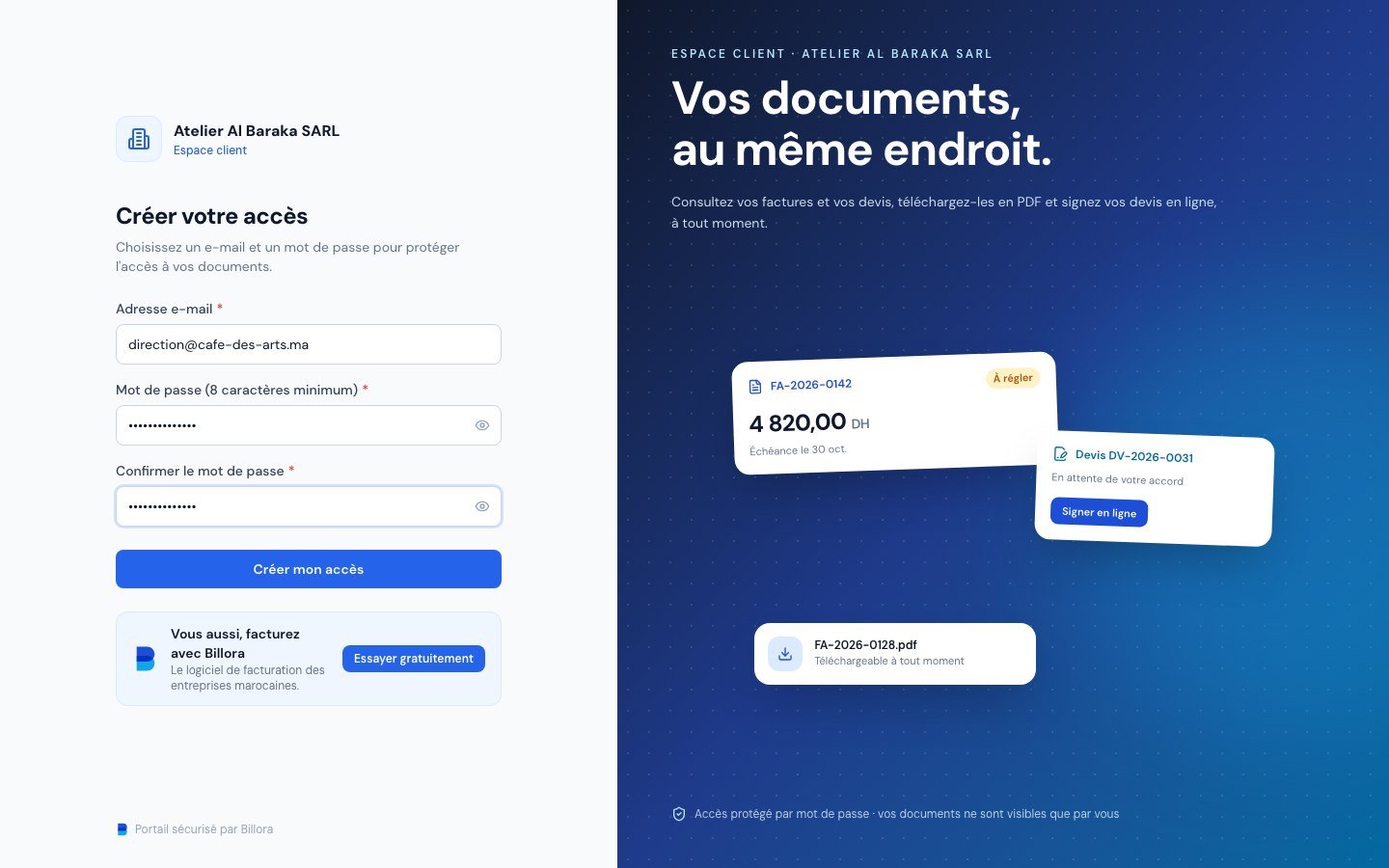 The Create your access page of the client portal.
One step remains: confirming their address. The « Confirmez votre adresse e-mail » (Confirm your email address) screen ("Dernière étape avant d'accéder à vos documents", Last step before accessing your documents) appears and an email is sent with a confirmation link. As soon as they click that link, they are logged in, even if they open it on another device.
- « Renvoyer l'e-mail » (Resend the email): possible after 60 seconds (the button shows a countdown).
- « Modifier l'adresse » (Change the address): in case of a typo in the address.
- The confirmation link is valid for 48 hours and can be used only once.
This guarantees that the email belongs to the person creating the access. Without it, someone who had the link could create an access with any address, including their own. As long as the address is not confirmed, the portal stays closed.
3. Next times: log in
Once the access is created, the same link opens the « Connexion » (Login) page. The client enters their email and password, then clicks « Se connecter » (Log in). They stay logged in for 30 days on that device.
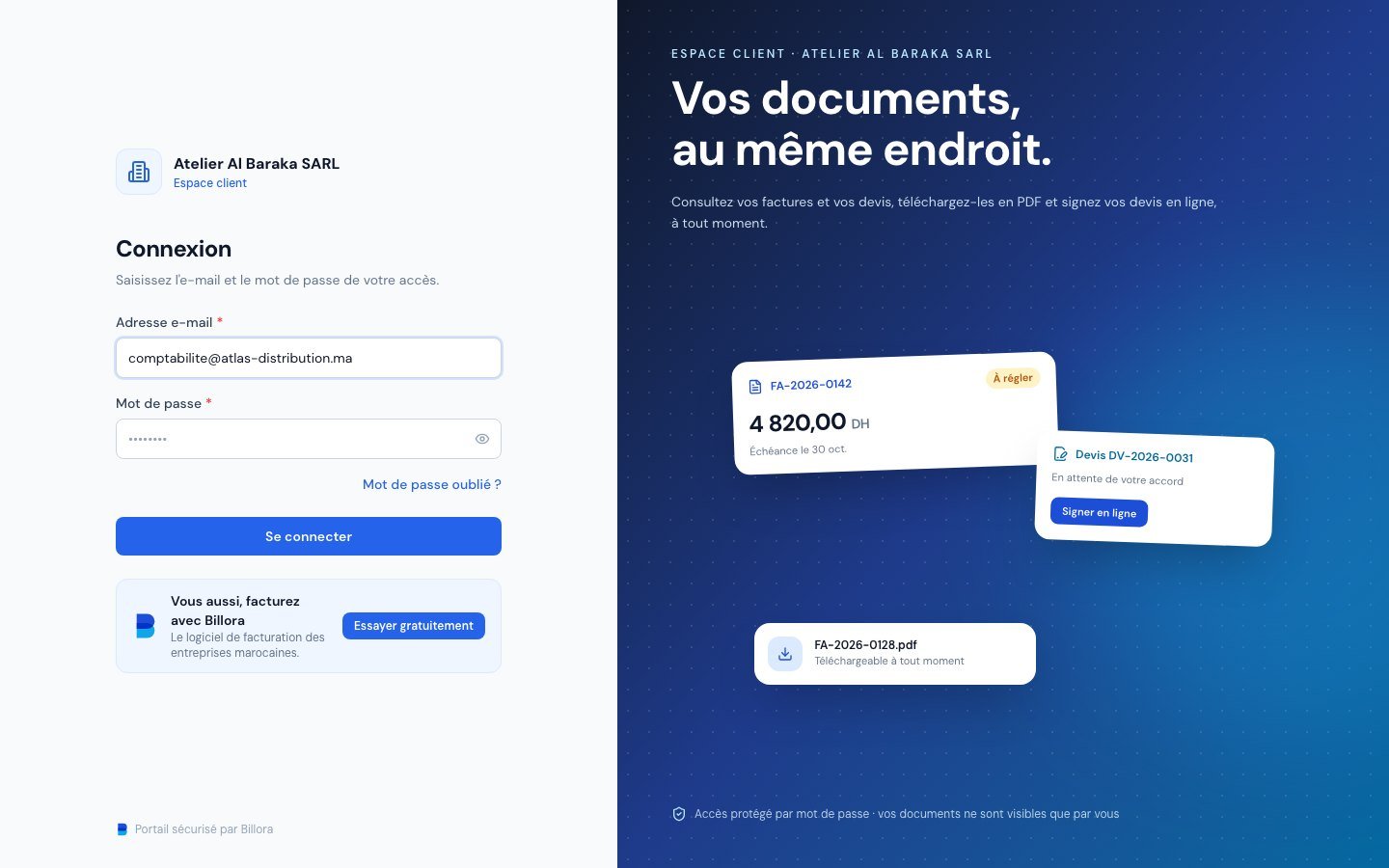 The client portal login page.
They then land on their dashboard: "Bonjour, Atlas Distribution SARL" (Hello, Atlas Distribution SARL), with their invoices to pay, and the sections Factures (Invoices), Devis (Quotes), Proforma, Avoirs (Credit notes) and Paiements (Payments).
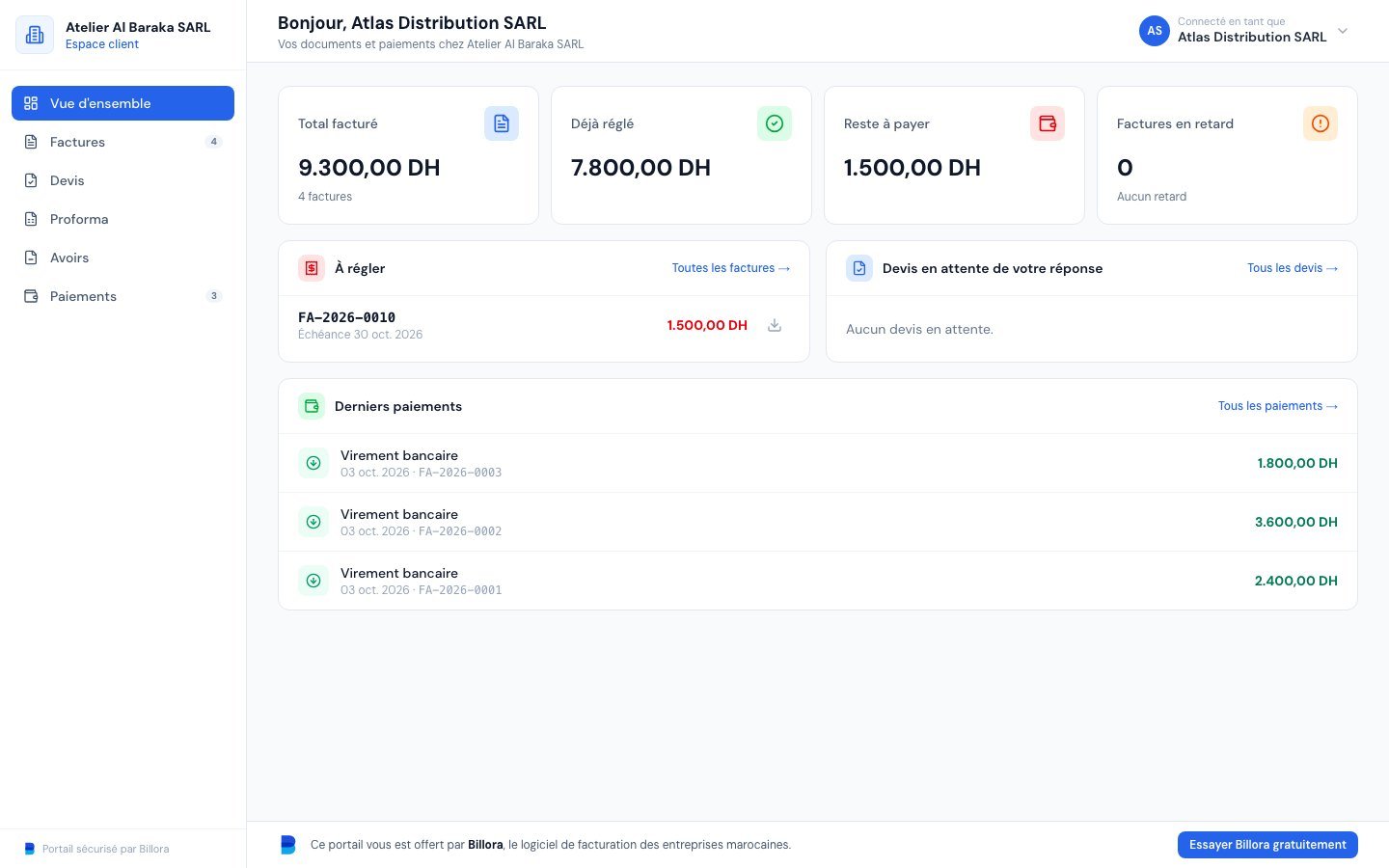 The client portal home page after logging in.
- In case of an error, the message is deliberately vague: "E-mail ou mot de passe incorrect" (Incorrect email or password). It never reveals whether the address exists.
- After too many attempts, a message "Trop de tentatives. Réessayez plus tard." (Too many attempts. Try again later.) protects the access for a while (after 10 attempts in 15 minutes).
- An anti-robot check may appear for a few seconds before logging in.
4. Forgotten password
- On the login page, the client clicks « Mot de passe oublié ? » (Forgot password?).
- They enter the email of their access and click « Envoyer le lien » (Send the link).
They see: "Si cette adresse correspond à l'accès de ce portail, un e-mail de réinitialisation vient d'être envoyé." (If this address matches this portal's access, a reset email has just been sent.) The message is the same whether the address exists or not, so as not to reveal anything to a snooper. - They open the email and click the link: the « Nouveau mot de passe » (New password) page opens. They enter their new password, confirm it and click « Enregistrer et me connecter » (Save and log me in).
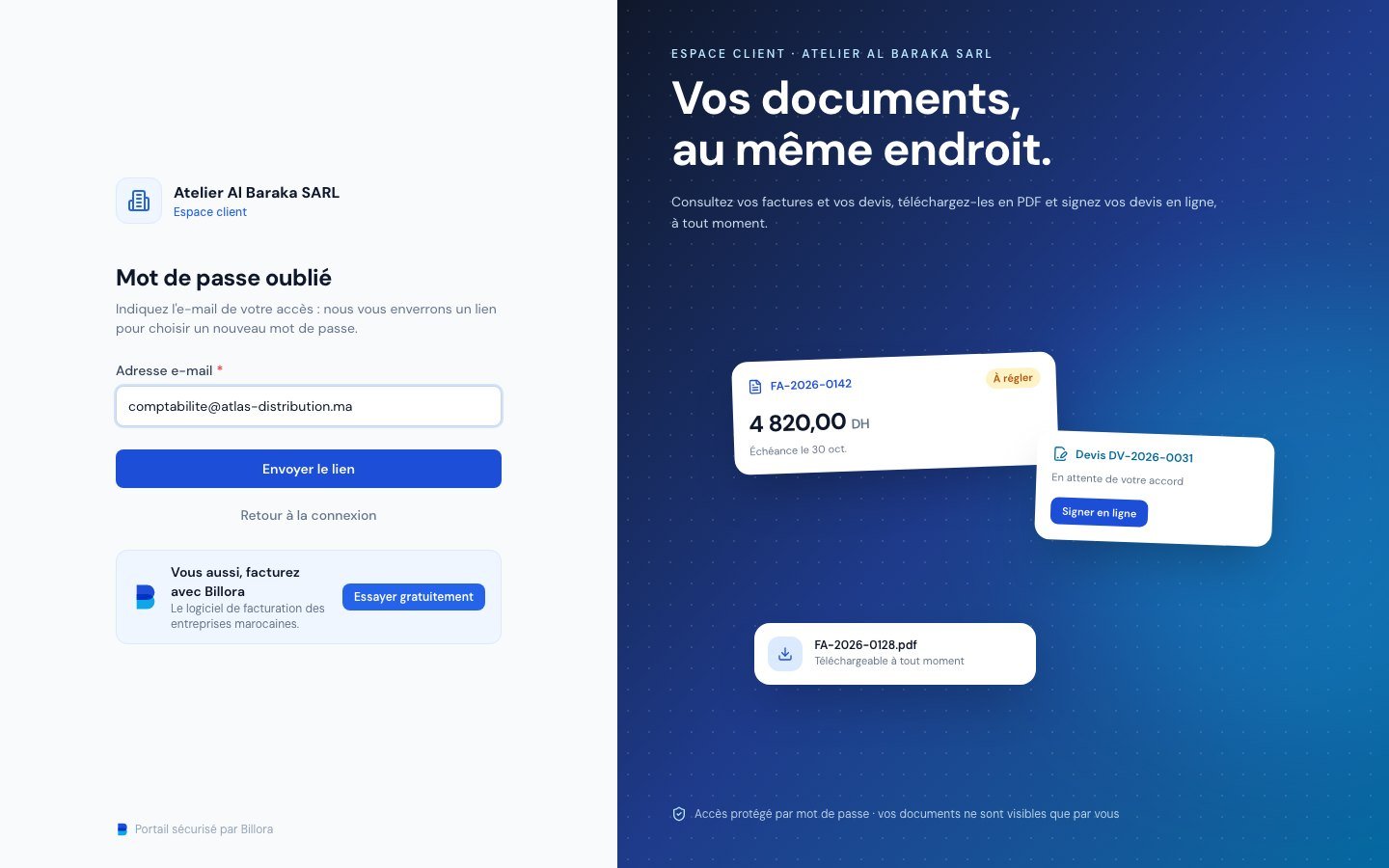 The Forgot password page of the portal.
The reset link is valid for 1 hour and can be used only once. If it has expired, the client sees "Lien invalide ou expiré. Refaites une demande de réinitialisation." (Invalid or expired link. Make a new reset request.) A new password cannot be one of those used recently. Clicking this link also confirms the email address.
5. Change your email or password
In the portal, the client opens the menu under their name (top right), then « Mon accès » (My access). There they can change their email address and password. To protect themselves, they must always enter their current password, then click « Enregistrer » (Save).
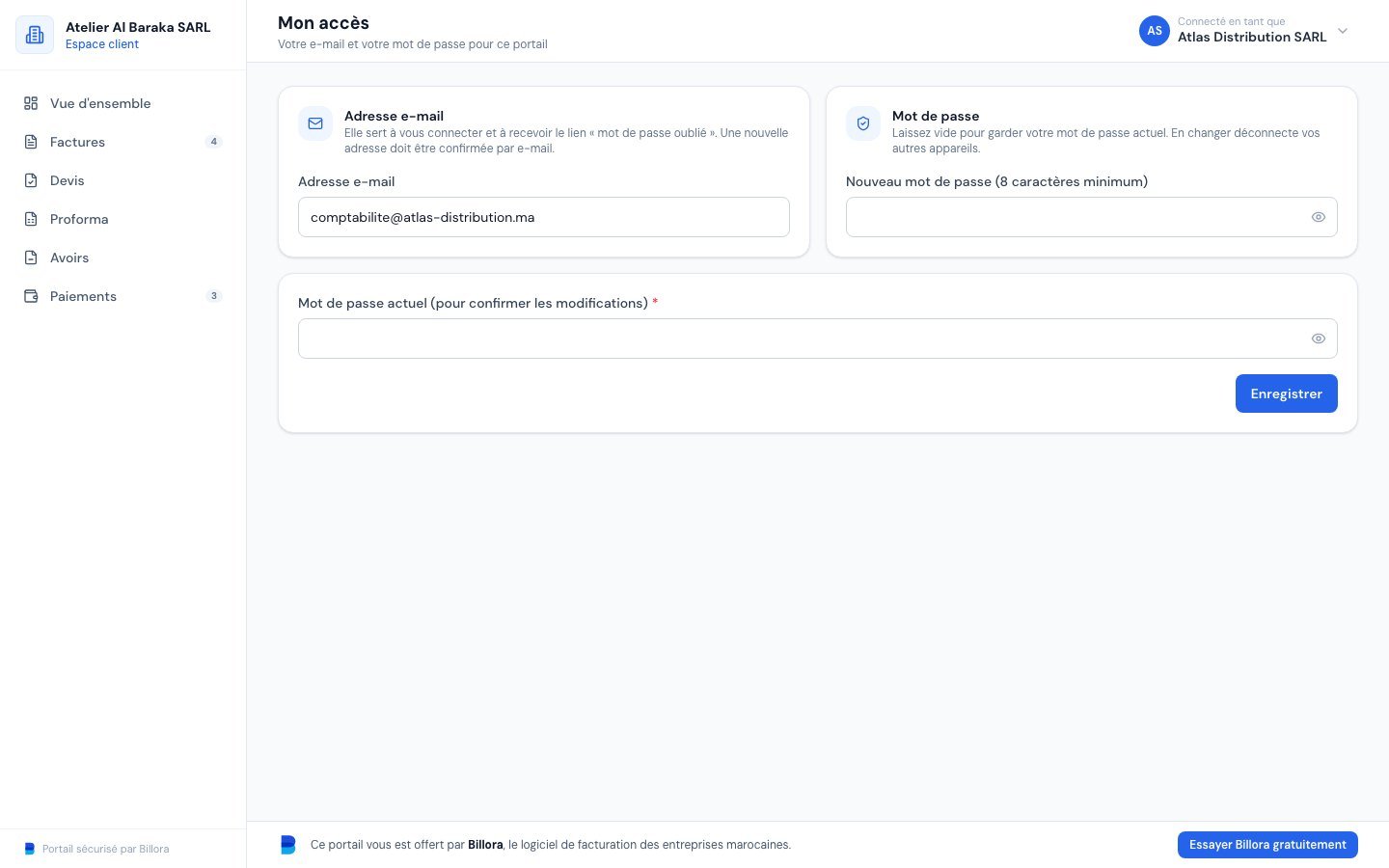 The My access page of the client portal.
- Changing the password logs out their other devices.
- A new address must be confirmed by email before it can be used.
6. Company side: see the access status and reset it
In the "Portail client" block of the page, the « Accès au portail » (Portal access) line tells you where your client stands:
- « Pas encore créé » (Not created yet): your client will create their access when they first open the link.
- « Créé le … par e-mail … , dernière connexion : … » (Created on … by email …, last login: …): the access exists. You can thus see whether they really use it.
- « Adresse e-mail pas encore confirmée » (Email address not yet confirmed): the client must click the link they received to access their documents.
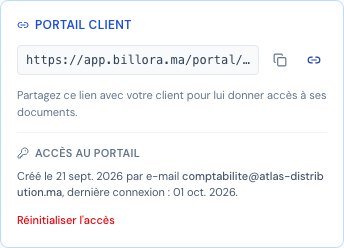 The portal access status on the client page, with the Reset access link.
The owner and administrators also see the « Réinitialiser l'accès » (Reset access) link. Use it when the client no longer has access to their mailbox, when the person has left the company, or when you suspect that the password is known to a third party.
- Click « Réinitialiser l'accès ».
- Confirm in the « Réinitialiser l'accès au portail » (Reset portal access) window by clicking « Réinitialiser » (Reset).
The client's email and password are deleted and all their sessions are closed. The next time they open the link, they will have to create a new access.
It does not delete any document: the client's invoices, quotes and payments remain intact. Only the personal access (email and password) is erased. The action is recorded in the activity log.
7. Place an order from the portal
If you turn on orders in Paramètres → Portail client (Settings → Client portal), a « Commander » (Order) tab appears in each client's portal: there they pick items from your catalogue (with or without your indicative prices excl. VAT), add a free line if needed, then send their request. You receive it in Demandes clients (Client requests) and convert it into a quote in one click. Everything is explained in Receive your clients' orders from their portal.
Frequently asked questions
My client says they do not receive the confirmation email.
Ask them to check their spam folder, then to click "Renvoyer l'e-mail" (after 60 seconds) or "Modifier l'adresse" if there is a typo. As a last resort, reset the access from their page: they will be able to start over.
My client has changed accountant: how do I remove their access?
Reset the access. The old email and the old password no longer work and all sessions are closed.
Can two people from the same company each have their own access?
No: there is one access per client. For several people to use it, they share the email and password, or the client chooses a group address (for example accounting@…).
Does the client need a Billora account?
No. They have nothing to install: a browser and their link are enough.
Can an archived client still open their portal?
No: an archived client's link is refused.
Next steps
Related articles
Was this article helpful?
Invoice compliantly, effortlessly
DGI-compliant invoices, quotes, credit notes, VAT and supplier tracking in a single tool.
Try it free