Browse help
The dashboard adapts to the way you work: you choose which blocks are displayed, their order and the part of the screen they sit in. These settings belong to your user account: they follow you from one device to another and change nothing for your colleagues. Every role can customise its dashboard, including the read-only accountant.
1. Rearrange the blocks by drag and drop
On a computer (with a mouse or a trackpad):
- Click Personnaliser (Customise) at the top of the dashboard. A « Personnaliser le tableau de bord » (Customise the dashboard) banner appears and each block gets a dotted outline, with its name in a label.
- Drag a block to its new place: a blue bar shows where it will land (before or after another block). You can drop it in the same part or in the other one (see section 3). The « Déposer à la fin » (Drop at the end) area puts the block last.
- To hide a block, click the crossed-out eye in its label (« Masquer ce bloc », Hide this block).
- Click Terminé (Done), or press Esc, to leave.
Each change is saved immediately: there is no « Save » button. While you customise, the content of the blocks is inactive: a click cannot open an invoice or send a reminder by mistake.
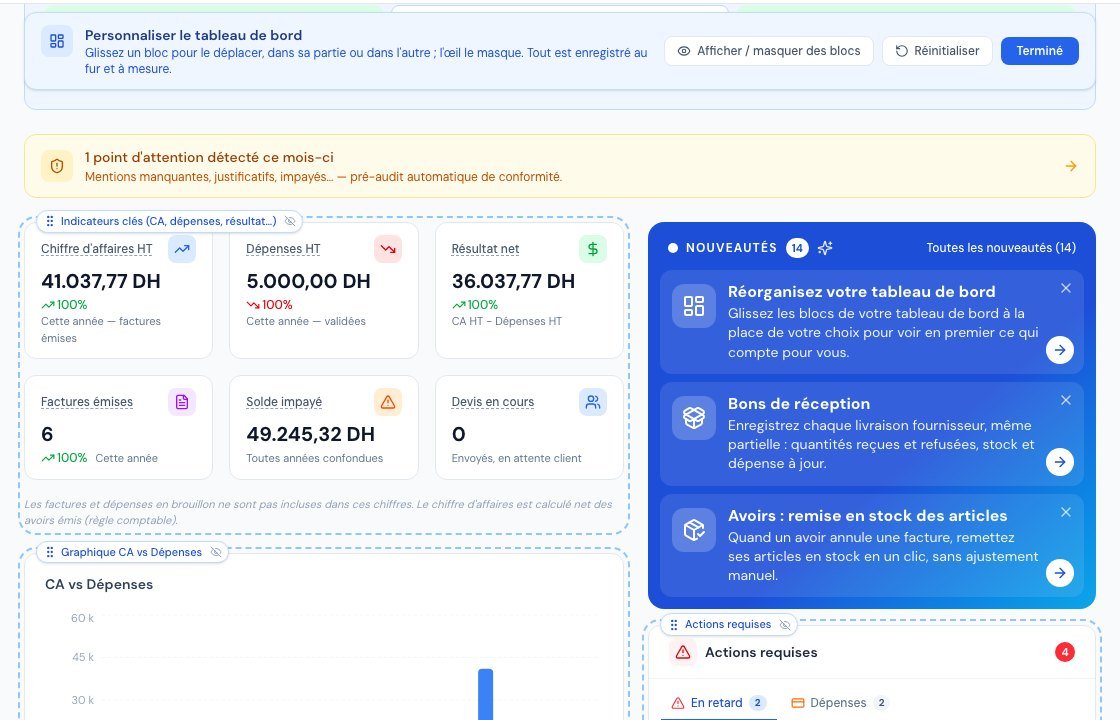 « Personnaliser » (Customise) mode: drag a block by its frame, the crossed-out eye hides it.
2. Show or hide blocks (and rearrange on a tablet or phone)
The list of all blocks opens with the Afficher / masquer des blocs (Show / hide blocks) button in the banner; it shows how many blocks are hidden. On a tablet or a phone, where drag and drop is not available, the Personnaliser button opens this list directly.
- Tick a block to show it, untick it to hide it. A hidden block can always be shown again.
- The Monter (Move up) and Descendre (Move down) arrows change the order of a block within its part.
- The ⇄ button sends the block to the end of the other part (« Déplacer vers la partie droite », Move to the right part, or « … vers la partie gauche », … to the left part).
- Réinitialiser (Reset) restores the original layout and shows all the blocks again.
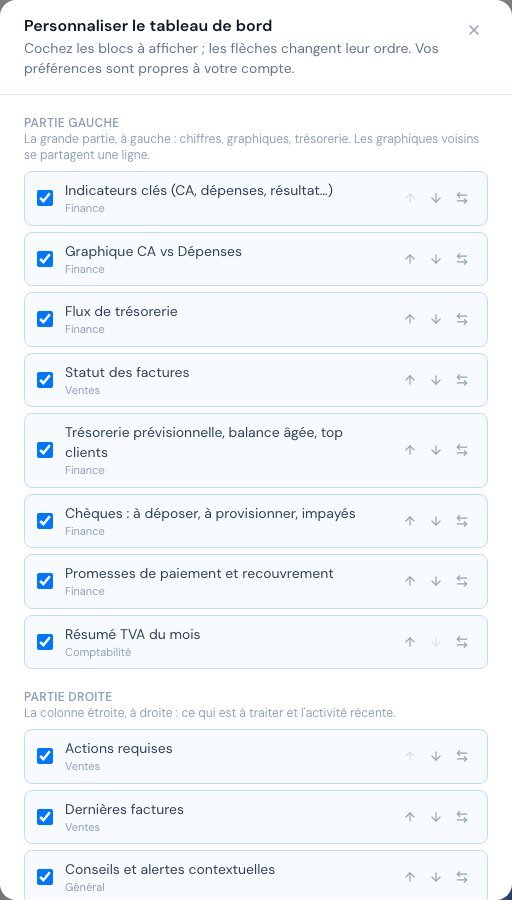 The list of blocks: tick boxes, order arrows and the ⇄ button to change part.
A block that depends on a feature not included in your subscription remains subject to your subscription, whatever this setting. Some elements cannot be customised and stay at the top of the page: the « Démarrez avec Billora » (Get started with Billora) list (until it is completed), the points of attention banner and the « Nouveautés » (What's new) card. E-invoicing (DGI) alerts are shown in tabs of the « Actions requises » (Required actions) block: if you hide this block, they are no longer visible on the dashboard.
3. The left part and the right part
- On a computer screen (from about 1,280 pixels wide), the dashboard has two parts: the wide left part and the right part, a narrow column of fixed width. By default, the left part holds the figures, the charts, cash flow and VAT, and the right part holds « Actions requises » (Required actions), « Dernières factures » (Latest invoices), « Conseils » (Tips) and « Activité récente » (Recent activity).
- On a smaller screen, the two parts are stacked: the first block of the left part, then the blocks of the right part, then the rest of the left part.
- In the left part, neighbouring charts share a line and widen when a block is hidden or moved, so that no gap is left. When « Chèques à suivre » (Cheques to follow up) or « Promesses et recouvrement » (Promises and collections) takes the full width, its list switches to two columns.
4. The period, including the quarter
The Cette année (This year), Année dernière (Last year), Ce trimestre (This quarter), Ce mois (This month) and Mois dernier (Last month) buttons filter the indicators. Next to them, choose a year then T1 to T4 (Q1 to Q4) for a specific quarter.
 The period buttons and the year selector with T1 to T4 (Q1 to Q4).
5. The decision-support widgets
| Widget | What it tells you |
|---|---|
| Trésorerie 30 jours (30-day cash flow) | What is due to come in and go out over the next 30 days, and the expected net balance. |
| Âge des créances clients (Age of customer receivables) | What your customers owe you, by age of lateness. |
| Chèques à suivre (Cheques to follow up) | Cheques to deposit, being cashed, to provision, recent bounced cheques and net cheque balance. It disappears if there is nothing to follow up. |
| Promesses et recouvrement (Promises and collections) | Promises due today, broken promises, upcoming promises, rate of promises kept, collection files to handle. |
| Top clients, Top débiteurs (Top customers, Top debtors) | Your best customers and those who owe you the most. |
Each row of a widget is a link: it opens the corresponding page already filtered (for example cheques issued due within 30 days, or broken promises).
On the charts, the axes show rounded amounts (« 550 k » for 550,000 DH, « 1,7 M » for 1,700,000 DH); hover over a bar or a point to see the exact amount.
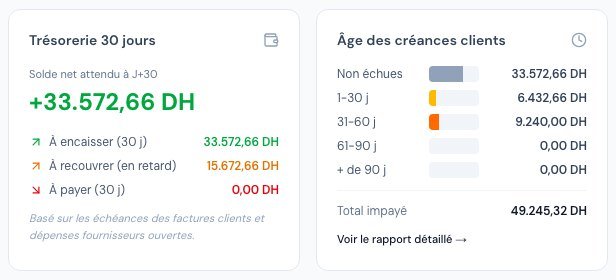 30-day cash flow and Age of customer receivables, side by side.
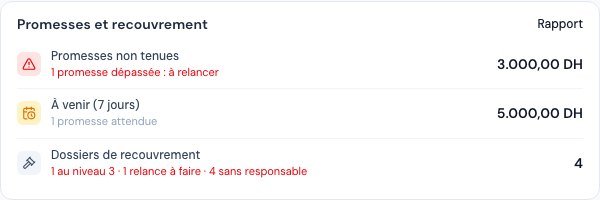 The « Promesses et recouvrement » (Promises and collections) widget.
Frequently asked questions
Do my colleagues see my layout?
No. Each user has their own layout; your settings follow you on all your devices but do not change the dashboard of the other team members.
A block has disappeared, how do I get it back?
It was probably hidden. Click Personnaliser, then Afficher / masquer des blocs (on a tablet or phone the list opens directly) and tick it. If it is ticked but still missing, it has nothing to show for now (for example « Chèques à suivre » with no cheque in progress) or it depends on a feature not included in your subscription.
I cannot drag the blocks on my tablet.
That is expected: drag and drop works with a mouse or a trackpad. On a tablet or phone, use the Monter / Descendre arrows and the ⇄ button of the list of blocks.
How do I go back to the original layout?
Click Réinitialiser (Reset), in the banner or in the list of blocks: the original order comes back and all the blocks are shown again.
I have the dashboard open in two tabs, which one wins?
The last change made. If you customise in one tab, reload the other before making further changes there.
Related articles
Was this article helpful?
Invoice compliantly, effortlessly
DGI-compliant invoices, quotes, credit notes, VAT and supplier tracking in a single tool.
Try it free