Browse help
What is it for?
When an employee pays an expense out of pocket (lunch with a client, fuel, a toll, supplies), they need to be reimbursed and the company must keep proof of the expense. An expense claim (« note de frais ») brings together the expense, its receipt (photo or PDF) and the decision of an approver. Once reimbursed, it automatically creates a « Payée » (paid) expense and a « effectué » (made) payment, with the receipt attached.
Example. Sara, a sales rep at Atlas Distribution in Rabat, pays 240 DH for fuel on the way to a client meeting. From her phone she photographs the receipt, enters the amount and submits the claim. Karim, the managing director, gets the notification, approves it, then reimburses it by bank transfer: the expense and the payment appear in the accounts, receipt included.
Expense claims depend on your subscription: if they are not included, the menu shows from which plan they are available. The number of claims created per month may also be limited by your subscription. See Understanding plans and limits.
1. Who can do what?
| Action | Who |
|---|---|
| Enter and submit your own claims (menu Mes notes) | Owner, administrator, collaborator and viewer. The external accountant does not have this access. |
| See the team's claims (tabs À approuver, À rembourser, Toutes) | All roles, including the read-only accountant. Other members' drafts stay private: nobody sees them before they are submitted. |
| Approve or Refuse a claim | Owner and administrator by default; a collaborator can be given this right through a permission group (« Notes de frais (équipe) » → « Approuver / refuser »). |
| Reimburse an approved claim | Owner and administrator by default (« Notes de frais (équipe) » → « Rembourser » in a group). |
- No self-approval: nobody, not even the owner, can approve or refuse their own claim; another approver must decide. Only exception: when no other member can approve (sole entrepreneur), they can decide their own claim so it does not stay blocked.
- For an employee who should see nothing else, create a group containing only « Mes notes de frais » → « Saisir et soumettre »: the member only sees their own claims. Custom groups depend on your subscription.
- The designated approver (optional, chosen by the requester) is the only one notified, but is not exclusive: any member who has the right to approve can decide.
2. Enter an expense claim
- Open Notes de frais (menu Facturation). If you can only enter claims, the menu takes you straight to Mes notes de frais.
- Click Nouvelle note (or Nouvelle note de frais in « Mes notes »).
- Fill in the form:
- Date de la dépense (never in the future), Catégorie and Libellé (what you spent) are required; Commerçant is optional.
- Montant TTC (DH) and Taux de TVA: the VAT included is shown for information, the server always recalculates it.
- Approbateur (optional): choose who should be notified first.
- Client à refacturer (optional): offered only if you have the right to list clients. It is informational; no invoice is created automatically.
- Remarques (optional).
- Attach the receipt with Ajouter une photo ou un PDF (see below), then click Enregistrer le brouillon or go straight to Soumettre pour approbation.
- A draft can be edited (Modifier button) or deleted (Supprimer) as long as it has not been submitted. It has no number yet.
- Receipts: photo (JPEG, PNG, WEBP, HEIC, GIF) or PDF, at most 5 MB per file and 10 receipts per claim. Photos are scaled down to stay readable without using too much storage.
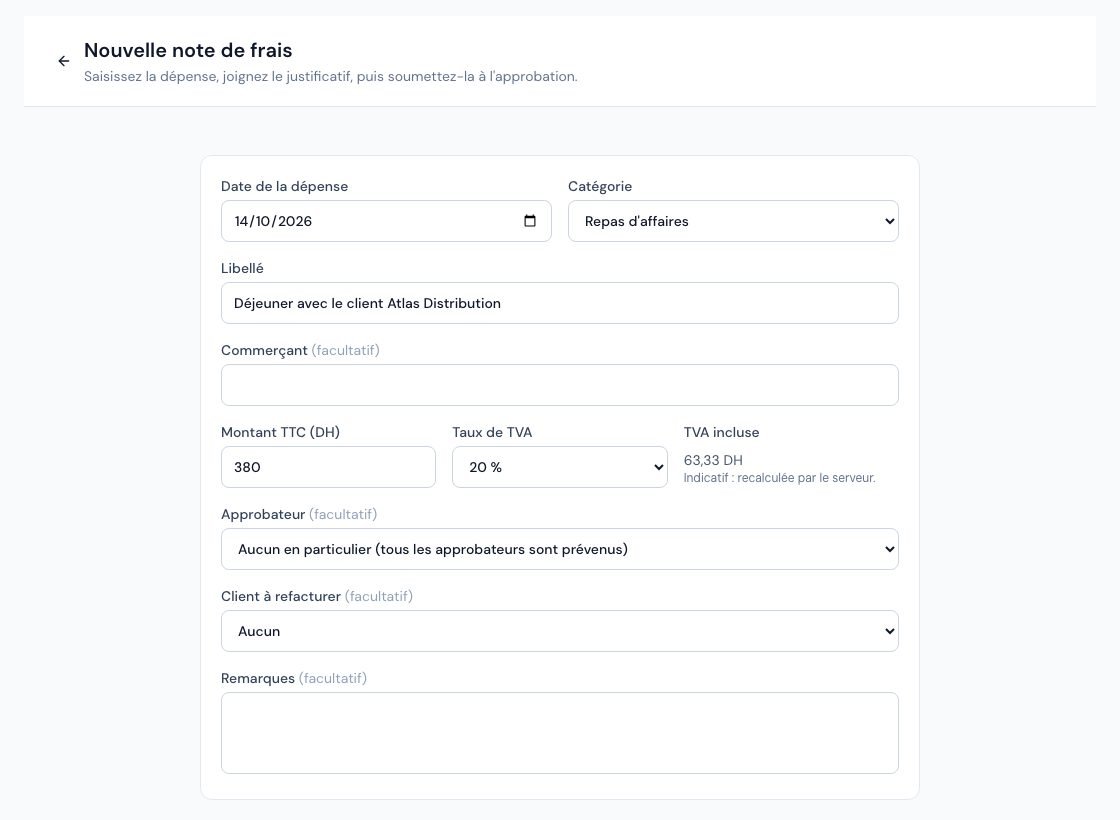 The Nouvelle note de frais form filled in: date, category, label and amount.
3. Submit the claim
Click Soumettre from the draft, then confirm. The receipt is mandatory: without it, Billora answers « Joignez au moins un justificatif (photo ou PDF) avant de soumettre la note de frais » (attach at least one receipt, photo or PDF, before submitting).
- The claim then gets its number for example NF-2026-0001 (prefix, year, then sequence number; the NF prefix can be changed in Settings → Numbering). The number is assigned at the first submission and never changes, even if the claim is withdrawn, refused and reopened.
- Approvers are notified in the notification centre and by e-mail (« Note de frais à approuver »). If you are the only approver, nobody else is notified.
- As long as the claim has not been decided, you can click Retirer: it goes back to draft so you can correct it and submit it again.
4. Statuses
| Status | Meaning |
|---|---|
| Brouillon (draft) | Being entered, visible to you only. Can be edited and deleted. |
| Soumise (submitted) | Waiting for an approver's decision. |
| Approuvée (approved) | Accepted (possibly for a lower amount); still to be reimbursed. |
| Refusée (refused) | Rejected with a reason. The requester can click Rouvrir en brouillon to correct it (the number is kept) and submit it again. |
| Remboursée (reimbursed) | Paid to the requester: the expense and the payment exist. The claim can no longer be edited. |
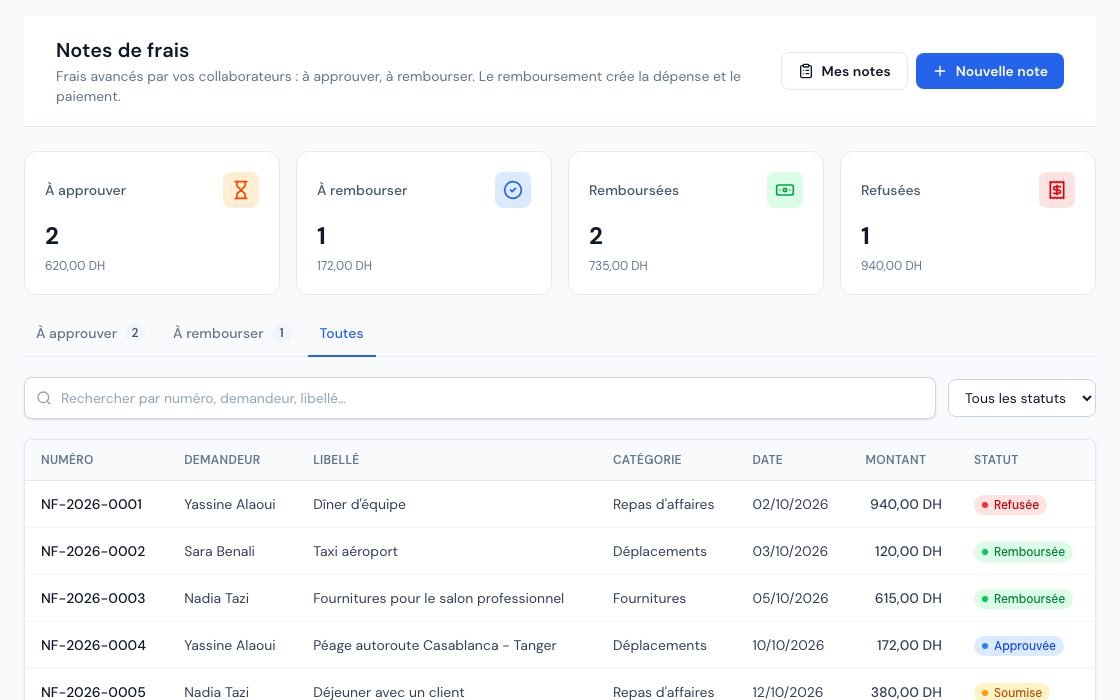 The Notes de frais page with the À approuver, À rembourser, Remboursées and Refusées counters.
5. Approve or refuse
In Notes de frais, the À approuver tab lists submitted claims (a badge in the menu shows how many). Open a claim: you see the requester, the amount, the VAT, the receipts and the follow-up.
Approve
Click Approuver:
- Montant approuvé (TTC, DH): equal to the requested amount by default; you can lower it, never exceed it (« Le montant approuvé ne peut pas dépasser le montant demandé »). The VAT is recalculated on this amount.
- Catégorie de la dépense: correct it if the requester made a mistake (on the web).
- TVA déductible: unchecked by default. Deducting VAT generally requires an invoice issued in the company's name (with its ICE): a simple till receipt is not enough. Have this validated by your accountant.
Refuse
Click Refuser and enter the Motif du refus (3 to 500 characters). The reason is communicated to the requester, who can reopen the claim as a draft.
In both cases the requester receives a notification and an e-mail.
6. Reimburse
In the À rembourser tab, open the approved claim and click Rembourser. Enter the Date du paiement (never in the future), the Moyen de paiement (Virement, Espèces, Carte or Autre) and, if you wish, a Référence.
In a single operation, Billora:
- sets the claim to Remboursée;
- creates a « Payée » expense (DEP-… number), without supplier, for the approved amount, in the claim's category, with the calculated VAT and the deductible or non-deductible flag;
- creates a « effectué » payment linked to that expense (visible in Paiements → Effectués);
- attaches the receipts to the expense: they remain viewable from the claim and from the expense, and count for missing receipts.
- The reimbursement counts toward the monthly expense limit of your subscription: if it is reached, the reimbursement is refused (« Limite atteinte … dépenses ce mois-ci ») and the claim stays approved.
- The expense and the payment created cannot be deleted or cancelled separately: Billora answers « … provient du remboursement de la note de frais … ». Cheque is not offered as a reimbursement method.
- The cash payment ceiling check is not applied to this operation: for a large amount, have the payment method validated by your accountant.
7. On the mobile app
Under Plus → Notes de frais, the app offers the same screens: Mes notes, then À approuver, À rembourser and Toutes if you can list the team's claims.
- The + button opens the entry screen, which starts with the receipt: Prendre une photo (camera), Photothèque or Fichier (PDF). The camera asks for your permission the first time.
- « Brouillon » saves without submitting, « Soumettre » sends the claim. If a receipt fails to upload, the claim is kept as a draft: reopen it to try again.
- The claim page offers actions according to your role (Soumettre, Retirer, Rouvrir, Approuver, Refuser, Rembourser). On mobile, the reimbursement date is chosen between « Aujourd'hui » and « Hier ».
8. Special cases
- Account scheduled for deletion: claims remain viewable but no action is possible (read-only).
- Subscription no longer includes expense claims: the module is locked, data is kept and included in the account export. It becomes accessible again if the subscription includes it again.
- Two people act at the same time (for example two clicks on « Approuver »): only one decision is recorded, the other gets « Cette note de frais a changé d'état entre-temps. Rechargez la page. » (this claim changed state in the meantime, reload the page).
- Category: an expense category used by an expense claim cannot be deleted.
- Every step (creation, submission, decision, reimbursement, receipts) is recorded in the activity log.
Frequently asked questions
I am a viewer: can I really enter an expense claim?
Yes. A viewer is read-only on company data, but can enter and submit their own claims. They only see the other members' claims once submitted.
Can my accountant approve or enter claims?
No. The external accountant views submitted or decided claims read-only; they do not enter, approve or reimburse.
Why does my claim have no number?
The number (NF-… by default) is assigned only at the first submission. A draft has none, and a deleted draft uses up no number.
Where do I find the expense after reimbursement?
On the claim page (« Dépense créée »), in the Dépenses list (status « Payée »), and the payment under Paiements → Effectués.
Can I reimburse a different amount from the request?
Yes, by lowering the amount at approval: the reimbursement is for the approved amount.
Next steps
Related articles
Was this article helpful?
Invoice compliantly, effortlessly
DGI-compliant invoices, quotes, credit notes, VAT and supplier tracking in a single tool.
Try it free