Browse help
What is it for?
The five roles (owner, administrator, collaborator, accountant, reader) suit most teams. When they are not enough, a permission group lets you decide exactly what a member can do: for example create and send quotes, without seeing payments or deleting an invoice.
Example. Karim runs a distribution company in Tangier. His salesperson must prepare quotes and look up clients, but must neither record payments nor touch the settings. Karim creates a “Commercial” group, ticks the actions he wants and assigns it to the salesperson in two clicks.
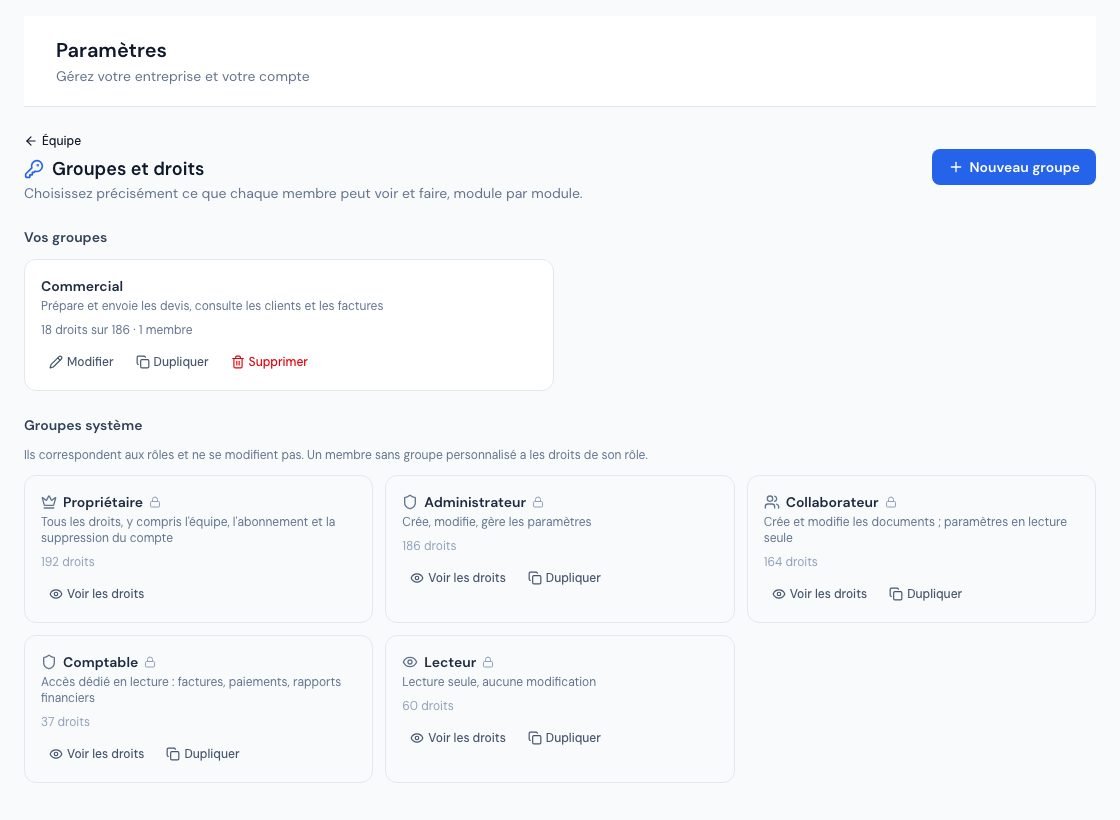 The Groupes et droits page with a custom group and the system groups.
Only the owner creates, edits, deletes and assigns groups. Custom permission groups depend on your subscription: if they are not included, the page shows from which plan they are available, and the number of groups may be limited by your subscription.
1. Create a group
- Go to Paramètres → Membres (Settings → Members), then click Groupes et droits (Groups and rights, at the top of the member list).
- Click Nouveau groupe (New group) to start from scratch, or Dupliquer (Duplicate) under a system group (for example Collaborateur) to start from its rights and remove only a few.
- Enter the Nom du groupe (group name, required and unique within your company) and, if you wish, a Description.
- Tick the rights (see the next section), then click Enregistrer (Save).
- The Groupes système (system groups) match the roles: they cannot be edited. Voir les droits (View rights) shows exactly what they contain.
- If the limit message appears, the number of groups allowed by your subscription has been reached: see Understanding plans and limits.
2. Choose the rights, module by module
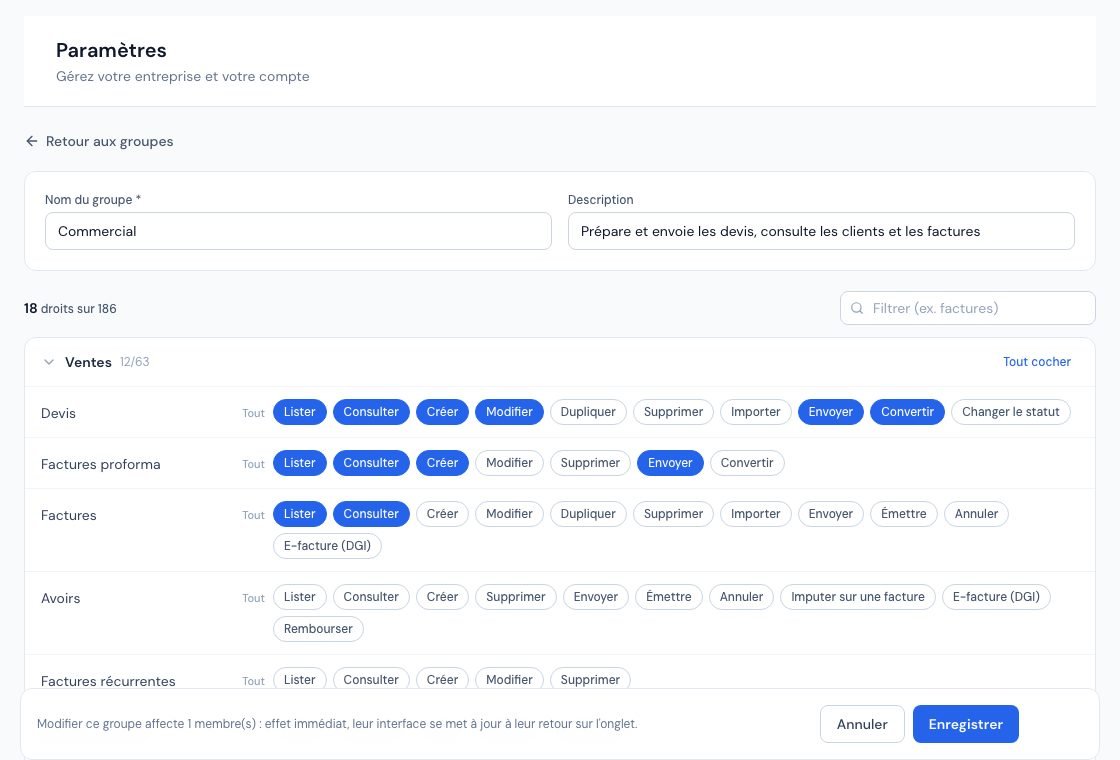 The group editor with the Ventes module open and its actions ticked.
Rights are grouped by module: Ventes (Sales), Achats (Purchases), Clients et fournisseurs, Catalogue et stock, Finance, Pilotage (Insights), Paramètres et compte (Settings and account) and Support. Each row is a type of data (quotes, invoices, payments…) and each pill an action: Lister (List), Consulter (View), Créer (Create), Modifier (Edit), Supprimer (Delete), Envoyer (Send), Convertir (Convert)… A blue pill is granted.
- Tout cocher / Tout décocher (tick all / untick all) acts on a whole module; Tout / Aucun (all / none) on a row.
- The Filtrer (ex. factures) field finds a row quickly; the counter shows how many rights are granted.
- Automatic dependencies: ticking an action (for example Modifier an invoice) also ticks Consulter and Lister, otherwise the action could not be used. Unticking Consulter removes the actions that depend on it; unticking Lister clears the whole row.
- Form pick lists: ticking Créer (Create) or Modifier (Edit) on a document also ticks Lister for what its form lets you choose (for example clients, products, units and responsible persons for an invoice; suppliers for a purchase order). The member can then pick a client without being able to open their record. Unticking one of these lists unticks the actions that need it.
- Lister gives access to the list and the menu; Consulter opens a document and its PDF.
- Remember Tableau de bord (dashboard, Pilotage module): without it, the member lands on a simple home page offering the modules they can open.
Some pills are greyed out with a padlock (“Réservé au propriétaire”, reserved for the owner): managing members and permission groups, suspending or deleting the account, activating the account, and the e-invoicing certificate or activation. They can never be granted to a group.
The Achats module contains two rows for expense claims: Mes notes de frais (action « Saisir et soumettre »: the member only manages their own claims) and Notes de frais (équipe) (« Lister », « Consulter », « Approuver / refuser », « Rembourser »). An « Employee » group that only ticks « Saisir et soumettre » gives access to no team list.
3. Assign a group to a member
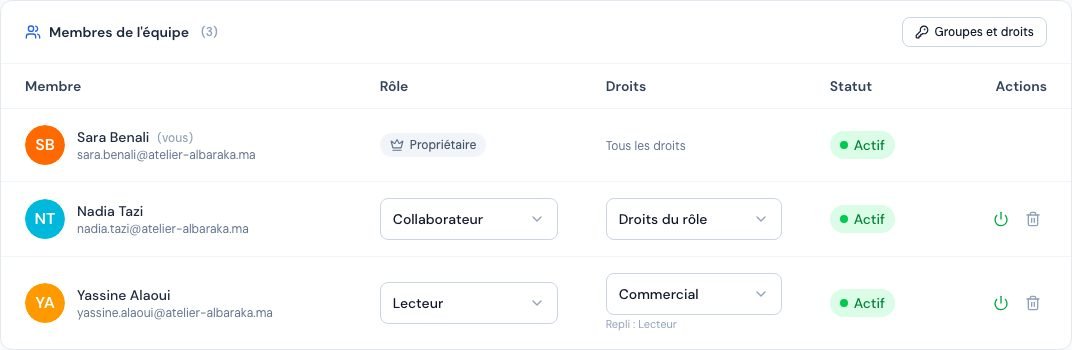 The member list with the Droits column and the assigned group.
- In Paramètres → Membres, find the member in the list.
- In the Droits (Rights) column, choose the group from the drop-down list. Droits du rôle (rights of the role) gives the member back the rights of their role.
The member is notified by email (“Vos droits d'accès : …”). Under the drop-down list, Repli : Lecteur (for example) shows the member's fallback role: these are the rights that apply if the group stops applying (see below). To change the fallback, change the role in the Rôle column.
- The owner always has every right: they never receive a group and cannot lock themselves out.
- The external accountant keeps their dedicated read-only access: they cannot receive a custom group.
4. When do the new rights apply?
Immediately on the server: from their next action, the member is allowed or refused according to the group. Their menu and buttons update as soon as they come back to the Billora tab or reload the page. A refused action shows “Permissions insuffisantes” (insufficient permissions).
Editing a group applies to all its members: the bottom of the editor shows how many members are affected before you save.
5. Edit, duplicate or delete a group
- Modifier (Edit): reopens the editor; change the name, description or rights, then Enregistrer.
- Dupliquer (Duplicate): creates a copy (“… (copie)”) to adjust, without touching the original.
- Supprimer (Delete): after confirmation, the group disappears and its members get back the rights of their role. No member is deleted.
6. What if my subscription no longer includes groups?
Nothing is lost: your groups and their assignments are kept, marked Inactif (inactive), and each member gets back the rights of their fallback role (the member's row shows “Inactif — droits du rôle … appliqués”). Groups apply again automatically as soon as your subscription includes them. You can still view their rights or delete them.
7. In the mobile app
The app applies exactly the same rights as the web. The owner can assign an existing group there: in Équipe (Team), tap Droits on the member's card, then choose the group or Droits du rôle. Groups are created and edited on the web.
8. Tracking in the activity log
Every creation, change or deletion of a group and every change of a member's group is recorded in the activity log (“Groupe de droits créé”, “Groupe de droits modifié”, “Groupe de droits supprimé”).
Frequently asked questions
Can a member belong to several groups?
No, one group per member. Create a group that brings together all the rights needed (duplicating an existing group if useful).
Can a group give more rights than the member's role?
Yes: a reader placed in a group that allows creating quotes can create quotes. The group prevails while it applies; the role is only a fallback.
The member does not see a menu although I ticked the right.
Check that Lister is ticked for that row and that the feature itself is included in your subscription. Then ask them to reload the page.
Can I let a member manage the team?
No, managing members and groups stays with the owner.
Next steps
Related articles
Was this article helpful?
Invoice compliantly, effortlessly
DGI-compliant invoices, quotes, credit notes, VAT and supplier tracking in a single tool.
Try it free