Browse help
What is it for?
For an expense claim, you usually copy the date, the merchant, the amount including VAT and the VAT rate from your receipt by hand. With Scanner le ticket (Scan the receipt), a photo of the receipt (in the mobile app) or its image or PDF (on the web) is enough: Billora reads the receipt and pre-fills these fields. The scanned receipt is also added to the claim's supporting documents. You check, fill in the description and the category, then save or submit the claim as usual.
Example. Salma, a sales rep at a distribution company in Casablanca, has lunch with a client. At the restaurant, she opens a new expense claim on her phone, taps Scanner le ticket and takes a photo of the bill: the date, the restaurant's name, 245.00 DH and the 10% VAT appear, and the photo is attached. She picks the category, types « Déjeuner client » and submits.
The scan only suggests values. Every pre-filled field carries the note « lu automatiquement — à vérifier » (read automatically — to be checked) until you edit it. A field Billora could not read stays empty: no value is ever invented. The description and the category are never filled in by the scan.
Who can use it?
- Anyone who can enter their own expense claims: the Saisir et soumettre (Enter and submit) right of the Mes notes de frais (My expense claims) module (see Expense claims: enter, get approved and reimburse).
- Depending on your subscription: expense claims must be included, as well as receipt scanning. If scanning is not included, the button is greyed out with a padlock and shows « Cette fonctionnalité est disponible à partir du plan … » (the plan name depends on the current configuration).
- A number of scans per month may be limited by your subscription. Once the limit is reached, the button shows « Limite de … scans de justificatifs atteinte ce mois-ci » and manual entry is still possible. See Understanding plans and limits.
1. Scan a receipt
The button sits at the top of the form of a draft expense claim: a new claim, or a draft being edited.
- Open Notes de frais (Expense claims), then Nouvelle note (New claim) — on mobile: new expense claim.
- Click Scanner le ticket.
- On the web: choose a JPEG, PNG, WEBP or PDF file (8 MB at most).
- On mobile: choose Prendre une photo (Take a photo), Photothèque (Photo library) or Fichier (PDF) (File (PDF)).
- Wait while « Lecture du ticket… » (Reading the receipt…) is shown (a few seconds).
- Review the pre-filled fields: Date de la dépense (Expense date), Commerçant (Merchant), Montant TTC (DH) (Amount incl. VAT) and Taux de TVA (VAT rate). Correct what needs correcting.
- Fill in the description and the category, then click Enregistrer le brouillon (Save draft) or Soumettre pour approbation (Submit for approval) — on mobile: Brouillon or Soumettre.
Photograph the whole receipt, flat, well lit and sharp, without folds or glare. Printed receipts (restaurant, fuel, toll, shop) are usually read well; a very faded or crumpled receipt less so.
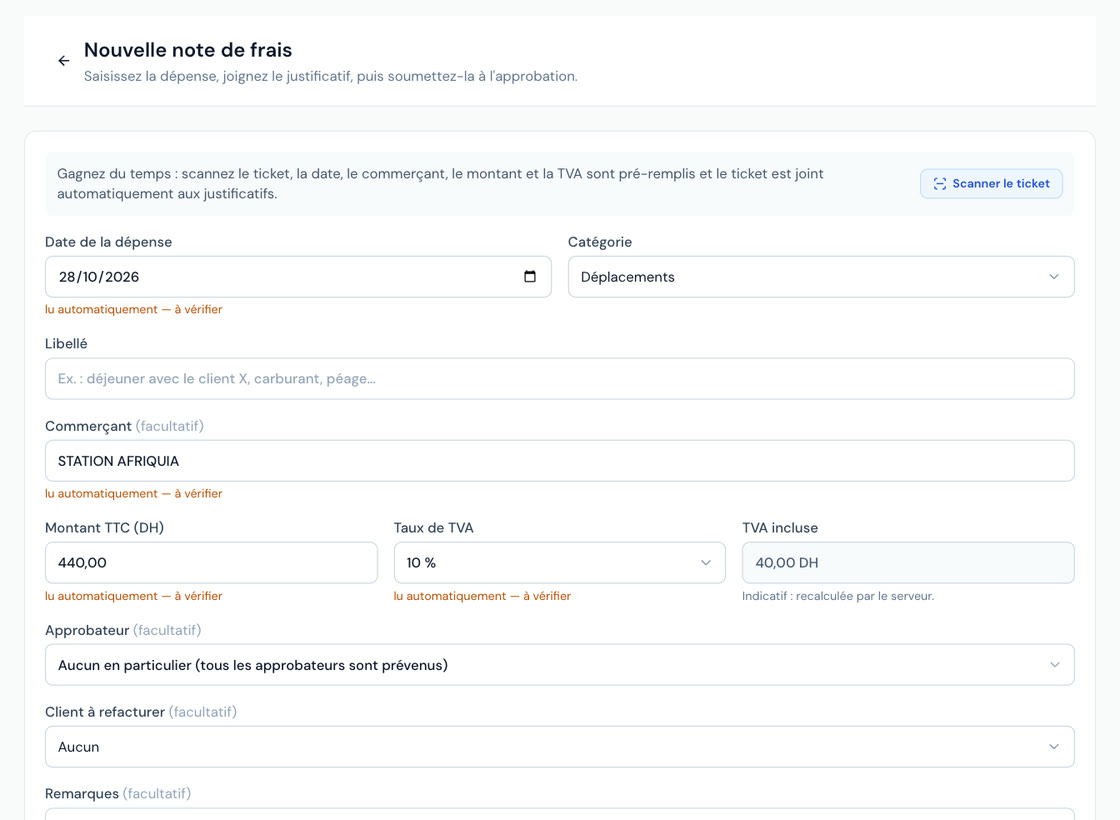 A new expense claim form pre-filled by scanning a fuel receipt: date, merchant, amount incl. VAT and VAT flagged « lu automatiquement — à vérifier », category chosen, description still to enter.
2. What to check
- Inconsistent total: if the total incl. VAT read does not match the printed excl. VAT amount + VAT, a warning is shown: « Le total TTC lu (…) ne correspond pas au HT + TVA lus (…) ». Check the amount.
- Several VAT rates: on a receipt with mixed rates (for example 20% and 7%), the rate is not taken over: « Le ticket comporte plusieurs taux de TVA (…) ». Choose it yourself, or make one claim per rate.
- Unusual rate: a rate read that is not one of the rates offered (20, 14, 10, 7 or 0%) is not taken over and the message says so.
- Date in the future: it is not taken over (an expense claim cannot be dated in the future); enter the date of the receipt.
- Field not read: the message « Champ non lu : … » (Field not read) lists what remains to be entered by hand.
- Image without a receipt: « Aucun ticket ni facture reconnu sur cette image » (No receipt or invoice recognised in this image) — nothing is pre-filled; retake the photo or enter the fields.
The VAT shown remains indicative: Billora always recalculates it from the amount incl. VAT and the rate chosen.
3. The receipt becomes the supporting document
After a successful scan, the file is added to the Justificatifs à joindre (Supporting documents to attach) list — on mobile: Justificatifs. It is only sent when the claim is saved, like a document added by hand, and then counts towards your storage space (see Files and storage). You can remove it from the list before saving; a supporting document is still required to submit the claim.
On the web, each document in the list is shown as a thumbnail (a preview for a photo, an icon for a PDF): click it to view it full size before saving; the bin removes it. The Ajouter une photo ou un PDF (Add a photo or a PDF) button attaches other documents (a second receipt, an invoice) without reading them.
If you leave without saving, Billora keeps neither the image nor the values read. The receipt's details are never written to the activity log; only the fact that a scan took place appears there.
Common errors
- « Les photos HEIC ne sont pas prises en charge » (HEIC photos are not supported): on iPhone, set the camera to the « Le plus compatible » (Most Compatible) format, or send a screenshot of the photo. From the mobile app, the photo is already sent in the right format.
- « Le moteur de lecture actuel ne lit que des images » (The current reading engine only reads images): PDF is not accepted in this configuration; send a photo or an image of the receipt.
- « La lecture automatique des justificatifs n'est pas disponible pour le moment » (Automatic reading is not available for now): the reading service is not responding. Enter the fields by hand; the scan is not counted against your quota.
- « Trop de scans en peu de temps » (Too many scans in a short time): wait a few minutes before trying again.
Frequently asked questions
Does the scan submit the claim on its own?
No. It pre-fills the form and adds the receipt to the supporting documents; you check, fill in the description and the category, then save or submit.
Can I scan an invoice as a PDF?
Yes on the web and through the Fichier (PDF) option on mobile, when the reading configuration allows it. Only the first page is read.
The amount read is wrong, what should I do?
Simply correct it in the Montant TTC field before saving: the value read is only a suggestion. The « à vérifier » note disappears as soon as you edit the field.
Is scanning available for company expenses?
Not yet: it is available for expense claims. Expenses are still entered by hand.
Why do I see “Attention: the usual reading service is not responding”?
The service that usually reads your receipts was temporarily unavailable, so Billora read the receipt with a less accurate backup engine. Check every field before saving or submitting the claim. If the Scan the receipt button no longer appears at all, automatic reading is paused for now: enter the fields by hand.
Next steps
Related articles
Was this article helpful?
Invoice compliantly, effortlessly
DGI-compliant invoices, quotes, credit notes, VAT and supplier tracking in a single tool.
Try it free