Browse help
How does the electronic signature of a quote work?
Your client opens their client area (the portal whose link appears in your emails), picks a sent quote and signs it online. To confirm their identity, they receive a 6-digit code by email. Once the code is entered and the signature drawn, the quote moves to the « Accepté » (Accepted) status and your client receives the signed PDF by email.
The feature is available depending on your subscription, with a number of signatures per month. If it is not included, or if the monthly quota is reached, your client accepts the quote as before, with a simple drawn signature (no code and no evidence file). Your client is never blocked: they can always accept or decline the quote.
There is nothing more for you to do: send the quote as usual (see Creating your first quote); online signing is offered to your client in their area.
How does your client reach the quote to sign?
The quote is signed in the client area, which is always protected by an email and a password: the link alone is not enough.
- Your client clicks the link to their client area received with the quote (by email or WhatsApp). When electronic signature is included in your subscription, the quote email (and the reminder email) shows the « Signez votre devis en ligne » (Sign your quote online) box with the « Consulter et signer le devis → » (View and sign the quote) button.
- The first time, the « Créer votre accès » (Create your access) screen appears: they enter their « Adresse e-mail » (email address), choose a password of at least 8 characters, confirm it, then click « Créer mon accès » (Create my access).
- The « Confirmez votre adresse e-mail » (Confirm your email address) screen appears and an email is sent with a confirmation link, valid for 48 hours. Once the link is opened, they click « J'ai confirmé, accéder à mes documents » (I have confirmed, access my documents). If nothing arrived, they can click « Renvoyer l'e-mail » (Resend the email) or « Modifier l'adresse » (Change the address).
- The following times, the « Connexion » (Sign in) screen asks for their email and password (« Se connecter » button).
Sending the link through another channel (SMS, messaging app): on the page of a sent, non-expired quote, the « Lien de signature » (Signature link) panel offers « Copier le lien de signature » (Copy the signature link). If your client does not have a link to their area yet, the « Créer le lien de signature » (Create the signature link) button creates it. This panel only appears if electronic signature is included in your subscription and your role allows sending quotes.
Email template: the default « Envoi de devis » (Quote sending) template adds a sentence about online signing (variable {{phrase_signature}}, empty if the feature is not included). A template you have customised is not changed: add the variable to it if you wish. The « Signez votre devis en ligne » box is added whatever the template, as soon as your client has a link to their client area.
The email address of the client area access and the address that receives the signature code can be different: the code is sent to the address entered in the signature form. Details about the access (forgotten password, reset by you) are in The client portal.
What are the steps for your client?
- In the « Devis » (Quotes) tab of their client area, they click the signature icon (« Signer / Répondre », Sign / Respond) of a quote that has been sent and is still valid.
- The « Signer électroniquement le devis » (Sign the quote electronically) panel opens. They enter their « Nom complet » (full name, required), their « Fonction (facultatif) » (job title, optional) and their « Adresse e-mail » (email address, prefilled with the email of their client record, editable).
- They tick the acceptance box. Its exact French text reads: « J'ai lu le devis n° … d'un montant de … TTC et je l'accepte. Je reconnais que ma signature électronique, confirmée par le code reçu à l'adresse …, vaut acceptation de ce devis. » (I have read quote no. … for an amount of … incl. VAT and I accept it. I acknowledge that my electronic signature, confirmed by the code received at …, constitutes acceptance of this quote.) This text is kept as is in the evidence file.
- They click « Recevoir le code par e-mail » (Receive the code by email). The email « Code de signature : devis n° … » (Signature code: quote no. …) is sent to the address entered. It is sent by Billora, with the sender name « {your business name} via Billora »; if your client replies, the reply goes to the reply-to address of your emails (or, failing that, to your business email). Even if you have set up your own sending server (SMTP), the code never goes through it: only your client receives it, you cannot see it.
- They can open « Lire le document à signer » (Read the document to sign): it is exactly the PDF that will be signed. Its SHA-256 fingerprint is displayed.
- They draw their signature in the box, with a finger or the mouse (« Effacer », Clear, to start the drawing again).
- They enter the « Code reçu par e-mail » (code received by email) and click « Signer le devis » (Sign the quote).
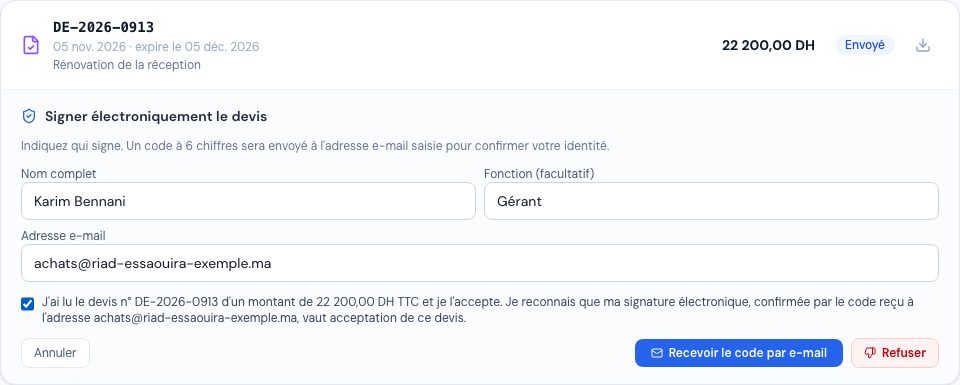 The portal panel to sign the quote electronically, with the name, the email and the acceptance box.
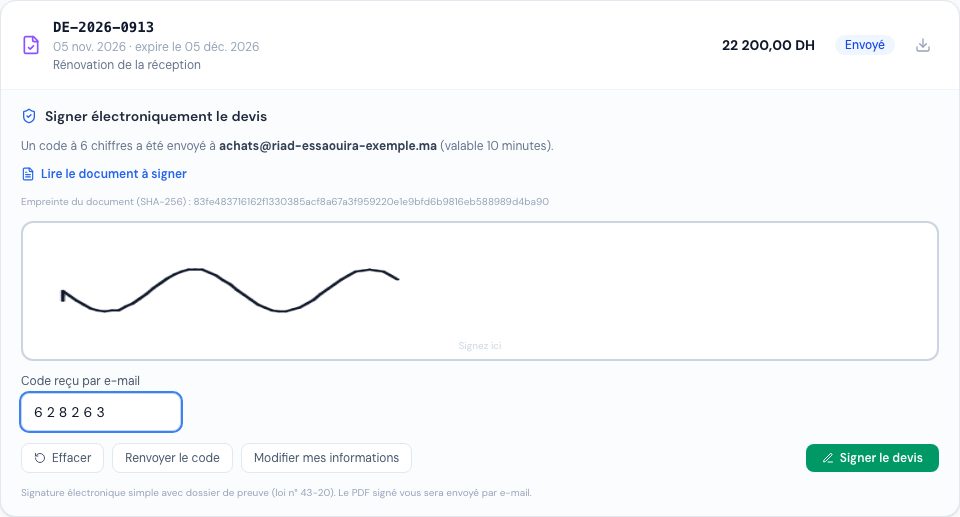 The signature step with the link to the document, the fingerprint, the drawn signature and the code received by email.
They can also click « Renvoyer le code » (Resend the code) or « Modifier mes informations » (Edit my details). The « Refuser » (Decline) button remains available as long as the quote is not signed.
| Code rule | Value |
|---|---|
| Format | 6 digits |
| Validity | 10 minutes |
| Attempts | 5 wrong codes at most per signature (resending does not reset the counter) |
| Sends | 3 at most per signature, first send included |
| Delay between two sends | 1 minute |
Messages your client may see:
- « Code incorrect. » (Wrong code.)
- « Le code a expiré. Demandez un nouveau code. » (The code has expired. Request a new code.)
- « Trop de codes erronés. Recommencez la signature pour recevoir un nouveau code. » (Too many wrong codes. Start the signature again to receive a new code.)
- « Nombre maximal d'envois atteint. Recommencez la signature. » (Maximum number of sends reached. Start the signature again.)
- « Patientez une minute avant de demander un nouveau code. » (Wait one minute before requesting a new code.)
- « Cette demande de signature n'est plus valable. Recommencez la signature. » (This signature request is no longer valid. Start the signature again.)
"Start the signature again" means: go back to the form, check the details and click « Recevoir le code par e-mail » again. A signature request started and not completed is deleted after 24 hours.
What happens after the signature?
- The quote moves to « Accepté »; you receive the notification « Devis … signé électroniquement par … » (Quote … signed electronically by …, with the quote number and the signer's name), which says the signed PDF is available on the quote page.
- Your client receives the email « Devis n° … signé » (Quote no. … signed), from the same sender as the code (« {your business name} via Billora »), with two attachments: the signed PDF and the presented document, i.e. the exact PDF they read before signing (its SHA-256 fingerprint appears in the email and on the signature certificate, so they can check it). In their client area, the quote line shows « Signé électroniquement le … » (Signed electronically on …) with the « PDF signé » (Signed PDF) link.
- On the quote page, the « Signé électroniquement » panel shows the signer, the email verified by code, the date and time, the truncated IP address, the document fingerprint (copyable), the sealing status and the « PDF signé » button.
 The quote signed electronically in the portal, with the signed PDF link.
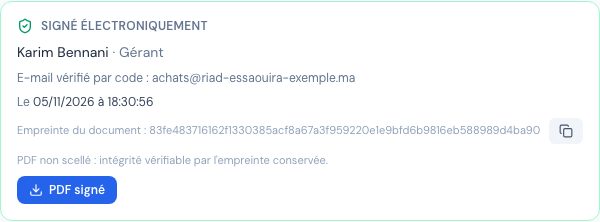 The Signed electronically panel of the quote page with the signer, the fingerprint and the signed PDF button.
The usual PDF of the quote remains available and shows the drawn signature in the « Bon pour accord » (Approved) box. The signed PDF is a separate file, with its certificate: that is the one to keep as evidence.
What does the signed PDF contain?
The signed PDF reproduces exactly the pages of the quote shown to your client (they are not regenerated; the presented file is kept as is in the evidence file with its SHA-256 fingerprint), followed by a « Certificat de signature électronique » (Electronic signature certificate) page. This page shows:
- Document: quote number, issue date, total incl. VAT, issuer and its ICE, SHA-256 fingerprint of the document shown;
- Signer: declared name and job title, verified email address, date and time the code was entered, drawn signature;
- Signature: date and time (Morocco time and UTC), truncated IP address, browser, accepted consent text, sealing;
- the evidence file number, the statement of the signature level (law no. 43-20) and a note on the timestamp (Billora server clock, not a qualified timestamp).
Sealed or not sealed PDF: what is the difference?
Sealing adds to the signed PDF a PAdES cryptographic signature made with your business's certificate. A PDF reader that checks signatures then reports any later change to the file.
| Sealed PDF | Not sealed PDF | |
|---|---|---|
| When? | A signing certificate is imported for your business at the time of the signature. | No certificate imported, or the certificate cannot be used. |
| Quote page panel | « PDF scellé avec le certificat de votre entreprise. » (PDF sealed with your business's certificate.) | « PDF non scellé : intégrité vérifiable par l'empreinte conservée. » (PDF not sealed: integrity can be checked with the stored fingerprint.) |
| « Scellement » (Sealing) line of the certificate | « PDF scellé (PAdES) avec le certificat de l'émetteur » (PDF sealed (PAdES) with the issuer's certificate) | « Non scellé : intégrité vérifiable par l'empreinte conservée par Billora » (Not sealed: integrity can be checked with the fingerprint stored by Billora) |
| Checking integrity | With the PDF reader, and with the SHA-256 fingerprint. | With the SHA-256 fingerprint stored in the evidence file. |
Your client's signature is never blocked by sealing: without a certificate, or if sealing fails, the quote is signed normally and the signature certificate says « Non scellé » (never a false claim).
On the page of a quote whose signed PDF is not sealed, the owner sees the hint « Scellez vos PDF signés : téléversez votre certificat dans Paramètres › Facturation électronique » (Seal your signed PDFs: upload your certificate in Settings › Electronic invoicing), which leads to that page.
To seal your next signed PDFs, the account owner imports the certificate in Paramètres → Facturation électronique (Settings → Electronic invoicing), step « Certificat de signature électronique » (Electronic signature certificate), button « Importer un certificat P12/PFX » (Import a P12/PFX certificate). It is the same certificate as for electronic invoicing. As long as this page shows « Facturation électronique désactivée pour l'instant » (Electronic invoicing disabled for now), the import is not offered there and your signed PDFs are not sealed. A quote already signed is not sealed afterwards: only later signatures are. See Activating e-invoicing in Billora.
What is this signature worth legally?
It is a simple electronic signature within the meaning of Moroccan law no. 43-20 on trust services for electronic transactions, with an evidence file (who signed, which document, when, with which verified email address). It is not a qualified electronic signature: Billora is not an accredited trust service provider and the timestamp comes from our servers' clock. Sealing with your business's certificate protects the integrity of the file; it does not change this level. For a high-stakes contract, have the appropriate signature level validated by your legal adviser.
What if I edit the quote during the signature?
When your client clicks « Recevoir le code par e-mail », the quote is frozen for this signature. If you then change its content (lines, amounts, dates, subject, terms, visible notes, client order reference, description hidden on the PDF, client) before they sign, the signature is refused with the message: « Le devis a été modifié par le prestataire depuis votre lecture. Recommencez la signature sur la nouvelle version. » (The quote was changed by the provider since you read it. Start the signature again on the new version.) The panel goes back to the form: your client reads the new version and starts again. Resending the quote or sending a reminder, without changing its content, does not cancel the signature in progress.
Can a quote signed electronically be edited or deleted?
No. A quote signed electronically is frozen, on the website and in the mobile app, because its evidence file must match the signed document.
- Deletion refused: « Ce devis a été signé électroniquement par votre client : il ne peut pas être supprimé, son dossier de preuve doit être conservé. » (This quote was signed electronically by your client: it cannot be deleted, its evidence file must be kept.)
- Editing refused when saving: « Ce devis a été signé électroniquement par votre client : son contenu, son client et son statut ne peuvent plus être modifiés (seules les notes internes restent modifiables). Pour proposer d'autres conditions, dupliquez-le. » (This quote was signed electronically by your client: its content, client and status can no longer be changed (only internal notes remain editable). To offer other terms, duplicate it.)
- Status change refused: « Ce devis a été signé électroniquement par votre client : son statut ne peut plus être modifié. » (This quote was signed electronically by your client: its status can no longer be changed.)
What remains possible: editing the internal notes, downloading the signed PDF, converting the quote into an invoice and duplicating it. To offer other terms, click « Dupliquer » (Duplicate): you get a new draft, to send and have signed in turn (see Duplicating an invoice or a quote).
Who can do what?
| Action | Who (default rights) |
|---|---|
| Sign the quote | Your client, from their client area (no Billora account). |
| See the « Signé électroniquement » panel and download the signed PDF | Members who have access to quotes: owner, administrator, collaborator and viewer. The accountant has no access to quotes. |
| Send, convert or duplicate the quote; « Copier le lien de signature » | Owner, administrator and collaborator. |
| Import the certificate that seals signed PDFs | The owner only. |
| Electronic signature included and number of signatures per month | Depending on your subscription. |
If your business uses custom permission groups, they apply (see Team roles and access).
Frequently asked questions
My client did not receive the code. What should they do?
They should check their spam folder and the address entered, then click « Renvoyer le code » (one minute between two sends, three sends at most). If the address was wrong, « Modifier mes informations » lets them correct it and start again.
My client entered a wrong code five times.
They see « Trop de codes erronés. Recommencez la signature pour recevoir un nouveau code. » The panel goes back to the form: they click « Recevoir le code par e-mail » again.
My client does not see the signature button.
The quote must have the « Envoyé » (Sent) status and must not be expired. A draft does not appear in the client area and an expired quote can no longer be signed: extend its expiry date or send a new quote.
My client sees « La signature électronique n'est pas disponible pour ce devis ».
(The electronic signature is not available for this quote.) Electronic signature is no longer included in your subscription, or the monthly quota has just been reached. The page reloads: your client can then accept the quote with their drawn signature.
My signed PDF says « Non scellé ». Is that a problem?
The signature stays at the same level (simple electronic signature) and integrity is checked with the stored SHA-256 fingerprint. To seal your next signed PDFs, import your business's certificate (see "Sealed or not sealed PDF: what is the difference?").
Can I delete a quote signed electronically?
No. The message shown is: « Ce devis a été signé électroniquement par votre client : il ne peut pas être supprimé, son dossier de preuve doit être conservé. » (This quote was signed electronically by your client: it cannot be deleted, its evidence file must be kept.)
How do I offer another price after the signature?
Duplicate the quote, edit the new draft and send it: your client will sign it in turn. The signed quote stays untouched.
Is my client's full IP address stored?
No, only a truncated address (for an IPv4 address, the last number is replaced by 0) and the browser used. Abandoned signature requests are deleted after 24 hours.
Is the evidence file included in my account export?
Yes: the export contains the file « dossiers-de-preuve.json » and, for each signed quote, the signed PDF and the document shown.
Can I still view the evidence file if my subscription changes?
Yes. Quotes already signed keep their « Signé électroniquement » panel and their signed PDF; only new signatures depend on your subscription.
Related articles
Was this article helpful?
Invoice compliantly, effortlessly
DGI-compliant invoices, quotes, credit notes, VAT and supplier tracking in a single tool.
Try it free